
The IDMS system supports self-service when a user needs to reset their PIN using the process outlined below. The system will reset the PIN and store the reset history for reporting to support maintenance and audit needs.
Prerequisites
Required Permissions include both: Role Definitions
-
CredentialManager
-
CMS Issuer role
-
Ensure you have installed the latest version of the PivIT browser plug in (version 1.10.2222 or greater). This is required for the card unlock feature to be available.
-
Once update is completed, ensure this extension is turned on within your browser. Installing the PivIT Browser Plugin
-
A device must be first assigned to a user before the PIN can be reset.
How to Reset a Device
The following procedures list how to reset a device with the IDMS Web Client.
|
Item |
Procedure |
Example |
|---|---|---|
|
1 |
Authenticate to IDMS with an operator possessing the CredentialManager permissions. |
|
|
2 |
Click the Devices link and click Device Assistant. |

|
|
3 |
When asked, insert the assigned credential into a reader. Note: the device must first be assigned for this process to work. |
|
|
4 |
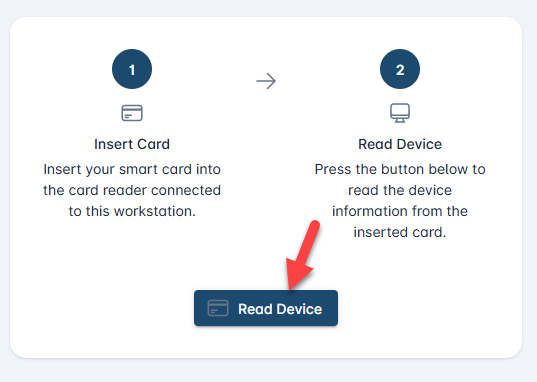
Press the Read Device button. |
|
|
5 |
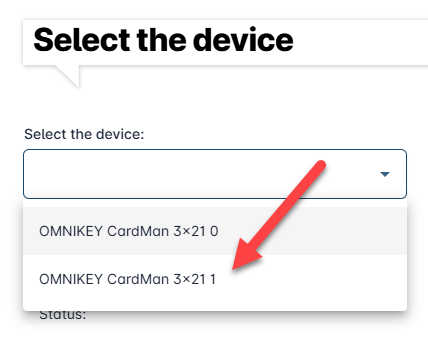
Select the reader that the locked device is inserted to. |
|
|
6 |
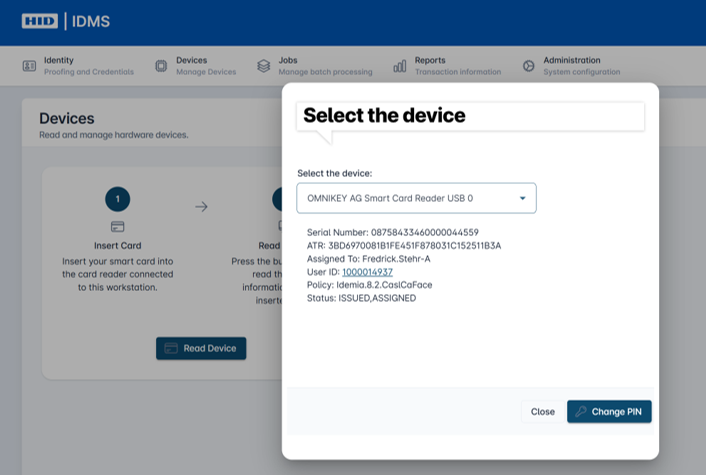
Press the Change PIN button.
|
|
|
7 |
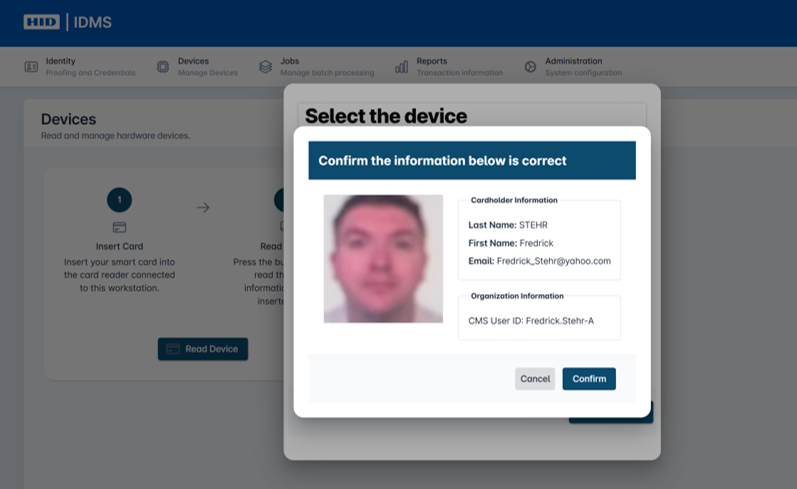
Verify the user information and press Confirm. |
|
|
8 |
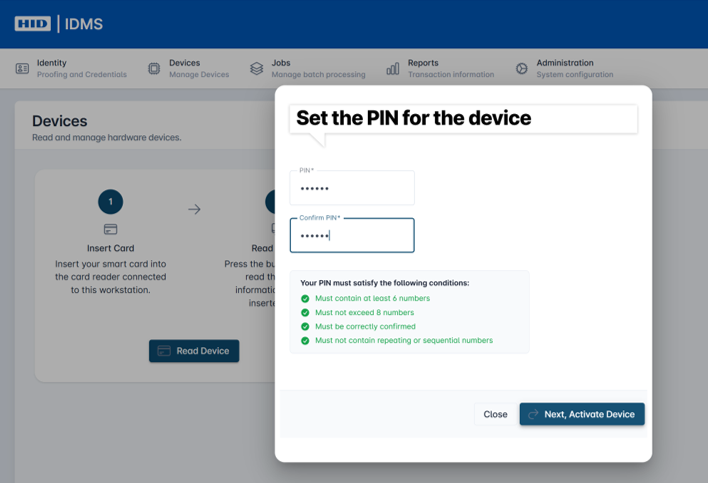
Instruct the user to create a new PIN. They will need confirm that PIN number a second time below. Once the new PIN is selected, then press the Next, Activate Device button.
A PIN ranges between 6-8 digits based on organization setup. Validations include minimum number of digits and the new PIN numbers need to match.
The credential will then be reset. |
|
|
9 |
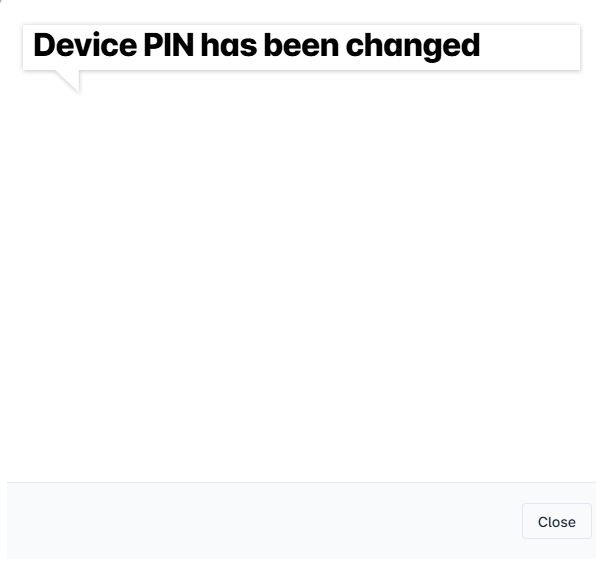
The system will indicate when the reset process is complete. Remove the credential. Select the Close button. |
|
Viewing the User's Credential PIN Reset History
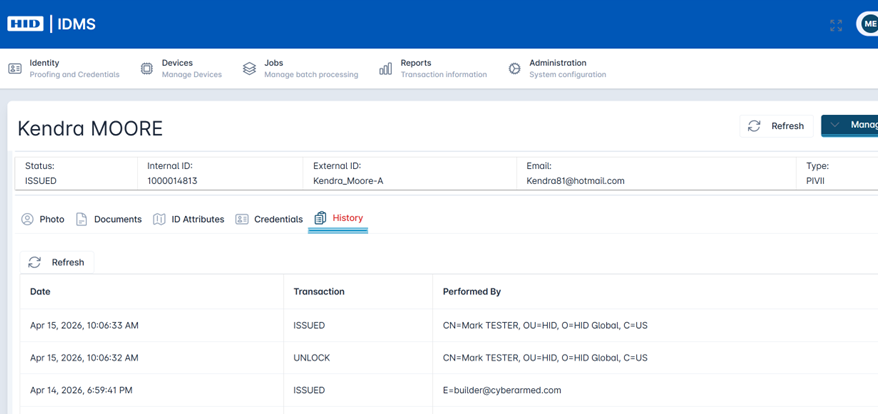
The user credential unlock is recorded and shown in the history of the user. To view the user reset credential history follow these steps. There are 2 ways to locate this reporting information, through the Manage User section and via Reports.
|
Item |
Procedure |
Example |
|---|---|---|
|
1 |
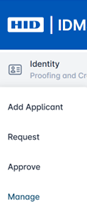
Access the IDMS portal and select Identity and then Manage. |
|
|
2 |
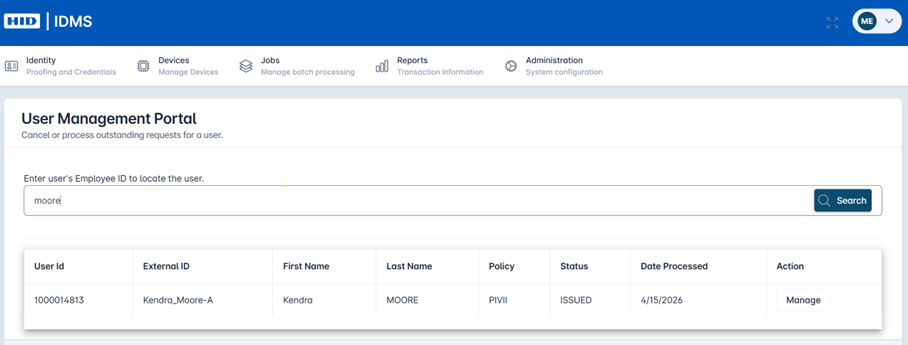
Search for the user. Select Manage next to the user’s name. |
|
|
3 |
Once the user is accessed, click the History tab. Here you can view the user history. A reset will show as Issued.
|
|
|
4 |
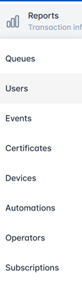
An alternative way is to go to Reports tab and click User. Search for the desired user and click the hyper-linked user ID. |
User Report 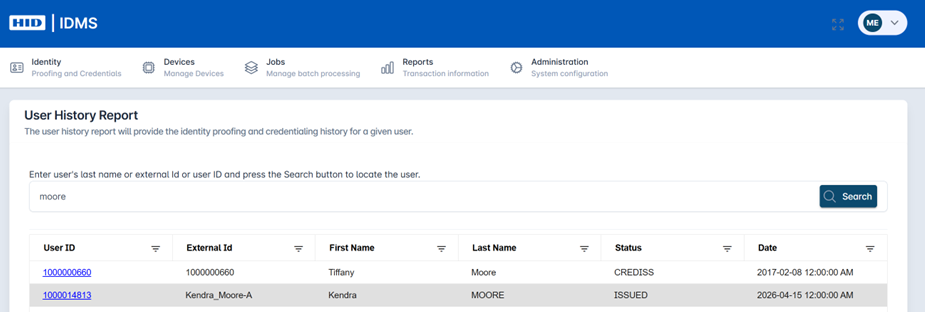
User Detail Search
|
|
5 |
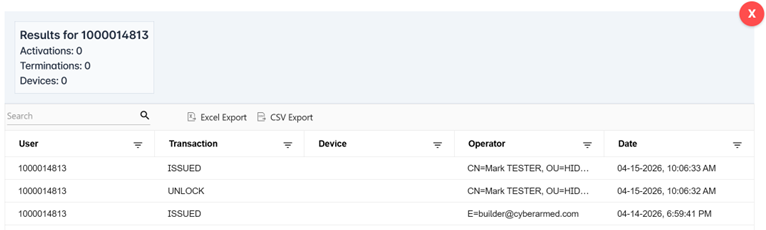
Here is the full history of the user. It will include the Issued status information. |
|