
If the PIV Credential becomes unresponsive or is not able to be read by the computer, the following procedures can be performed to help determine the issue.
Tools required:
-
HID ActivClient
-
PIV Card Reader
-
PIV Credential
ActivClient Diagnostics
|
Step Number |
Procedure |
|
|---|---|---|
|
1 |
Remove all PIV Credentials from the readers. |
|
|
2 |
Only insert the PIV credential that needs to be analyzed. |
|
|
3 |
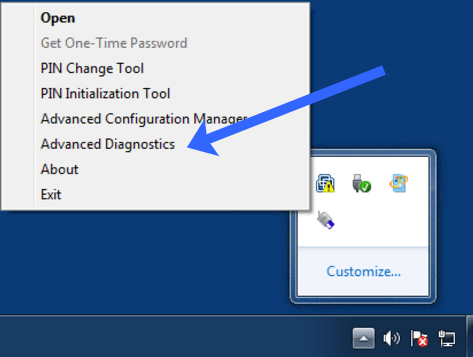
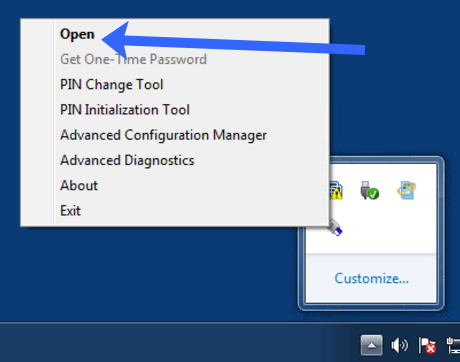
In the system try, right click the ActivClient icon. Next click advanced diagnostics. |
|
|
4 |
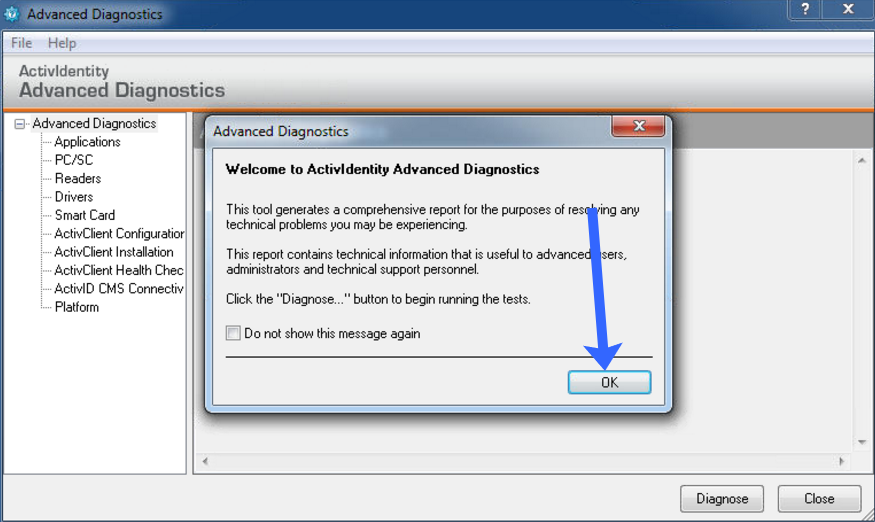
Press Okay to close the welcome screen. |
|
|
5 |
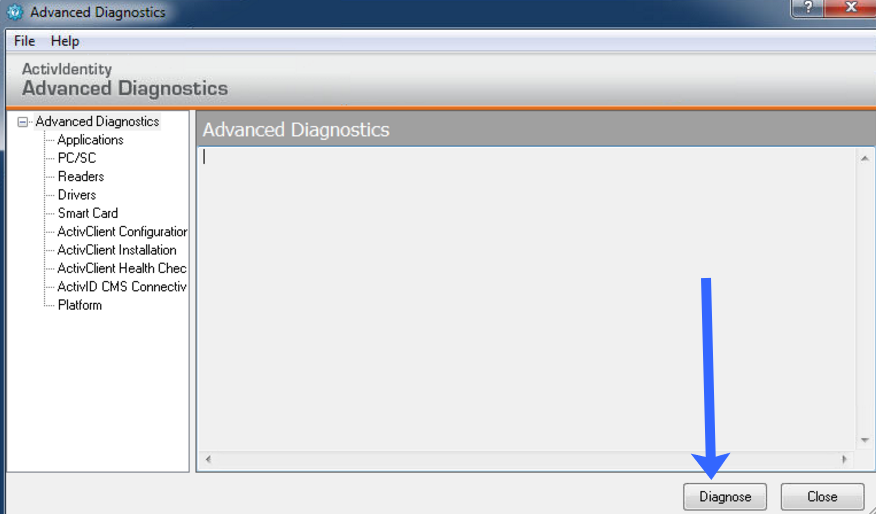
Next, press the Diagnose button at the bottom of the screen. |
|
|
6 |
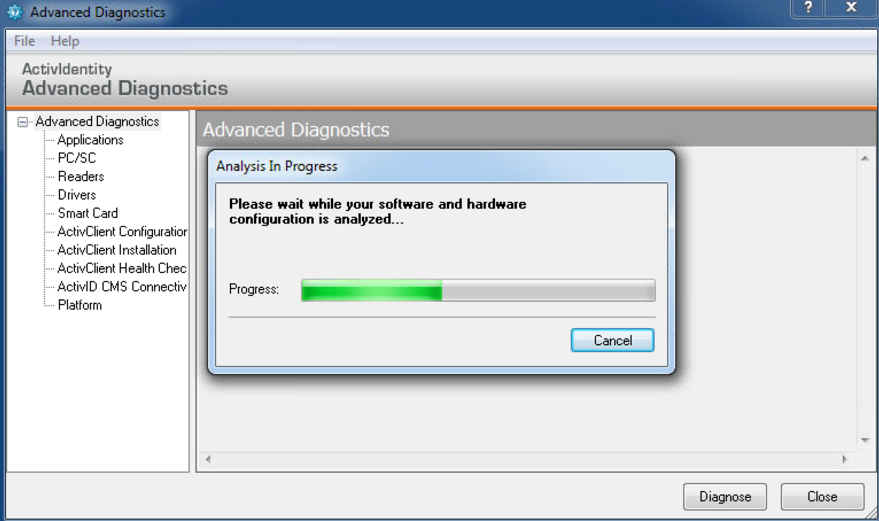
The Credential will be analyzed. |
|
|
7 |
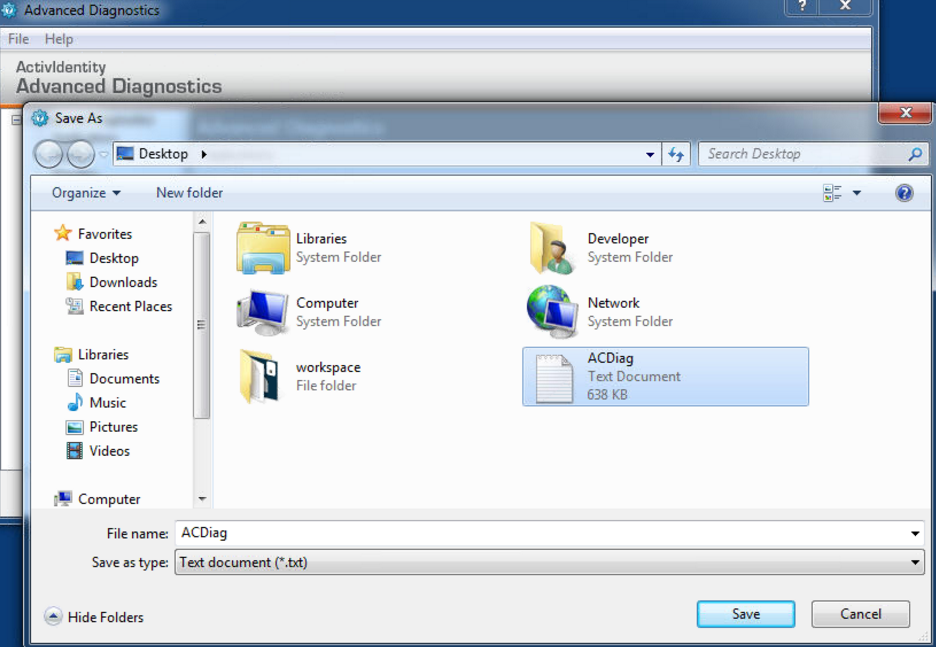
After the diagnostics are complete, go to file, save as and name the file ACDiag. |
|
|
8 |
Zip the ACDIag file and email to support@cyberarmed.com. |
Manual Certificate Extraction
|
Step Number |
Procedure |
Example |
|---|---|---|
|
1 |
Remove all PIV Credentials from the readers. |
|
|
2 |
Only insert the PIV credential that needs to be analyzed. |
|
|
3 |
In the system try, right click the ActivClient icon. Next click Open. |
|
|
4 |
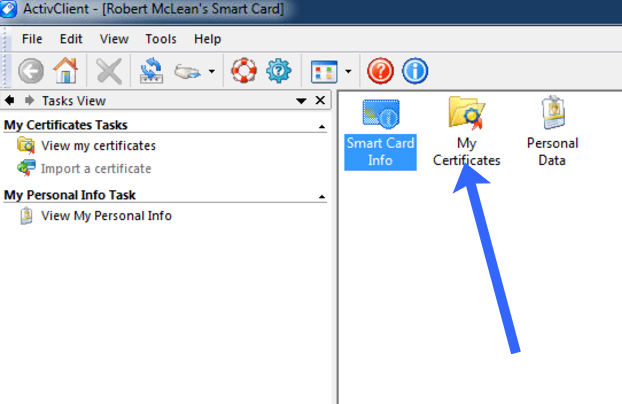
With ActiClient open, double-click My Certificates. |
|
|
5 |
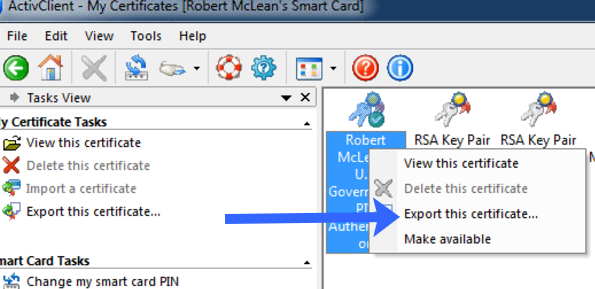
If the certificates appear, right click on the certificate with the green check mark and select export this certificate. |
|
|
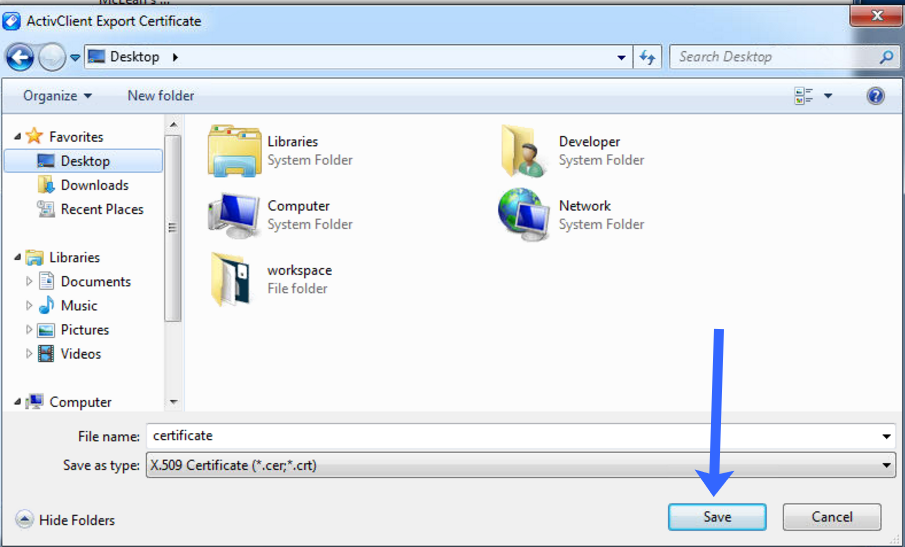
6 |
Save the certificate as certificate to the desktop. |
|
|
7 |
Zip the certificate and email to support@cyberarmed.com. |