Required Permissions: CredentialManager + CMS Issuer role
Important: The card must be locked before inserting into PCA.
If a card holder locks out their card or needs to change their PIN they can follow these steps to update their card.
Required CMS Configurations
|
|
|
|---|---|
|
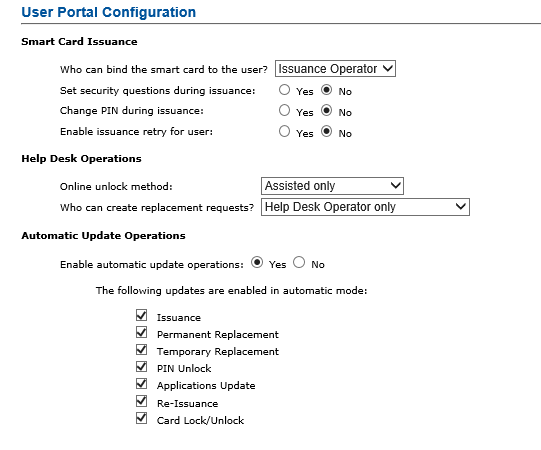
In the CMS User Portal configuration, the Online unlock method must be set to Assisted Only. |
|
|
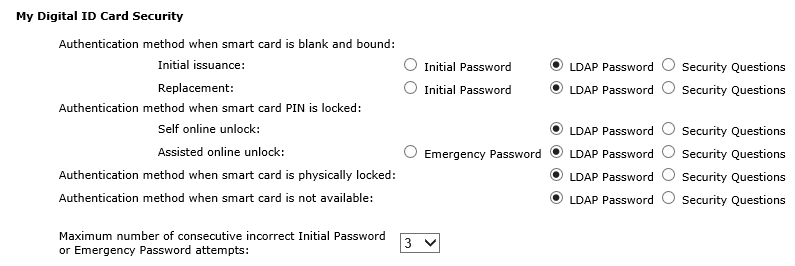
In the security settings, the My Digital Id Card security must be set to LDAP Password |
|
Steps
|
Step Number |
Procedure |
Example |
|---|---|---|
|
1 |
Authenticate to PCA with an operator possessing the CredentialManager permissions. |
|
|
2 |
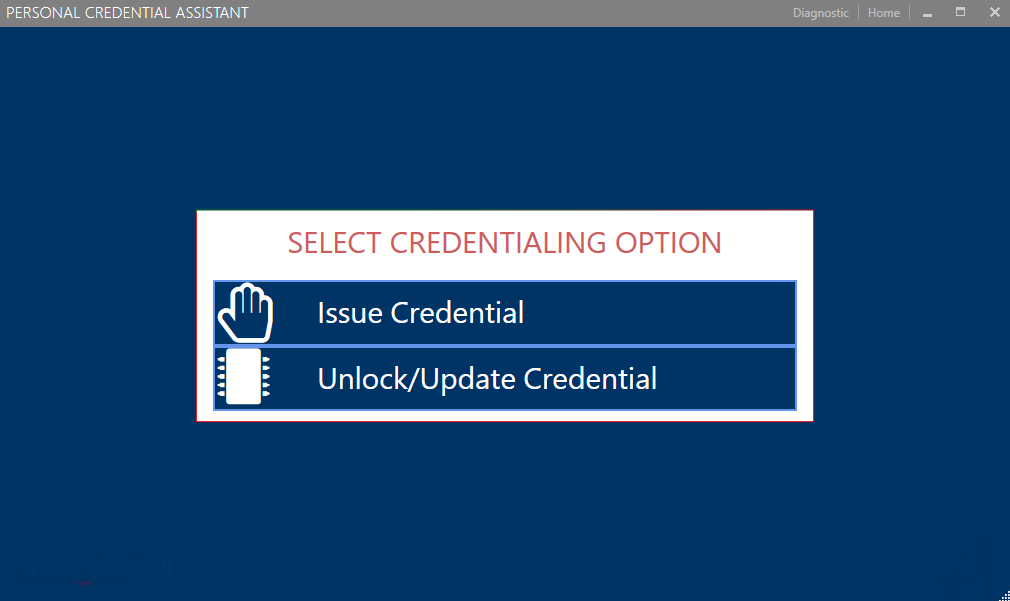
Click the "Unlock/Update Credential" Button. |
|
|
3 |
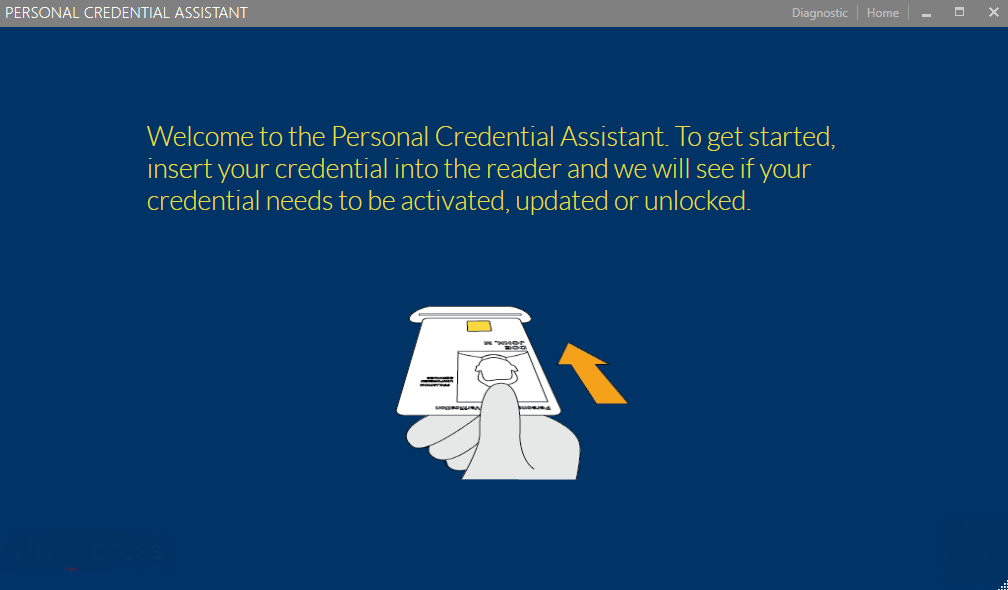
When asked, insert the locked credential into a reader. |
|
|
4 |
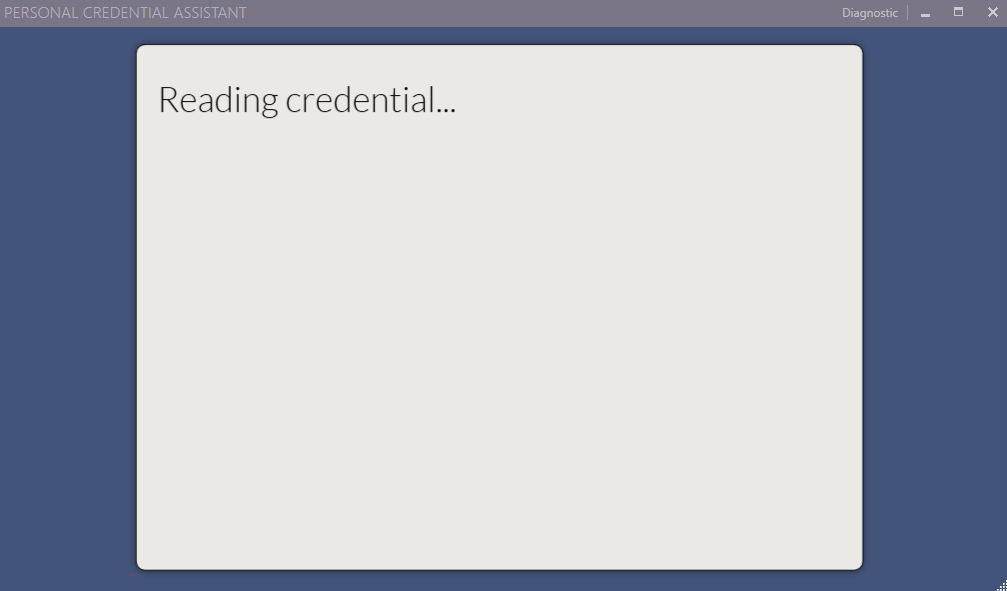
The credential will be read and analyzed. |
|
|
5 |
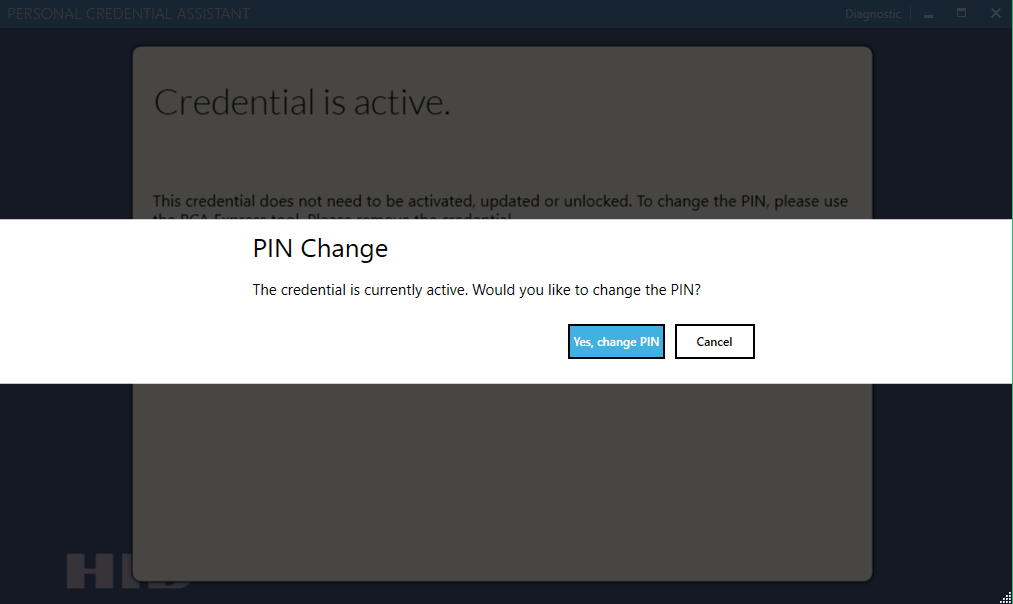
If the card is active the prompt for changing the PIN will appear. |
|
|
6 |
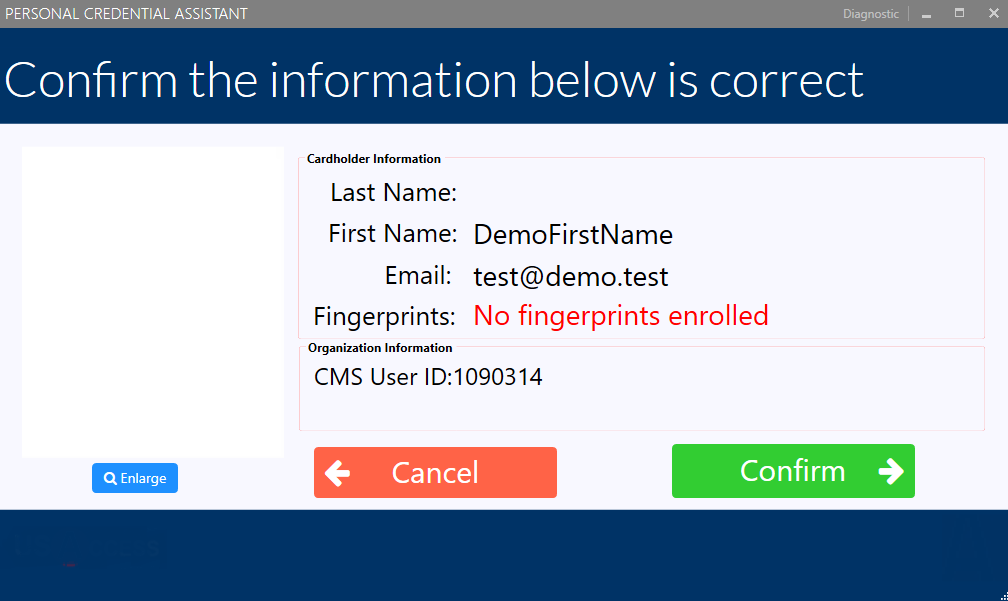
Verify the user information and press "Confirm". |
|
|
7 |
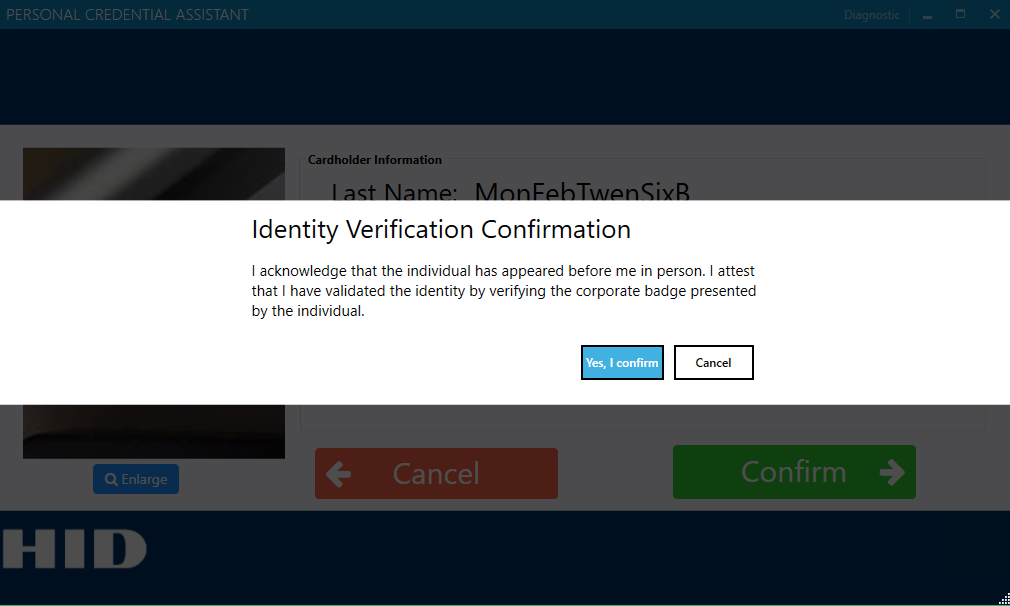
Confirm the identity verification. |
|
|
8 |
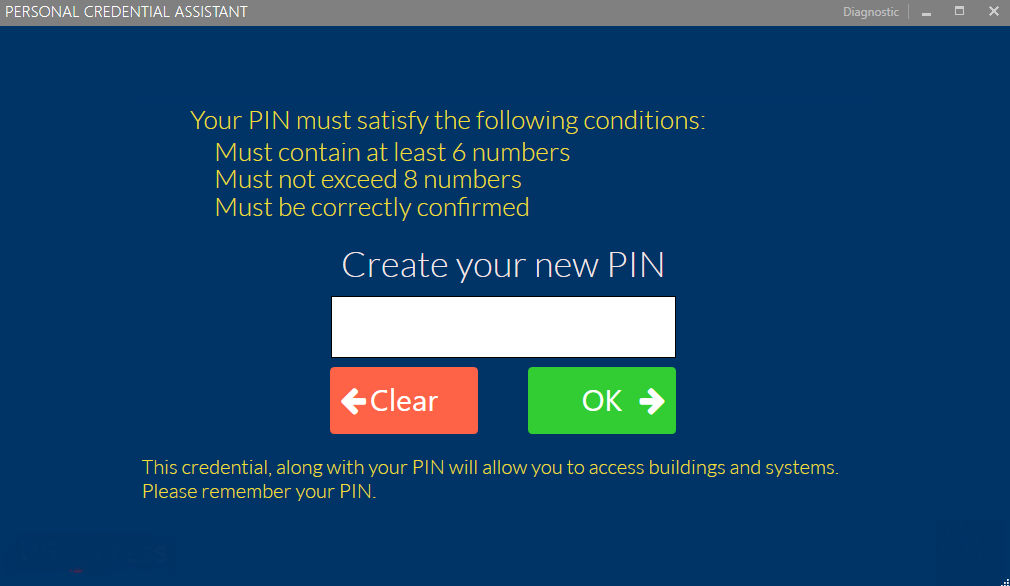
Instruct the user to create a new PIN. |
|
|
9 |
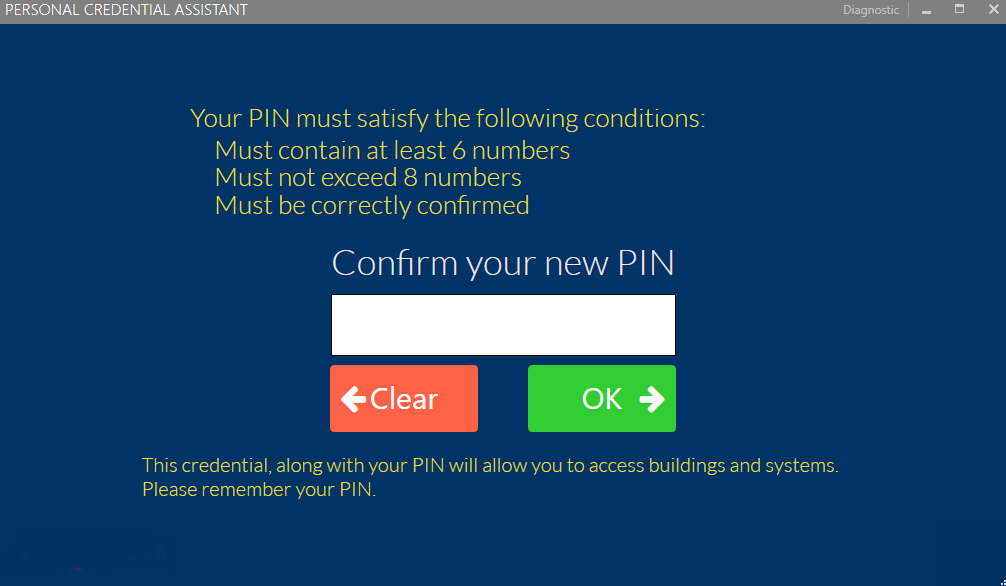
Instruct the user to confirm the new PIN. |
|
|
10 |
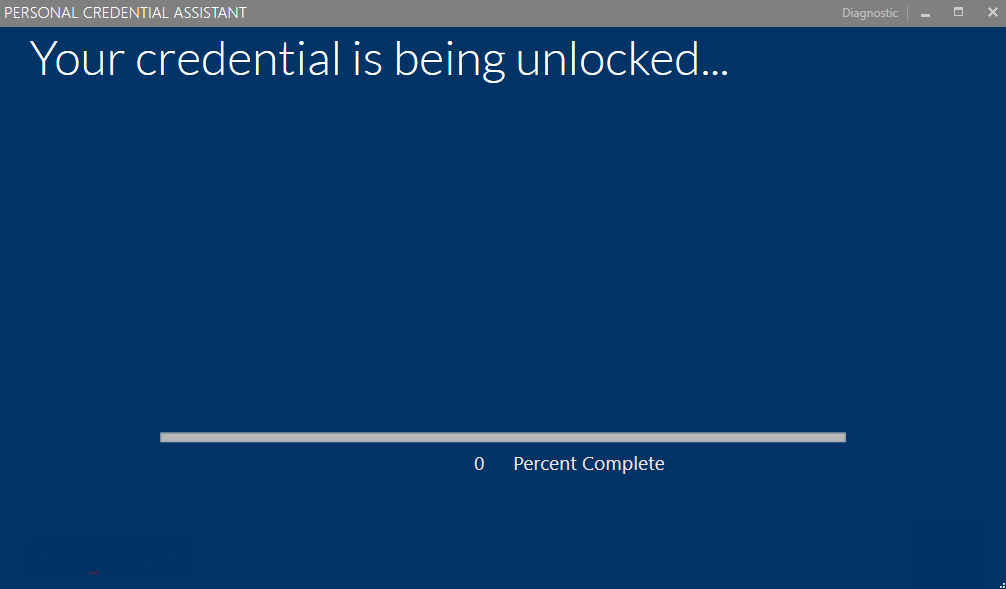
The credential will be unlocked. |
|
|
11 |
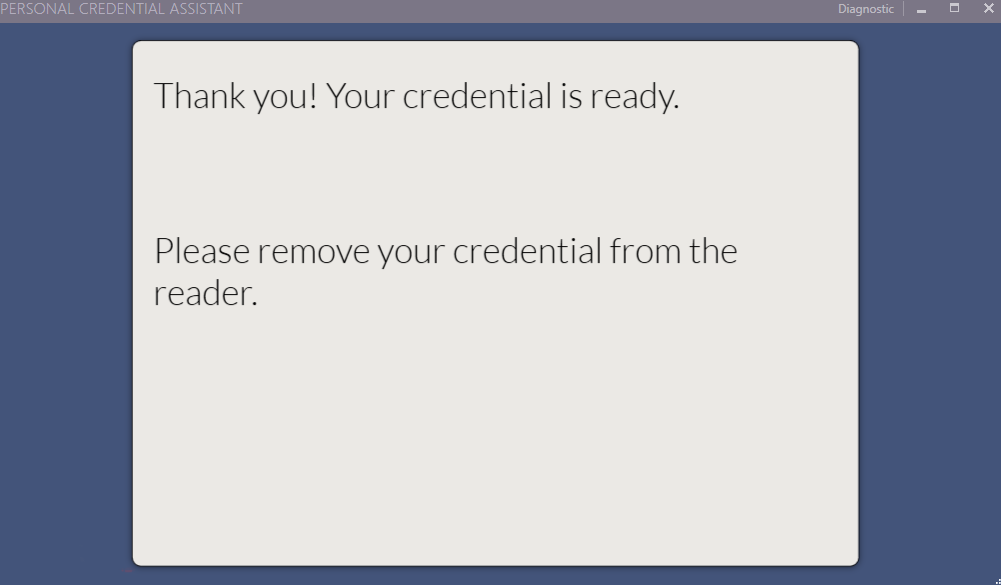
The system will indicate when the unlock process is complete. Remove the credential. |
|
Viewing the user's credential unlock history
To view the history of the user follow these steps:
|
Step Number |
Procedure |
Example |
|---|---|---|
|
1 |
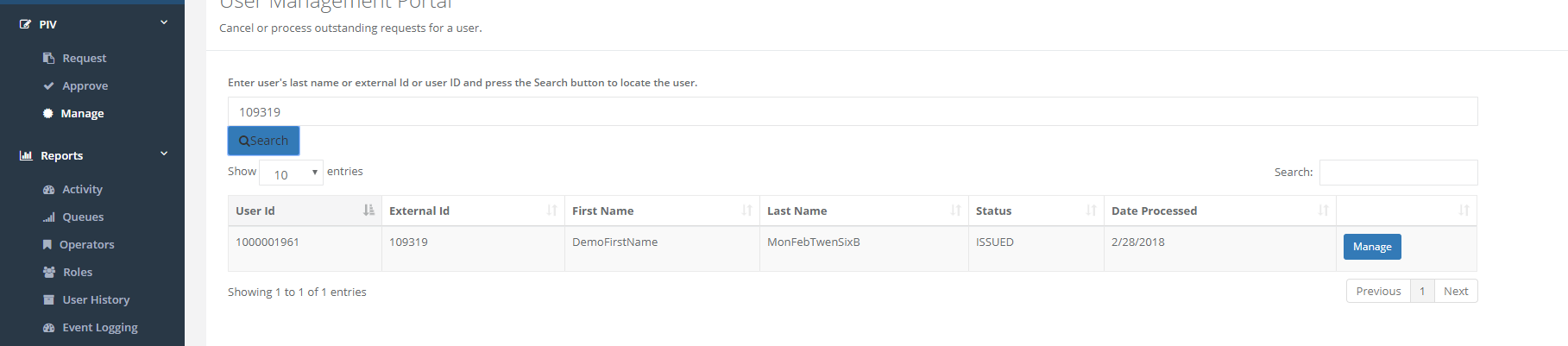
Access the IDMS portal and click "manage" under "PIV". Search for the user. Identify the user and click "manage". |
|
|
2 |
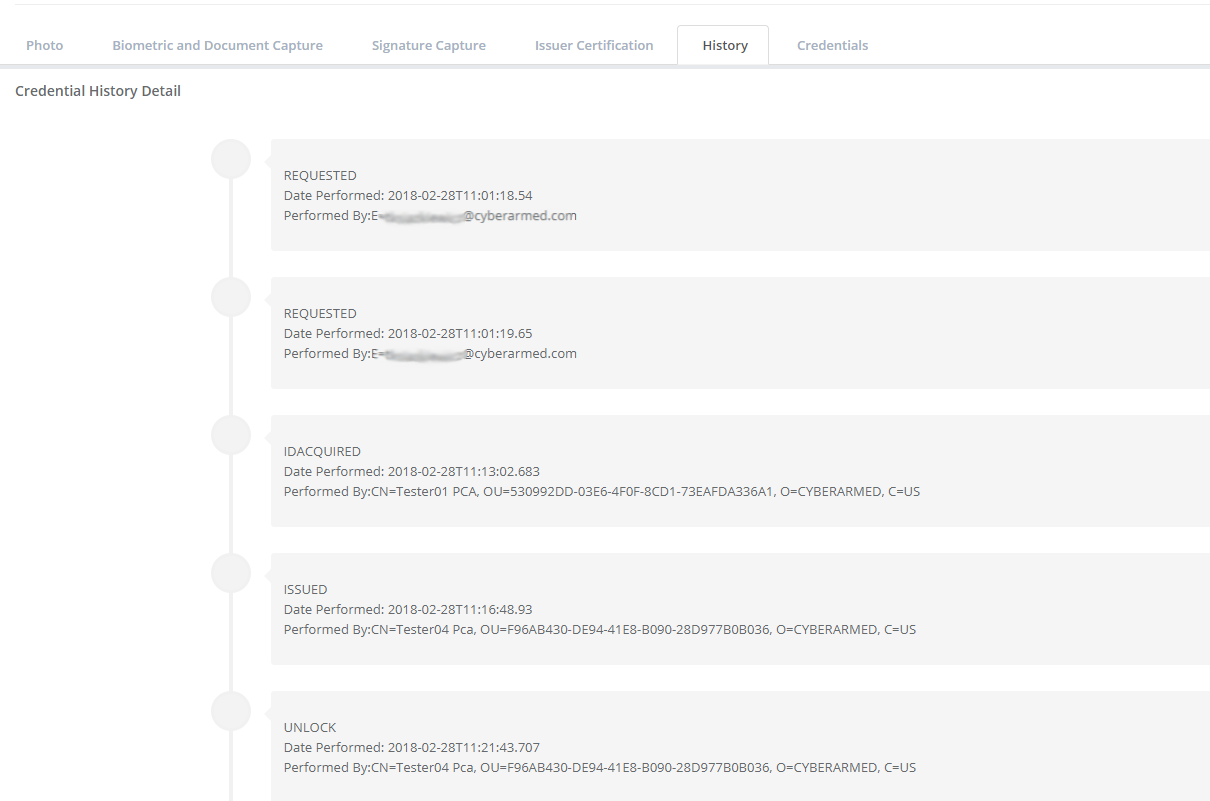
Once the user is accessed, click the "history" tab. Here you can view the user history. Note the "unlock" is recorded and shown in the history of the user. |
|
|
3 |
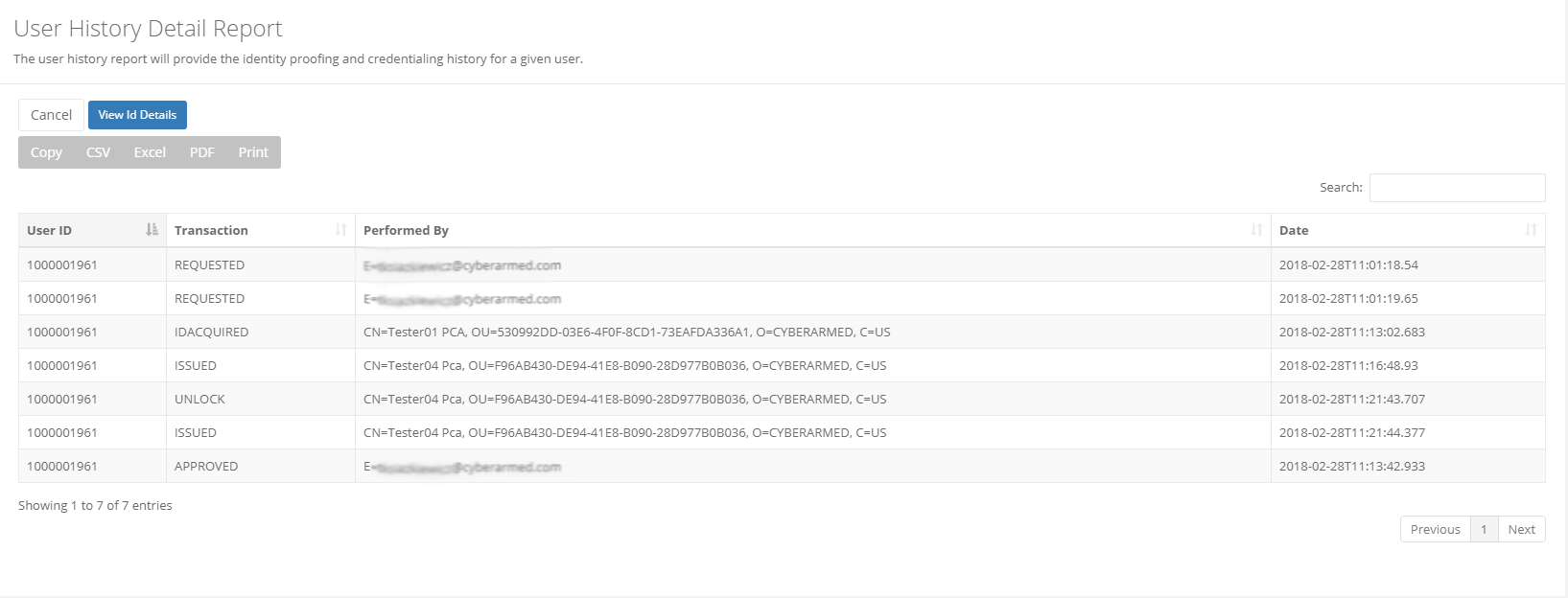
Alternative way is to go to the IDMS portal and under "Reports" and click "User History". Search for the desired user and click "Retrieve History". |
|
|
4 |
Here is the full history of the user. Note the "unlock" is recorded and shown in the history of the user. |
|