The Secure Data Export capability allows the IDMS to securely transfer enrollment and history data to another IDMS so that the person does not need to go through the identity proofing process again. This feature can save time and costs by allow enabling organizations to securely reuse identity information that was previously collected. The IDMS implements a secure multi-phase export and import protocol protected by multi-factor authentication and strong cryptography to ensure data is securely transferred only after the appropriate approvals have been made.
Prerequisites
The record must be exported using controls so that the export process is secured and is logged.
-
Client certificate installed on sending IDMS
-
Two IDMS servers on the same version:
-
Sending IDMS must have access to CMS database
-
User that being exported must have an active credential
-
User CMS ID must match
-
User Credential Policy must match
-
IDMS servers are able to access each other via port 443/444 (SSL)
Installation Procedure
Sending System
|
Step Number |
Procedure |
Example |
|---|---|---|
|
1 |
Generate a client certificate and install the client certificate into the local store. |
|
|
2 |
Authenticate to IDMS portal with Admin privileges. Press Update
|
|
|
3 |
Go to Administration, Click System Connections, Press the "Add a new CMS reporting connection" button. |
|
|
4 |
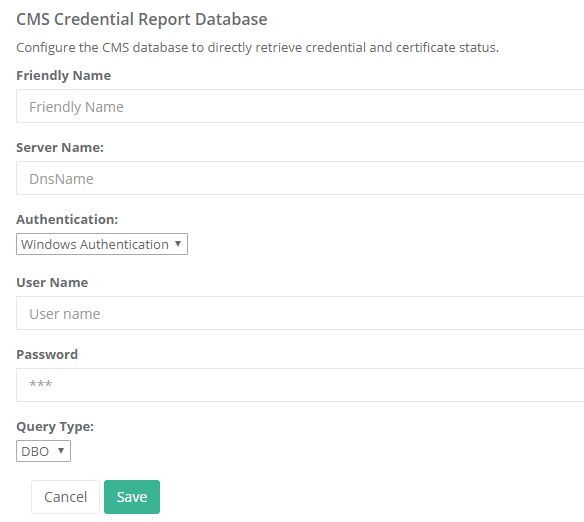
Configure the CMS Credential Report Database |
|
|
5 |
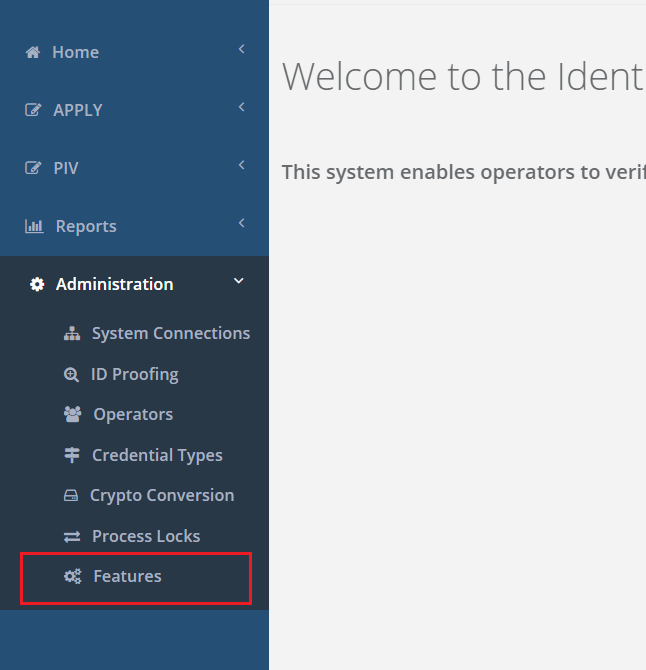
Authenticate to IDMS portal with Admin privileges.
Press "Features" under Administration tab. |
|
|
6 |
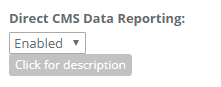
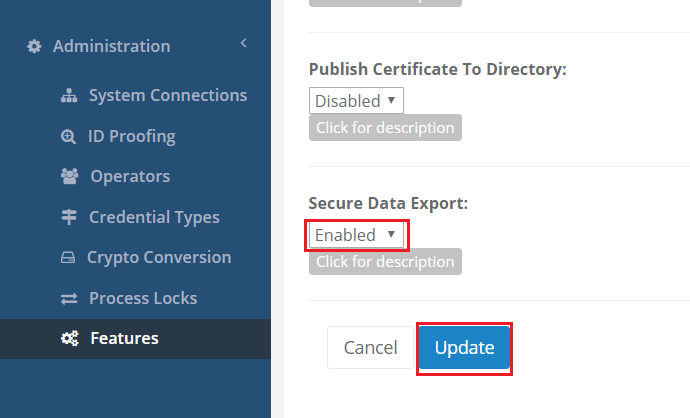
Verify that the "Secure Data Export" feature is enabled
Press Update |
|
|
7 |
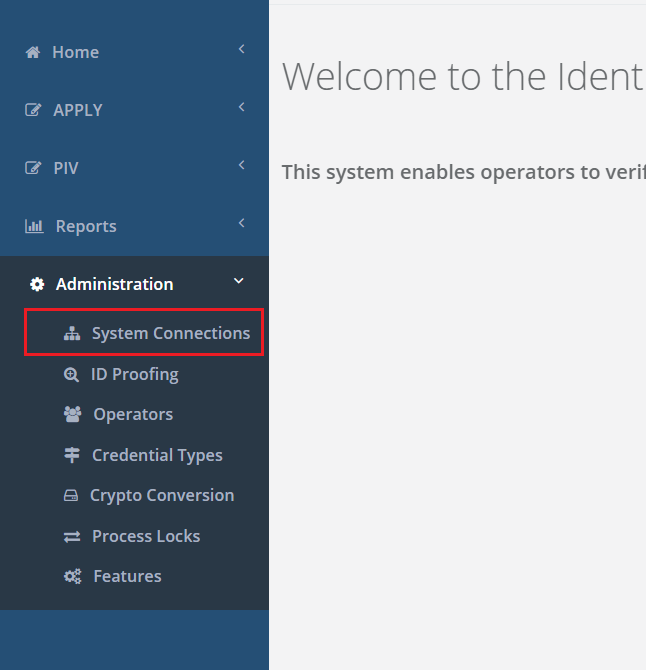
Click "System Connections" under Administration tab. |
|
|
8 |
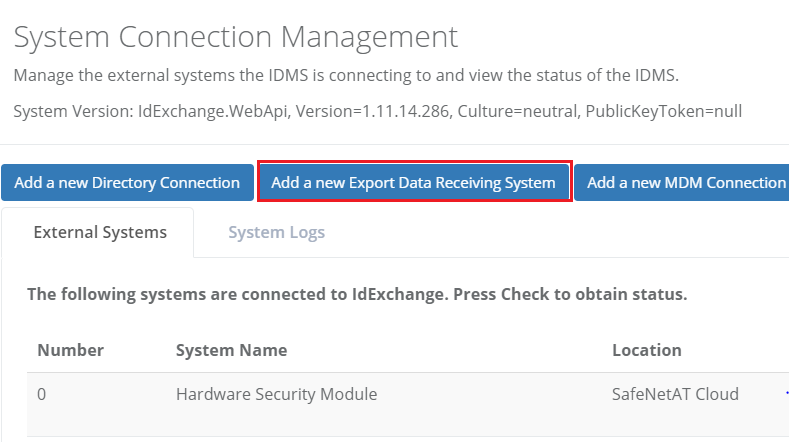
Select "Add a new Export Data Receiving system". |
|
|
9 |
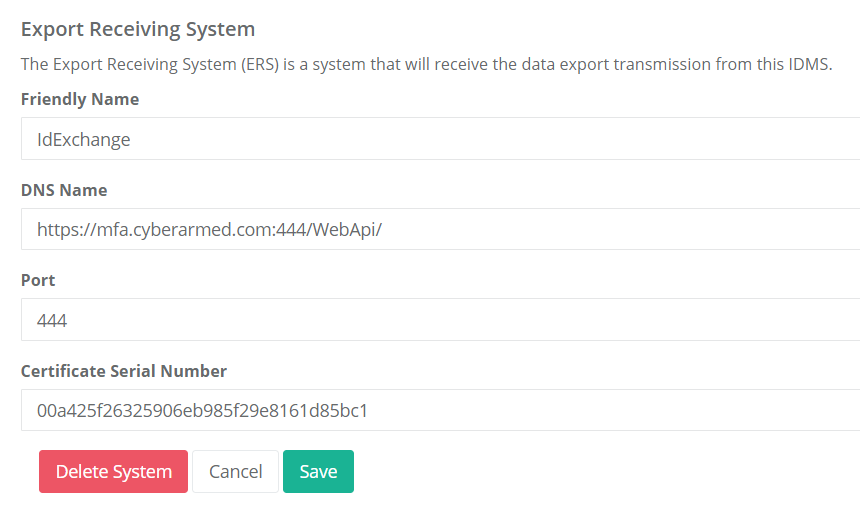
Configure the IDMS server
Install the client certificate in the local users store then insert the Thumbprint under "Certificate Serial Number".
Save. |
|
|
10 |
Verify the connection If fails attempt to browse to the receiving system via a web browser (to test basic connectivity) |
|


Receiving System
Add a new operator with the certificate serial number that will be used to connect to the system
Grant the new operator the role of Enrollment Officer
Steps to export data
|
|
|
|
|---|---|---|
|
1 |
Issue a credential to a user |
|
|
2 |
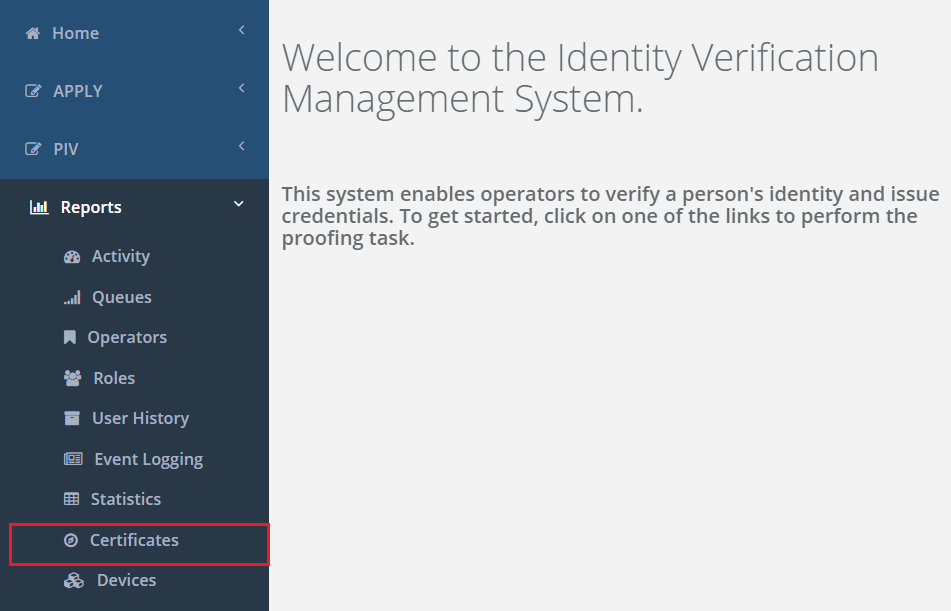
Go to the Credential and Certificate Status Report |
|
|
3 |
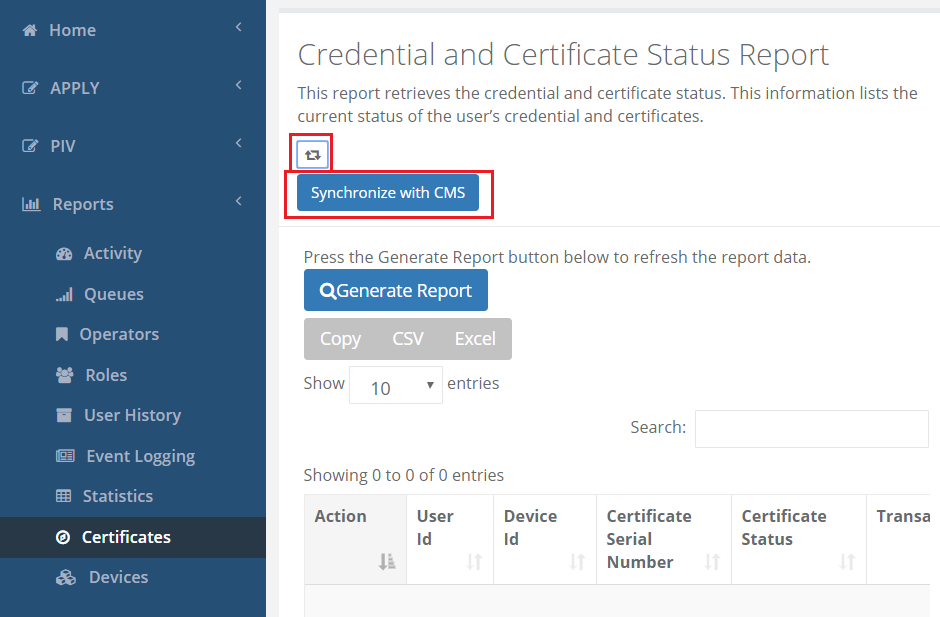
Click the Synch Button to display the "Synchronize with CMS" transaction button.
Click the Synchronize with CMS button |
|
Stage 2: User Consent
|
|
|
|
|---|---|---|
|
1 |
Have the user login to the IDMS with their smart card. |
|
|
2 |
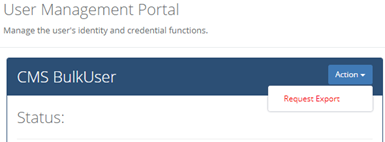
In the action button, click Request Export |
|
|
3 |
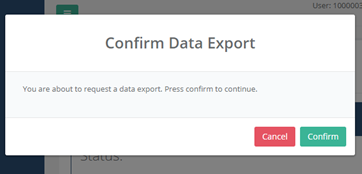
Confirm the export |
|
|
4 |
Process is complete |
|
Stage 3: Operator Export
|
|
|
|
|---|---|---|
|
1 |
Look up the user |
|
|
2 |
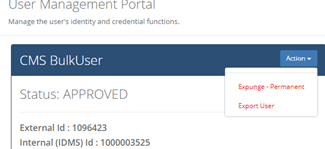
In the User Management Portal, select "Export User |
|
|
3 |
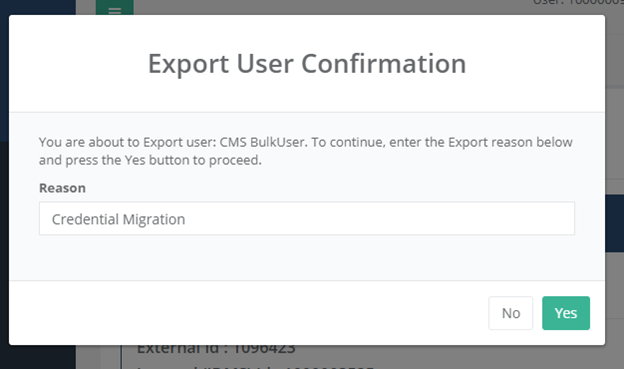
Provide an export reason |
|
|
4 |
Press Yes to confirm |
|
|
5 |
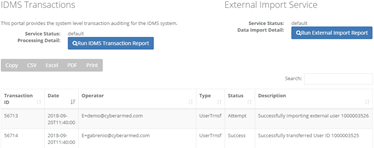
Go to Event logging, verify the user was exported. |
|