
The CMS Card Expiration Report provides details about all the credentials that have been issued by the CMS. IDMS performs tasks to identity the credentials, validate the current issuance state of the credential, and determine the issuance and expiration dates. This report is useful for determining all the credentials issued from a CMS.
Requirements
The following must be in place for the card expiration to function properly.
|
Item |
Description |
|
HID CMS database connection |
IDMS must have a direct connection to the CMS reporting database as listed in this document |
|
HID CMS API Connection |
IDMS must be able to connect to the CMS as listed in this document. |
|
IDMS Role |
The operator must have the 'credentialmanager' role assigned |
|
Batch Queue is running |
The BatchQueue process is running. |
|
IIS configured to always run |
The IIS Application pool must be configured to always run as listed in this document: IIS App Pool Always Running Setting |
|
*Optional: Email configuration |
If the report is to be emailed, configure the mail server as listed in this document. |
|
*Optional: Subscription configuration |
As the user, subscribe to the report: click Reports/Subscriptions Click "CmsCardExpiration" |
|
Job scheduler configuration |
Job schedule should be configured as outlined below.
|

Job Scheduler Configuration (Prerequisite)
The following steps should be configured in advance to utilize the CMS Card Expiration Report. It is listed as a requirement in the table above.
|
Item |
Procedure |
Example |
|---|---|---|
|
1 |
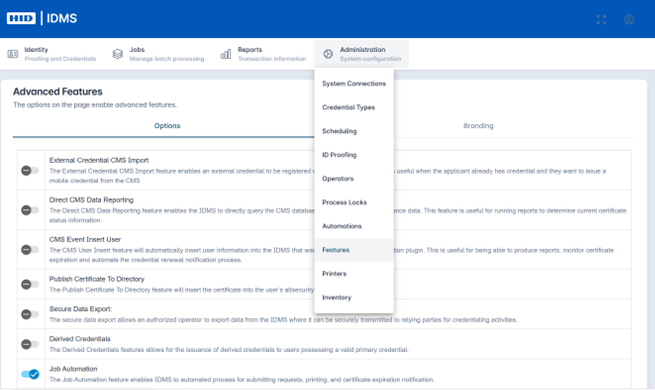
Go to Administration, then select Features, Enable Job Automation. NOTE: Close browser and restart IIS so that the IDMS can register the new jobs. |
|
|
2 |
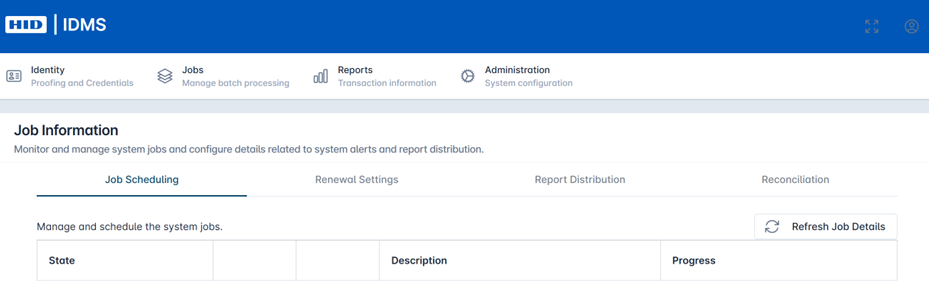
Click Administration, Click Scheduling. |
|
|
3
|
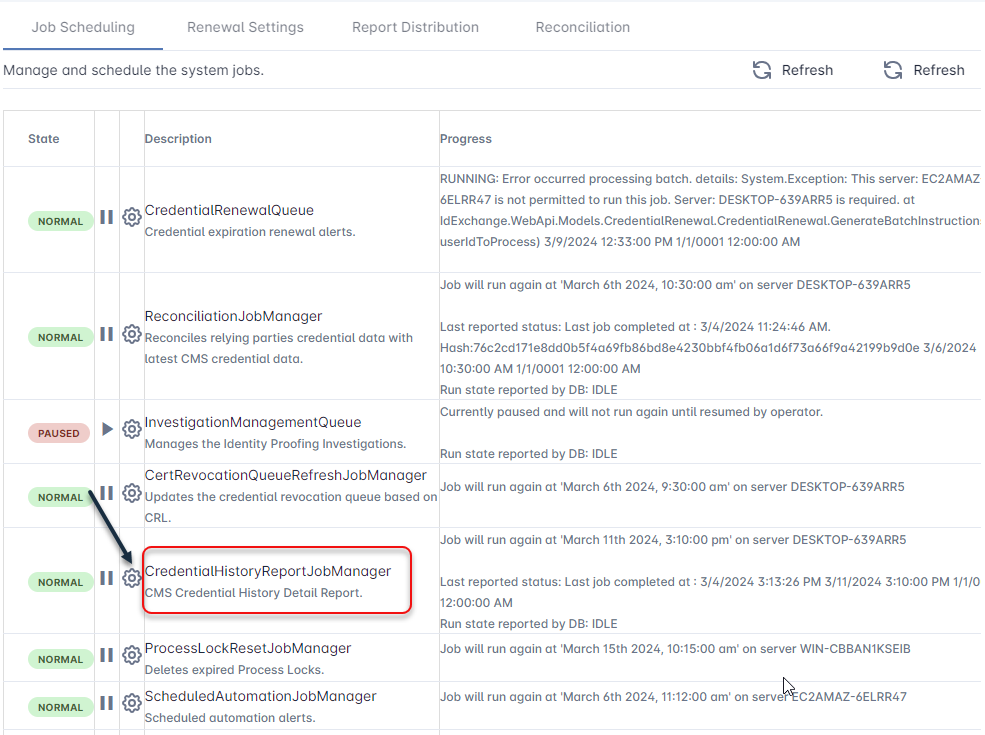
Locate the “CredentialHistoryReportJobManager”, Press the Gear button to configure the time the report should run. |

|
|
4 |
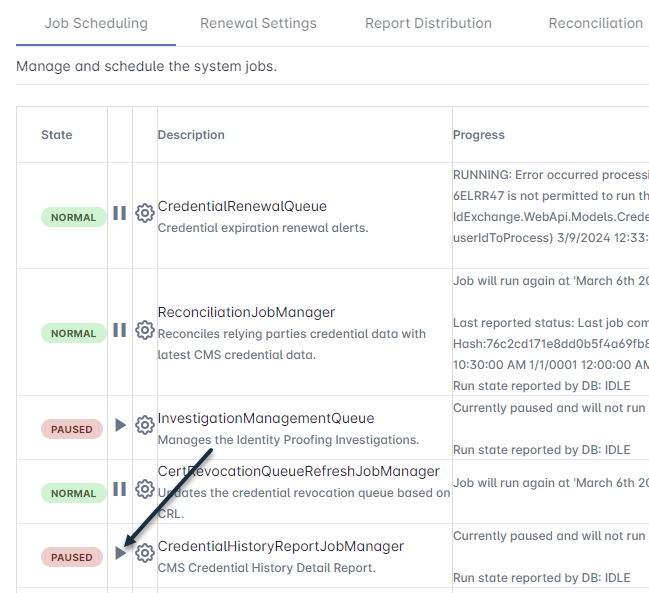
Press the Play button to start the scheduler so that the report will run on the time that was configured. |
|
To Schedule the Card Export Run Report to Run
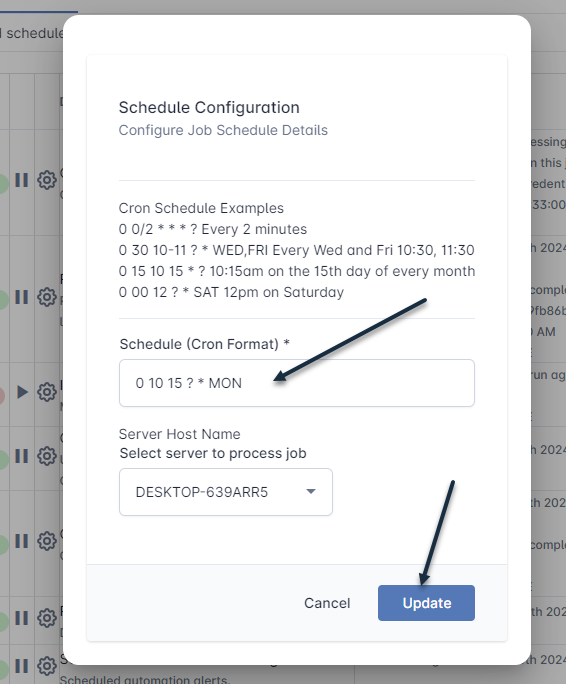
To provide the most flexible options, scheduling uses the Cron format. For example, the Cron statement of: 0 00 18 ? * THU means the job will run at 6pm on Thursday.
|
Item |
Procedure |
Example |
|---|---|---|
|
1 |
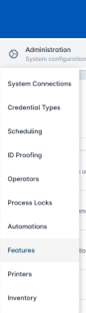
Login with the System Manager role, go to Administration, Click Scheduling. |
|
|
2 |
Locate the “CredentialHistoryReportJobManager” and press the Gear button. |
|
|
3 |
Schedule the time and then press the Update button. |
|
|
4 |
Press the Play button to enable the job. Note: If the job is "Paused", press the Play button to start the job. |
|
|
5 |
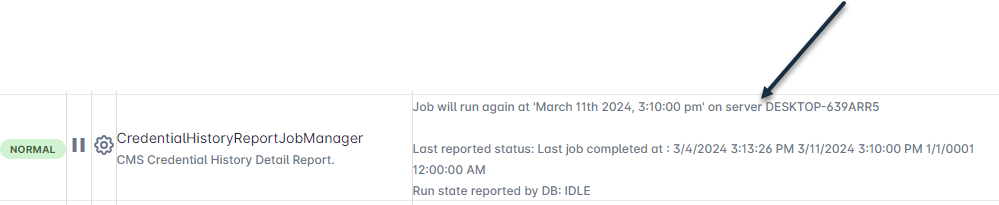
After the configuration has been saved, the system will indicate the next time it will run. |
|
To Download a Completed Report
|
Item |
Procedure |
Example |
|---|---|---|
|
1 |
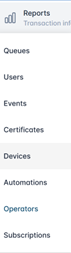
Log in with the Reports Officer role and go to Reports then Devices. |
|
|
2 |
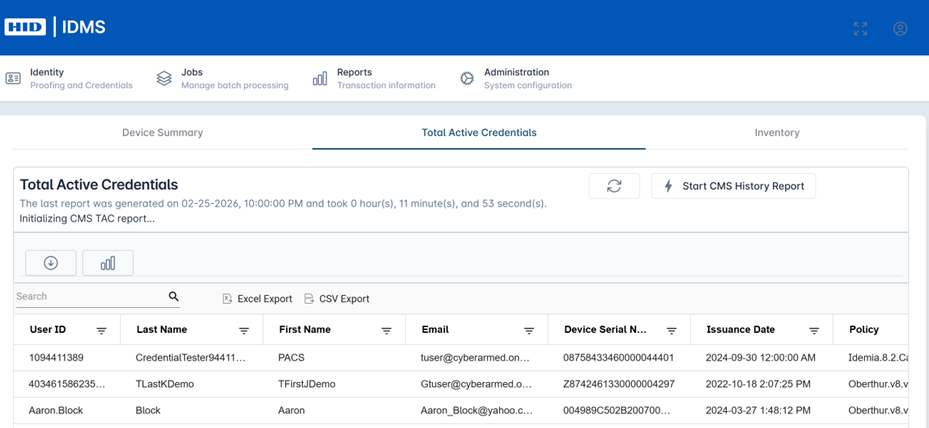
Click the Total Active Credentials tab and select the Refresh button. |
|
|
3 |
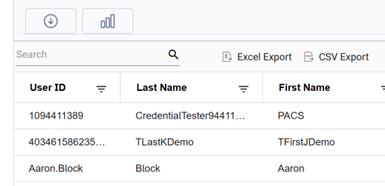
Press the Download button. The report will be downloaded. |
|