
These procedures describe how to connect the IDMS to the HID Credential Management System (CMS).
Prerequisites
-
HID CMS is installed and operational
-
CMS has at least one card policy defined
-
IDMS is communicating with the CMS
-
A client certificate for IDMS to connect to the CMS - ReferenceGenerating Client Certificates
Connection Setting Descriptions
|
Variable Name |
Description / Values |
|
DirectoryType |
1=Entrust 2=Active Directory |
|
ProvisionAction |
2=Only push CPR. This setting is used if the directory CMS is connected to already has the user account. 4=Create user and push CPR (do not create request). This setting is used if the directory CMS is connected to does not have the user account and it needs to be created. |
|
cmsDnPath |
Directory search path used to locate and/or add the user. |
Configure the CMS connection
|
Item |
Procedure |
Example |
|---|---|---|
|
1 |
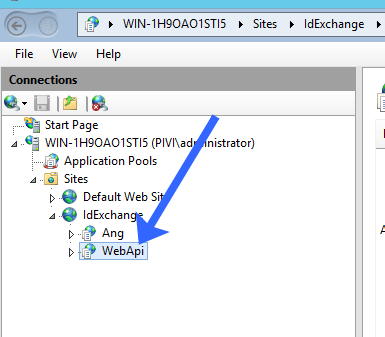
Open IIS Manager, in the sites window, click on IDMS/WebApi. Sites> IdExchange > WebAPI |
|
|
2 |
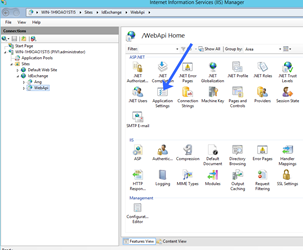
In the features view, double click on Application Settings. |
|
|
3 |
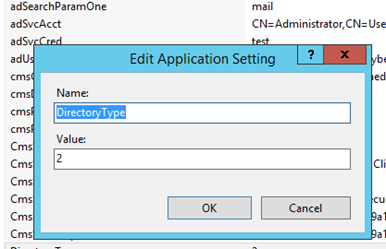
Double click on the DirectoryType field. If the CMS us using the RedHat directory, enter 1. If the CMS is using ActiveDirectory, press 2. Press OK when complete. |
|
|
4 |
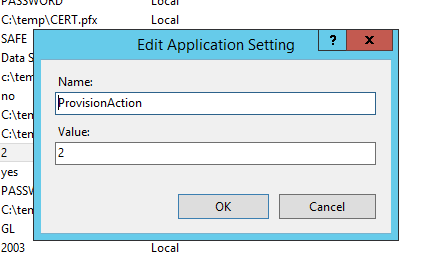
Double click on the ProvisionAction field. Enter the number 2 or 4 depending on the needs below:
Press OK when complete. |
|
|
5 |
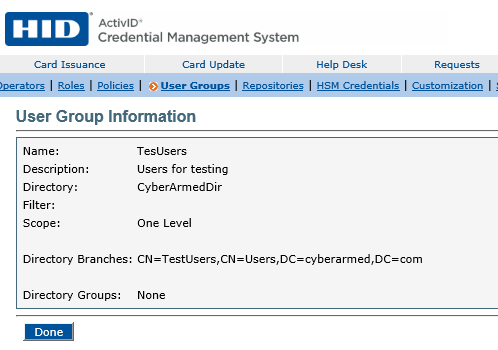
Go to the CMS and obtain the Directory Branch information for the user group that will be used in the credential encoding process. As an example, the branch value is "CN=TestUsers,CN=Users,DC=cyberarmed,DC=com" Select Done. |
|
|
6 |
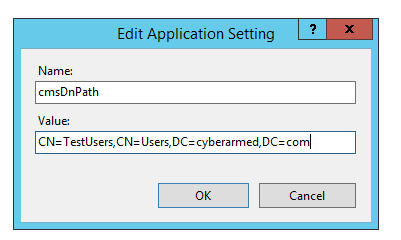
In the IIS Application Settings, double click the CmsDnPath setting. In the value, enter the value obtained from the step above. This setting tells the IDMS which CMS branch to use to locate the user. Press OK and save the configuration. |
|
|
7 |
Restart IIS to save the configurations. |
|
How to Update the CMS Operator Certificate
|
Item |
Procedure |
Example |
|---|---|---|
|
1 |
Open IIS Manager, in the Sites window, click on IDMS/WebApi. Sites> IdExchange > WebAPI |
|
|
2 |
In the features view, double click on Application Settings. |
|
|
3 |
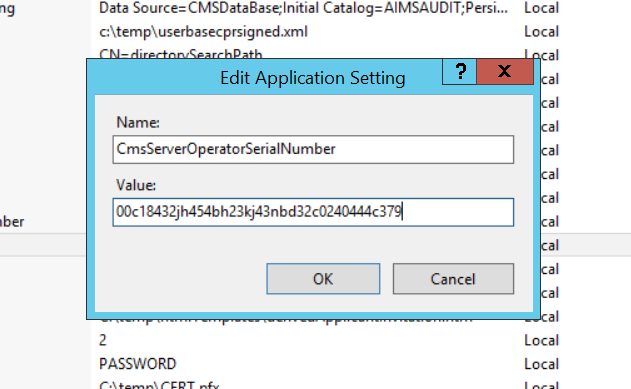
Double Click on CmsServerOperatorSerialNumber and insert the correct serial number of the certificate that will be used to connect the IDMS to CMS. |
|
|
4 |
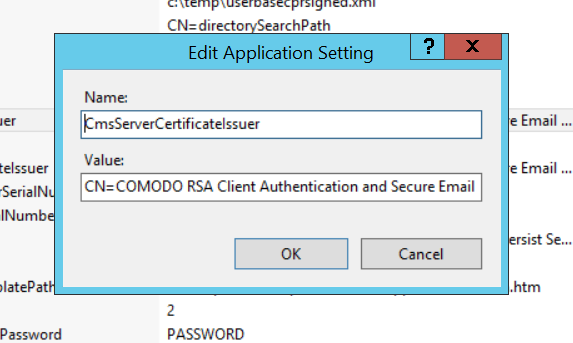
Next, double click on CmsServerCertificateIssuer and insert the certificates Issuer path. |
|
PIV Enrollment Properties (PIVEnrollment.properties)
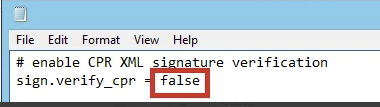
The CMS PIVEnrollment.propeties file needs to be updated to remove digital signature.
|
Item |
Procedure |
|---|---|
|
1 |
On the CMS, Open the PIVEnrollment.properties from C:\ProgramData\HID Global\Credential Management System\Shared Files |
|
2 |
Make the change below: # enable CPR XML signature verification
|
|
3 |
Restart CMS. |