
To provider more insight into credentialing and card management system security events, IDMS can be linked to the CMS database to retrieve detailed event records. The steps below describe the configuration process.
Step 1: Enabling CMS Direct Reporting
|
Step Number |
Procedure |
Example |
|---|---|---|
|
1 |
Verify the IDMS can connect to the CMS by going to Administration, System Connections. Locate the Card Management System and press check. |
|
|
2 |
Login with the system administration permissions |
|
|
3 |
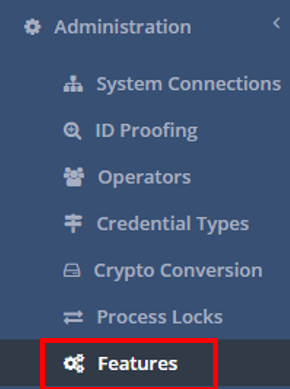
Go to administration, features |
|
|
4 |
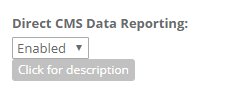
While in the features window, go to the Direct CMS Data Reporting and select Enabled. |
|
|
5 |
Press Update |
|

Step 2: Configuring the CMS Database Connection
|
Step Number |
Procedure |
Example |
|---|---|---|
|
1 |
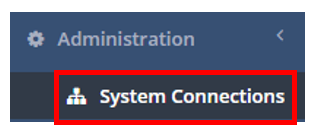
Go to administration, System Connections |
|
|
2 |
Click Add a new CMS Reporting connection |
|
|
3 |
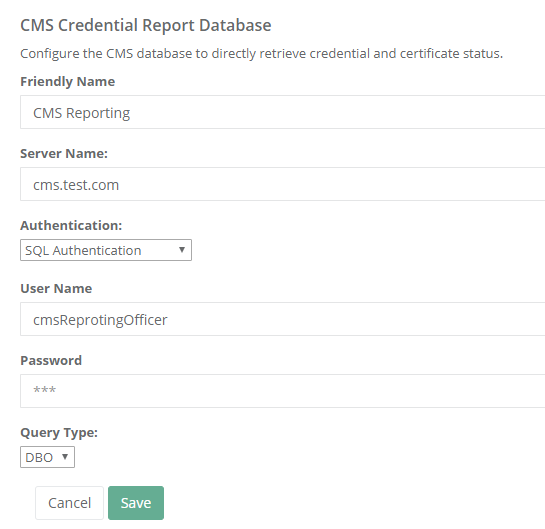
Next, enter the following information: Friendly Name: an easy to remember name for the connection Server Name: the DNS address of the CMS database Authentication: the sql type of authentication to access the database User Name: the user name logging into the database Password: the associated password for the user logging into the database. Query type: specifies the database context for the SQL query |
|
|
4 |
Press Save |
|

Step 3: Verify the report information can be retrieved
|
Step Number |
Procedure |
Example |
|---|---|---|
|
1 |
Go to Reports, Events, Only select CMS Logon Activity, Select the Date Range, Run report |
|
|
2 |
Go to Reports, Cards, All Certificates Tab, Press Generate Report. |
|