
The device inventory management function enables an organization to upload a device manifest from the manufacturer so the IDMS can access the device configuration details. This information allows the IDMS to provide reporting and register device information with relying parties. The device inventory file is a CSV file that contains information such as the device serial number and other physical access control details.
How to Upload a Device Inventory
This guide provides a step-by-step procedure for uploading a Vendor CSV file to the IDMS system to update and track current card inventory levels.
Permissions required:
-
CredentialInventoryManager
-
CredentialManager
Step-by-Step User Guide
Step 1: Access Inventory Management
-
On the main dashboard, click on the Administration dropdown menu in the top navigation bar.
-
In the dropdown menu, select Inventory.
Step 2: Upload the CSV File
-
On the Inventory Management page, click the "Upload Vendor CSV File" button.
-
A four-step wizard will appear. In the "Upload CSV" step, click the "Browse CSV file here" button.
-
Select the desired CSV file from your local machine (Note: The file must be in CSV format, contain column headers, and be less than 10 MB).
-
Once the file is successfully scanned, click the "Next" button.
Step 3: Map Columns
-
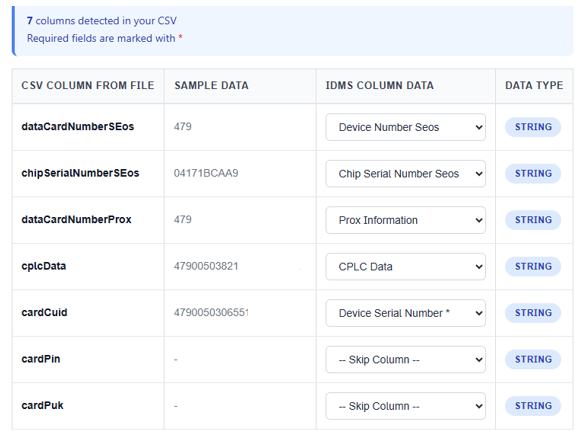
In the "Map Columns" step, you must link the columns from your uploaded CSV file to the corresponding data attributes in the IDMS system.
-
For each column listed under "CSV Column From File," use the adjacent dropdown menu under "IDMS Column Data" to select the appropriate IDMS attribute.
-
Example from video: Map
dataCardNumberSeosto Device Serial Number andcplcdatato CPLC Data.
-
-
Ensure all required fields (marked with an asterisk) are mapped, or select "--Skip Column--" for unnecessary data.
-
Click "Next".
Step 4: Validate and Upload Data
-
The "Validate Data" step will automatically check the file for errors.
-
Once validation is successful, a message will display: "All data validated successfully!"
-
Click "Next" to proceed to the final upload summary.
-
Review the upload summary (File Name, Total Rows, Columns Mapped).
-
Click the "Upload Data" button to complete the process.
-
A confirmation pop-up, "Upload Successful!", will appear. Click "Upload Another File" or close the dialog to return to the Inventory Management page.
Step 5: View Import Reports
-
Back on the Inventory Management page, click the "Get CSV Import Reports" button to refresh the table.
-
To view a detailed history of a specific upload, click on the File Name in the table.
-
The "Import History" dialog will appear, showing which records were updated and the associated device serial numbers.
Step 6: Validate the card inventory
-
Go to Reports, Devices, and click the inventory tab.
-
Click Inventory Details
-
Verify that the device ID from the CSV has been imported.