
Specifying the subscribers
|
|
|
|
|---|---|---|
|
1 |
Go to administration, scheduling, and report distribution tab. |
|
|
2 |
Click the Add Subscriber button. |

|
|
3 |
Enter the email address for the user to receive the report |
|
|
4 |
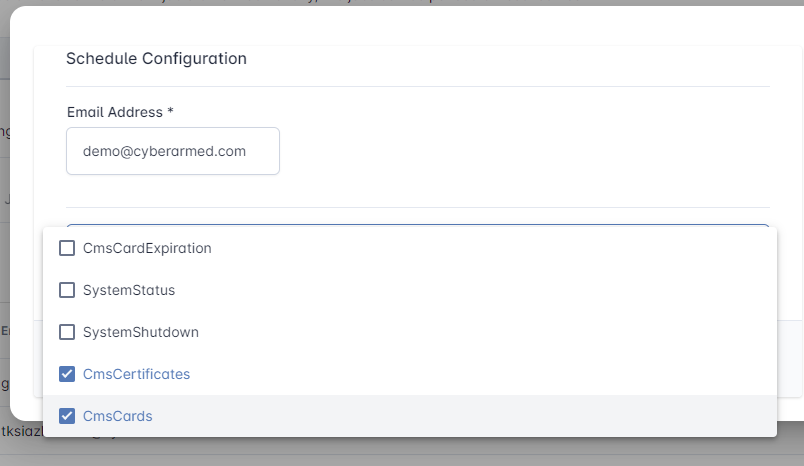
Select the reports the user should receive. |
|
|
5 |
Press Update |
|
Running the Report Distribution Job
The reports are delivered to the specified subscribers on an interval specified by an administrator.
|
|
|
|
|---|---|---|
|
1 |
Go to administration, scheduling, and click the report distribution tab. |
|
|
2 |
Locate the ReportDistributionJobManager |

|
|
3 |
Click the gear button to open the configuration panel. |

|
|
4 |
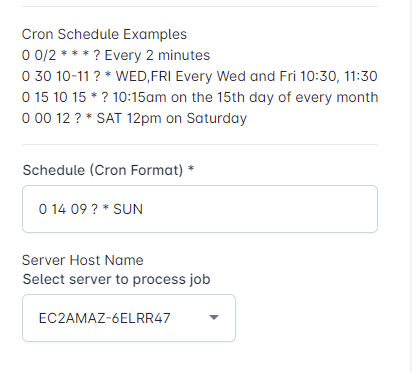
In the configuration panel, enter the schedule detail and the server to process the job. |
|
|
5 |
Once complete, press the update button. |
|
|
6 |
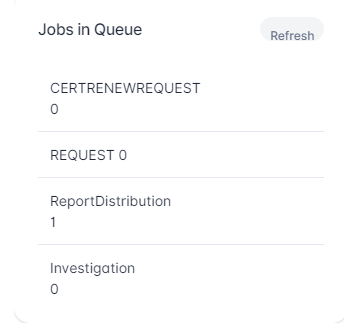
To check the status of the job, go to the Jobs, Batch Processing panel and look for the ReportDistribution number to see if the job has been executed and awaiting processing. |
|
|
7 |
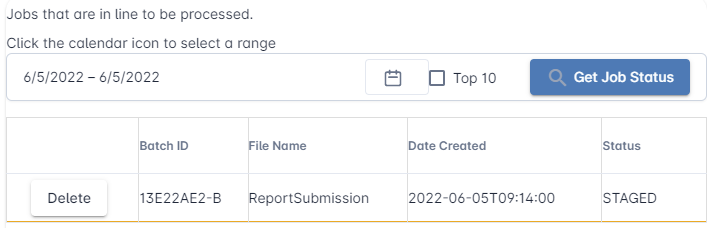
To see the details of the job, select the date range and press Get Job Status. |
|
|
8 |
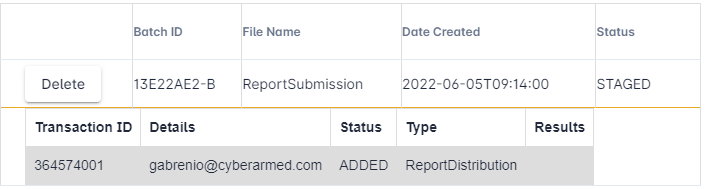
Click the Batch ID number to expand and see the details. |
|
Monitoring results
Using the procedures below, IDMS can be configured to send reports out to subscribers and officials on a specified time interval.
|
|
|
|
|---|---|---|
|
1 |
Go to administration, scheduling, reports |
|
End to end