
The following reports support standard identity management and credentialing program operations, use cases, and ongoing maintenance functions.
Determining the Number of Activations for a Given Date Range
|
Item |
Procedure |
Example |
|---|---|---|
|
1 |
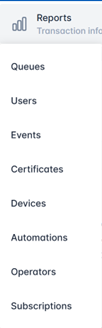
Go to Reports, then select Events. |
|
|
2 |
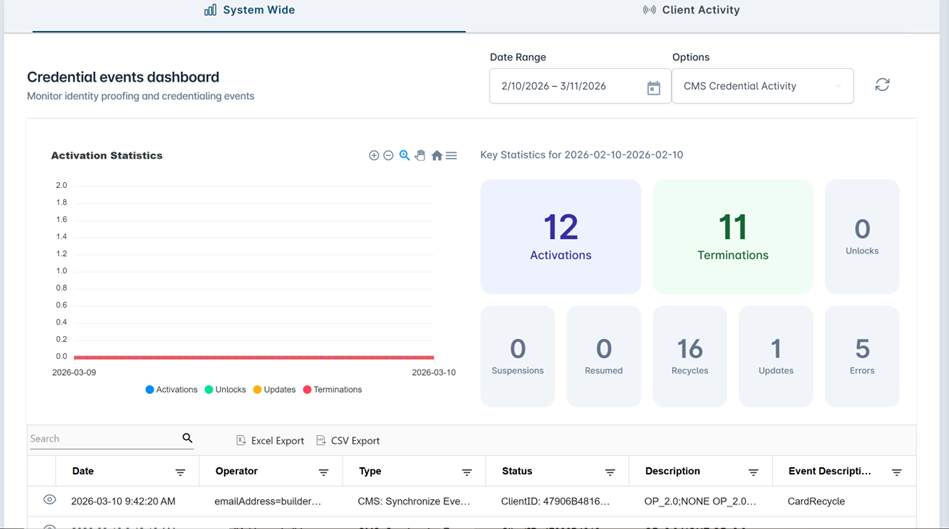
Specify the date ranges using the Calendar button, under the Options drop down, select the CMS Credential Activity, Press the Refresh button. |
|
|
3 |
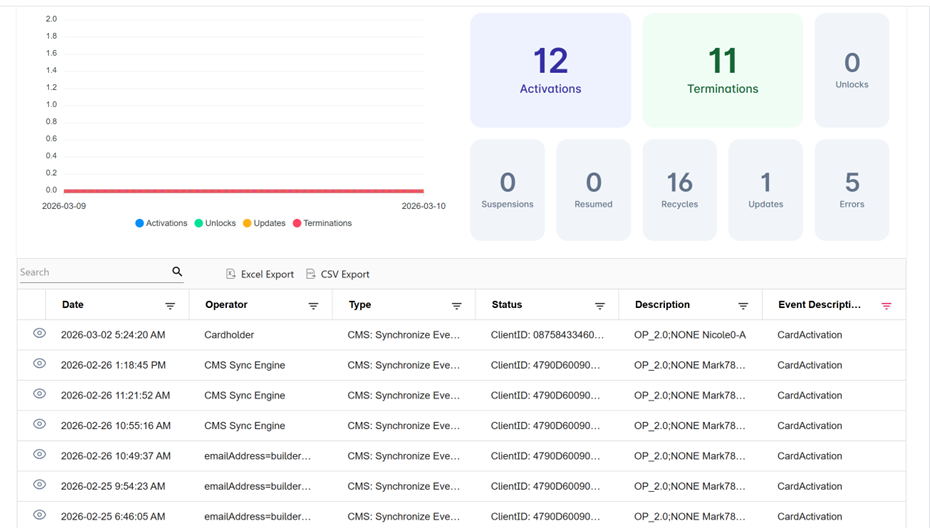
Click the Activations panel and review the detailed data in the table below.
You can also select the Eye icon within the table row and the data for the respective row will pop up in a box. |
|
|
4 |
You can export the data by selecting ‘Excel Export’ or ‘CSV Export’. |
|
Determining the Status of a Single Credential
|
Item |
Procedure |
Example |
|---|---|---|
|
1 |
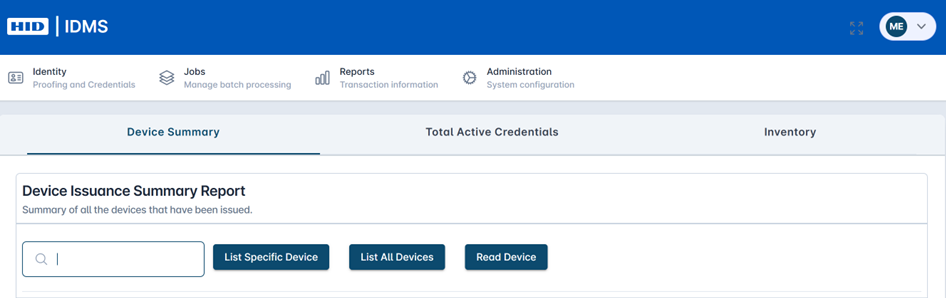
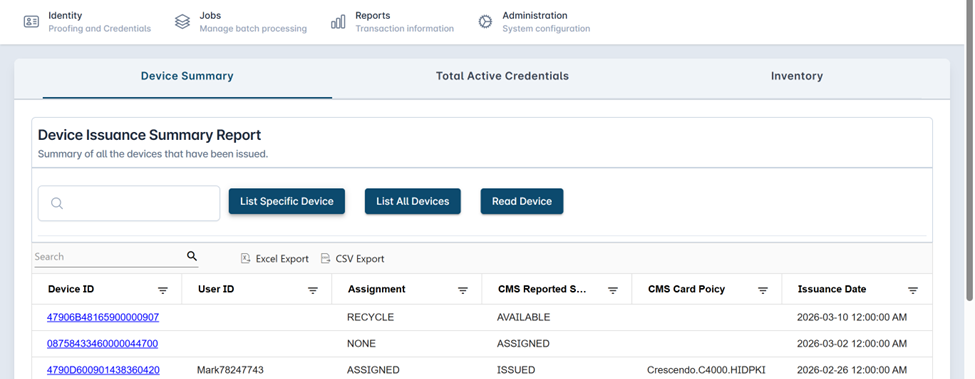
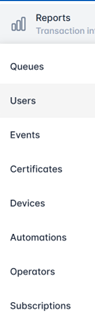
Go the Reports then select Devices. The Device Summary page loads. |
|
|
2 |
Select the List All Devices button to refresh the whole device report. Fields include Device ID, User ID, Assignment, CMS Reported Status, CMS Card Policy, and Issuance Date. |
|
|
3 |
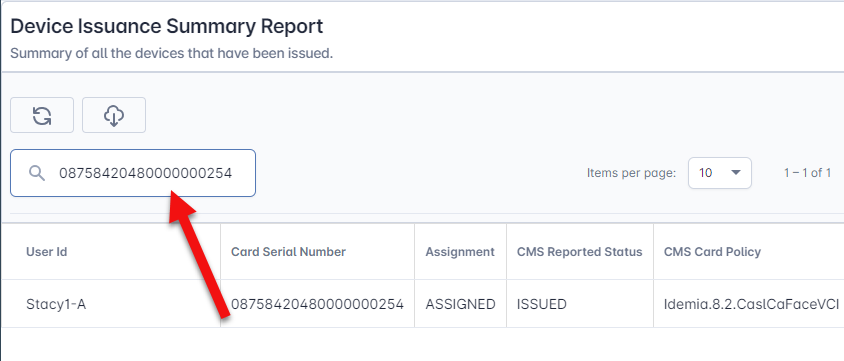
You can also search for a specific advice by entering the serial number into the search box and clicking List Specific Device. |
|
|
4 |
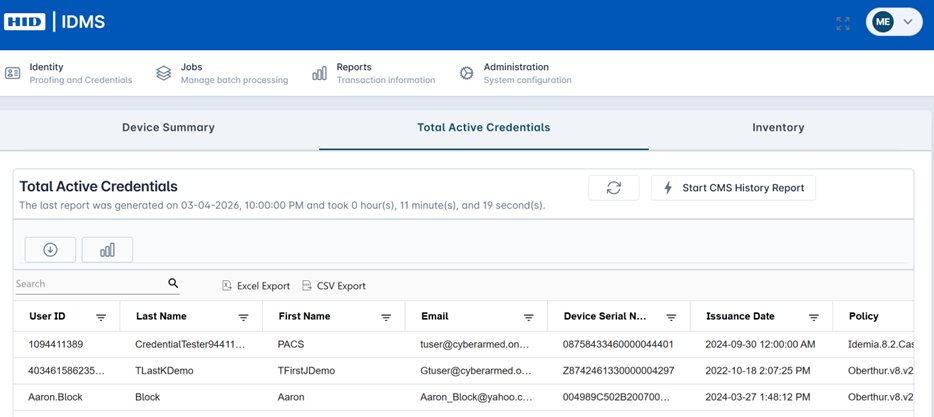
Go to Total Active Credentials tab and refresh the report history selecting Start CMS History Report or refresh the data using the Refresh button to see the updated credential report and populate the table. Fields include User ID, Last Name, First Name, Email, Device Serial Number, Issuance Date, and Policy. You can download this data with the download button. |
|
Determining the Status of a Specific User
|
Item |
Procedure |
Example |
|---|---|---|
|
1 |
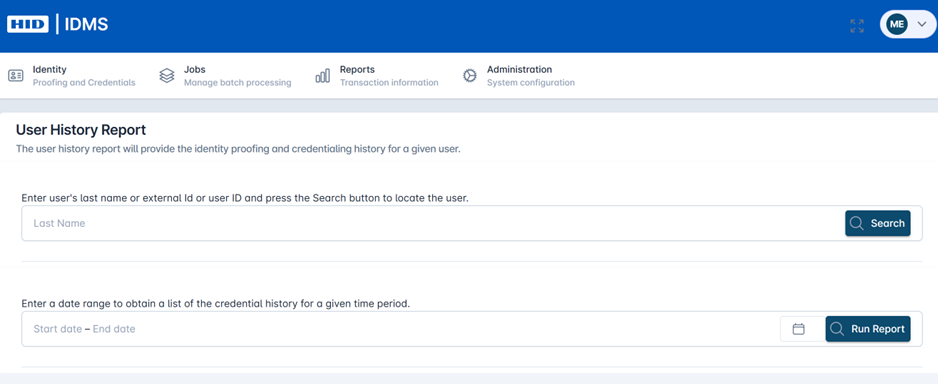
Go to Reports, then select Users. The User history report load. It provides the identity proofing and credentialing history for a given user. |
|
|
2 |
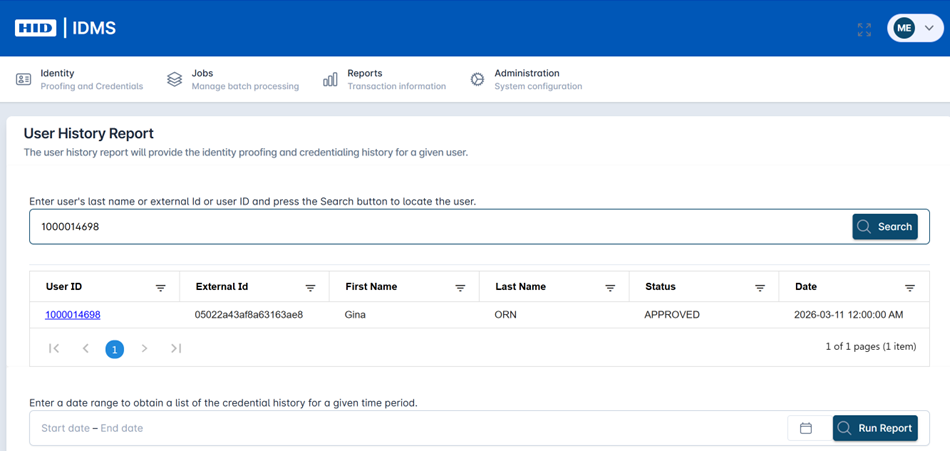
Enter the user’s User ID or External ID and press search. The table will populate with the fields: User ID, External ID, First Name, Last Name, Status, and Date.
|
|
|
3 |
From the table click on the hyperlinked User ID to review the user history. |
|
|
4 |
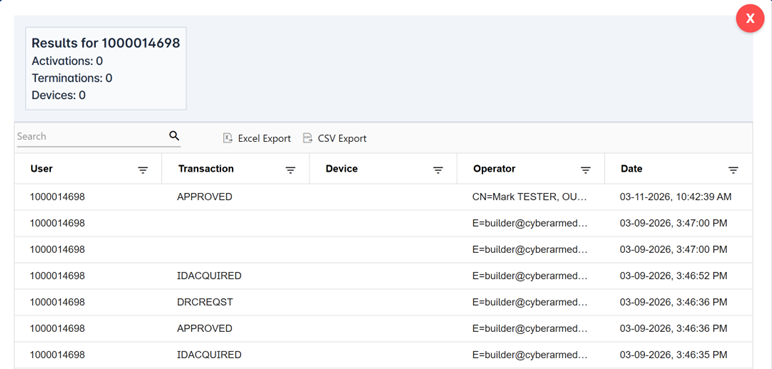
The user history will be displayed in a pop-up box. There are summary stats for Activation, Termination, and Devices at the top and event level user details including Transaction, Device, Operator, and Date. You can finetune your query using the search bar or download the data using the ‘Excel Export’ or ‘CSV Export’ options. |
|
Determining the History of a Specific Operator
|
Item |
Procedure |
Example |
|---|---|---|
|
1 |
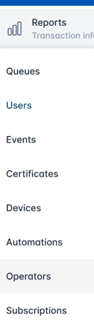
Go to Reports, then select Operators. |
|
|
2 |
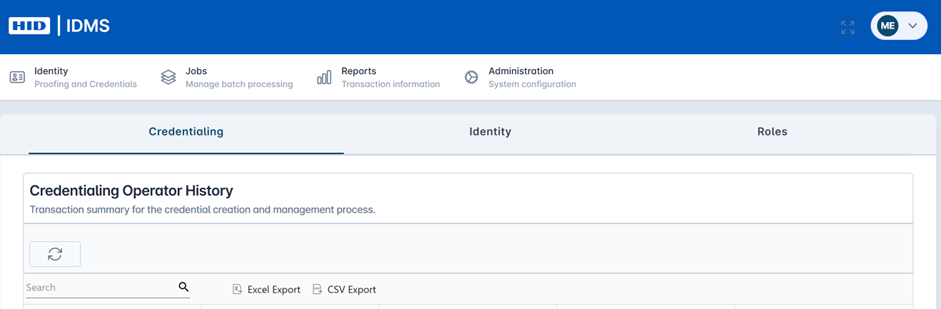
On the Credentialing tab, and the Credential Operator History report screen, select the Refresh button to load the report. This provides the transactional and operator detail for the credential creation and management lifecycle. |
|
|
3 |
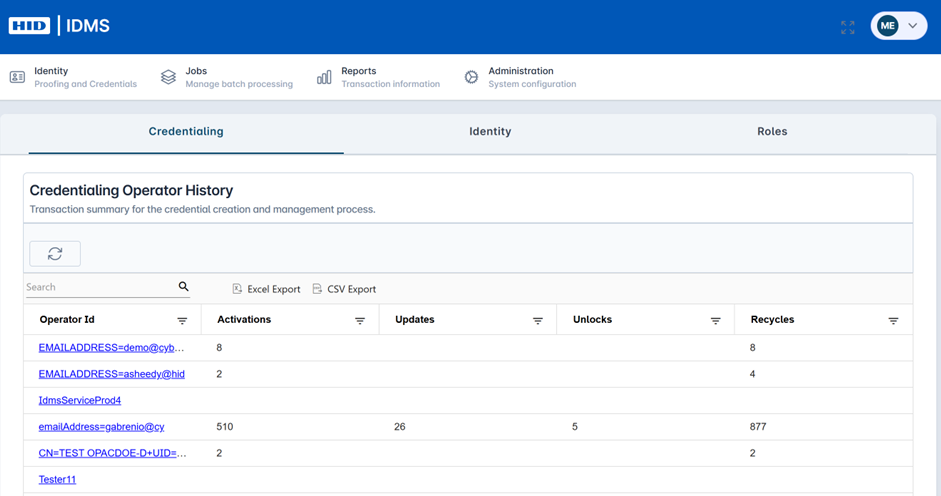
The table will populate with the fields Operator Id, Activations, Updates, Unlocks, and Recycles. Select the hyper-linked Operator Id to review the operation details for credential activity. |
|
|
4 |
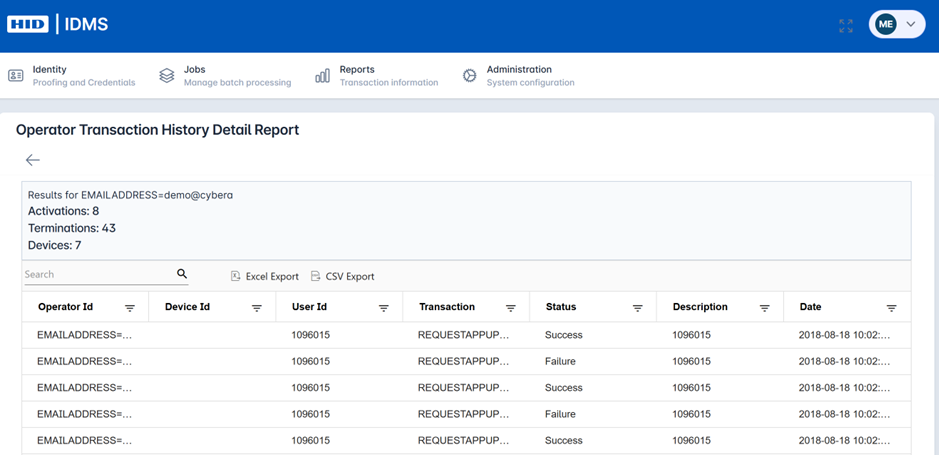
A new operator report detail table opens up and includes the following fields: Operator Id, Device ID, User ID, Transaction, Status, Description, and Date. You can finetune your query using the search bar or download the data using the ‘Excel Export’ or ‘CSV Export’ options. |
|