
PCA Configuration
PrinterConfiguration.xml: <printerName>DTC1250e Card Printer</printerName>
PersonalCredentialAssistant.config.exe:
<setting name="PrinterCardReader" serializeAs="String">
<value>real</value>
</setting>
Card Policy:
|
Print Credential : Yes |

|
|
Perform inline Encoding During Print |

|
|
Register and select the printer |
|
|
Assign a Print Layout Definition |

|
Install the HID Fargo DTC1250e drivers
Important: The printer should not be connected to the workstation. Verify the printer is not connected to the workstation.
|
Procedure |
Example |
|
|---|---|---|
|
1 |
Run the DTC1250e Driver Installation |
|
|
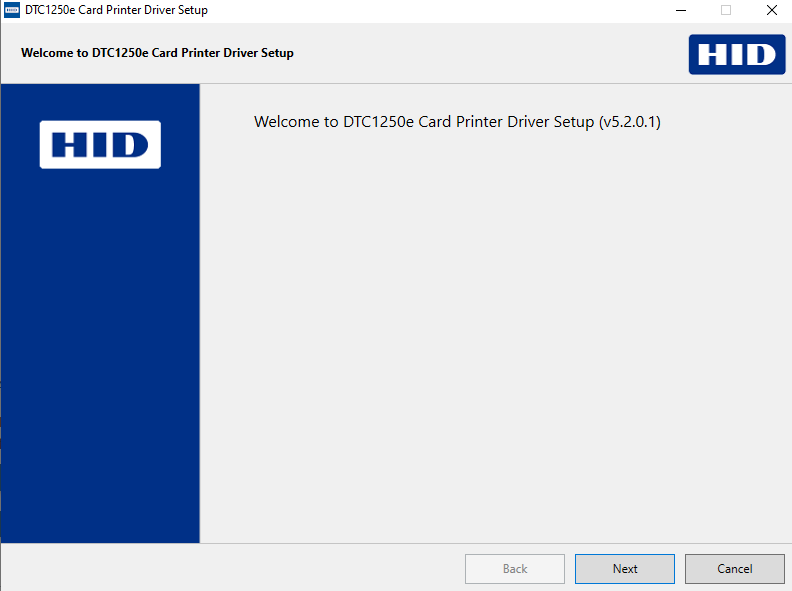
2 |
Press Next |
|
|
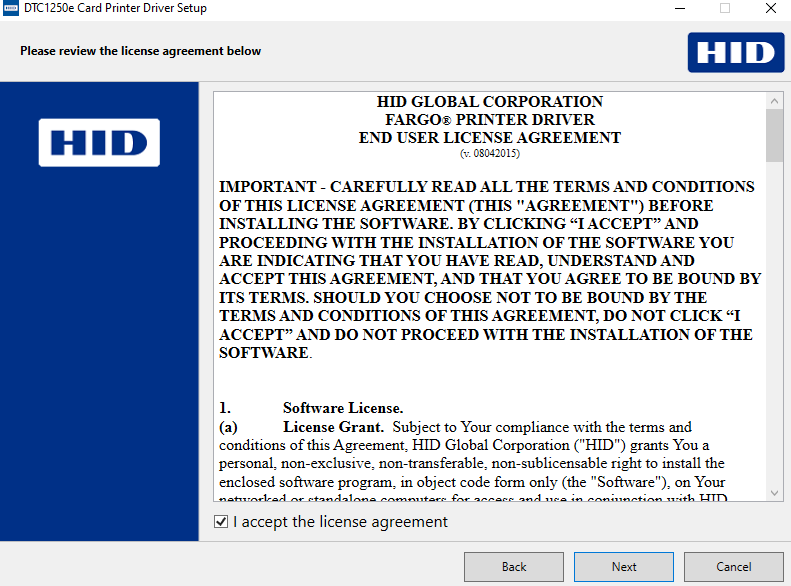
3 |
Read the end user license agreement. If acceptable, check the “I accept the license agreement” box and click next |
|
|
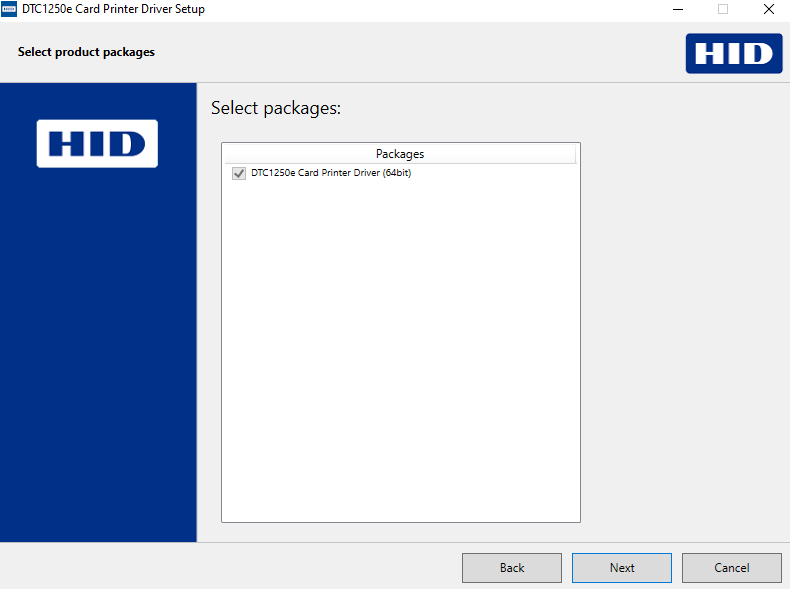
4 |
Select the DTP1250 Driver Package and click next. |
|
|
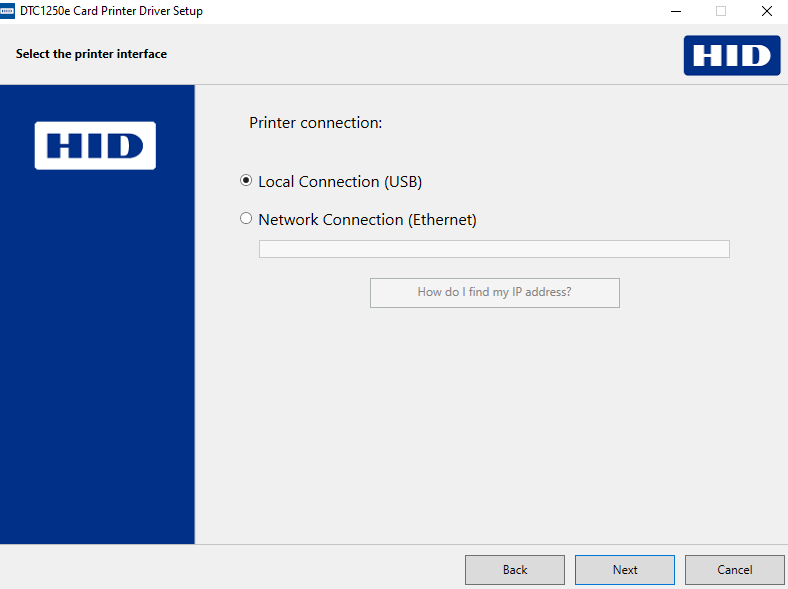
5 |
Select local USB connection |
|
|
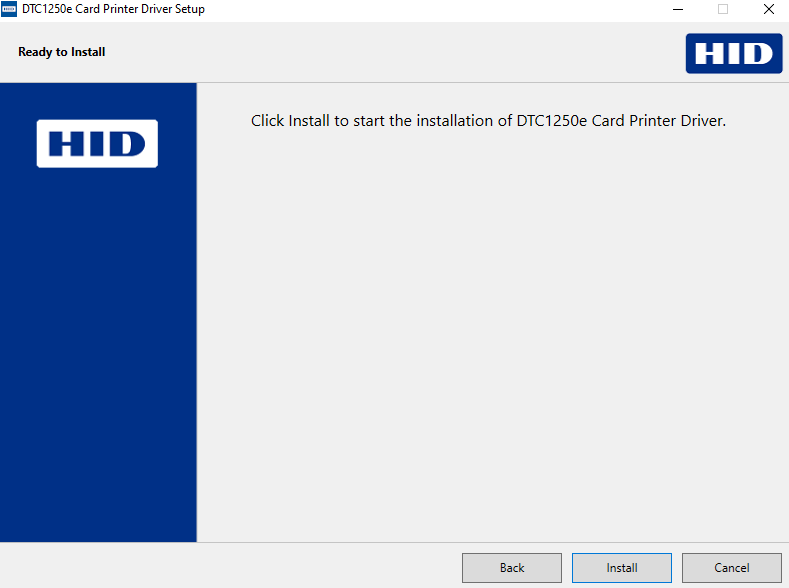
6 |
Click install to begin the installation process. |
|
|
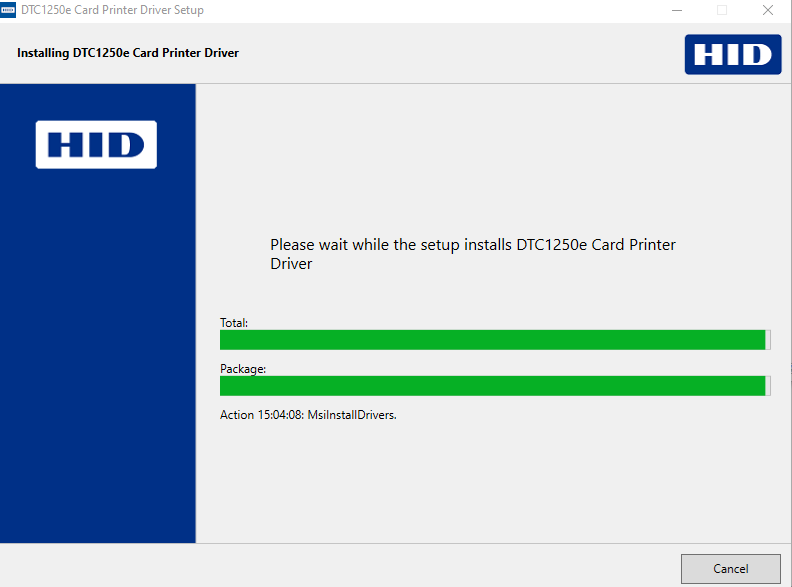
7 |
The installation will proceed |
|
|
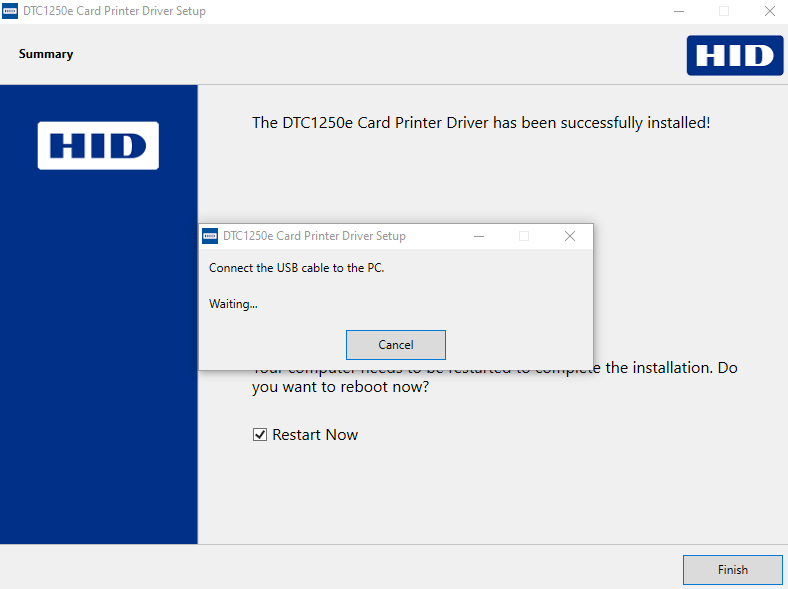
8 |
When prompted, connect the printer to the computer. |
|
|
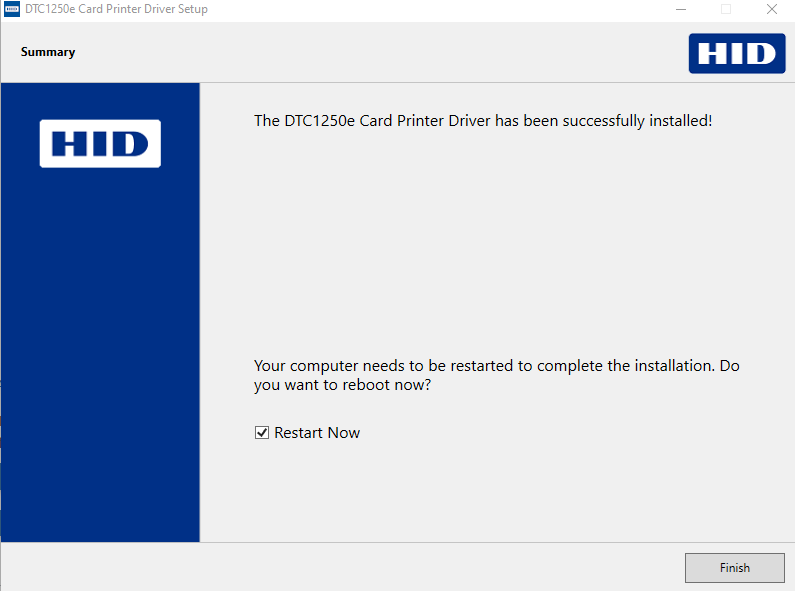
9 |
Reboot the workstation |
|
|
10 |
Once restarted, open the “Windows Printers and Scanners app and verify that the DTC1250e printer is registered. |

|
Get the name of the printer in the device manager