|
Step Number |
Procedure |
|
|---|---|---|
|
1 |
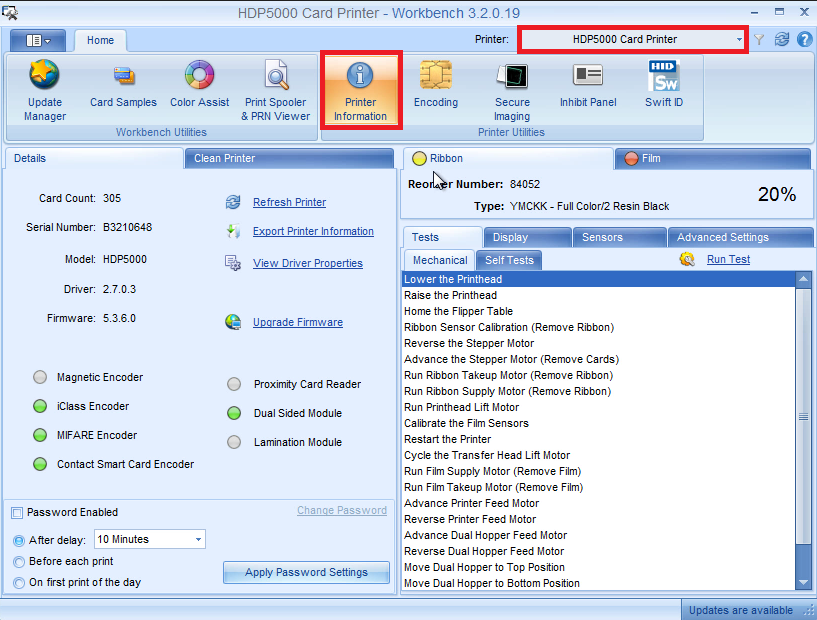
Run workbench, verify the printer can be seen. |
|
|
2 |
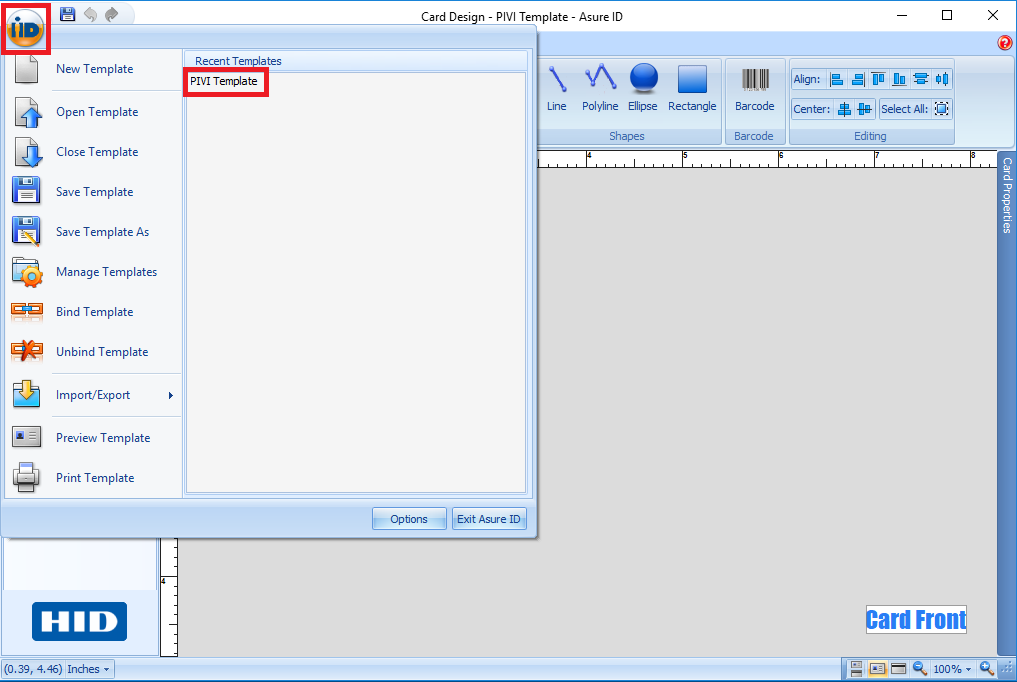
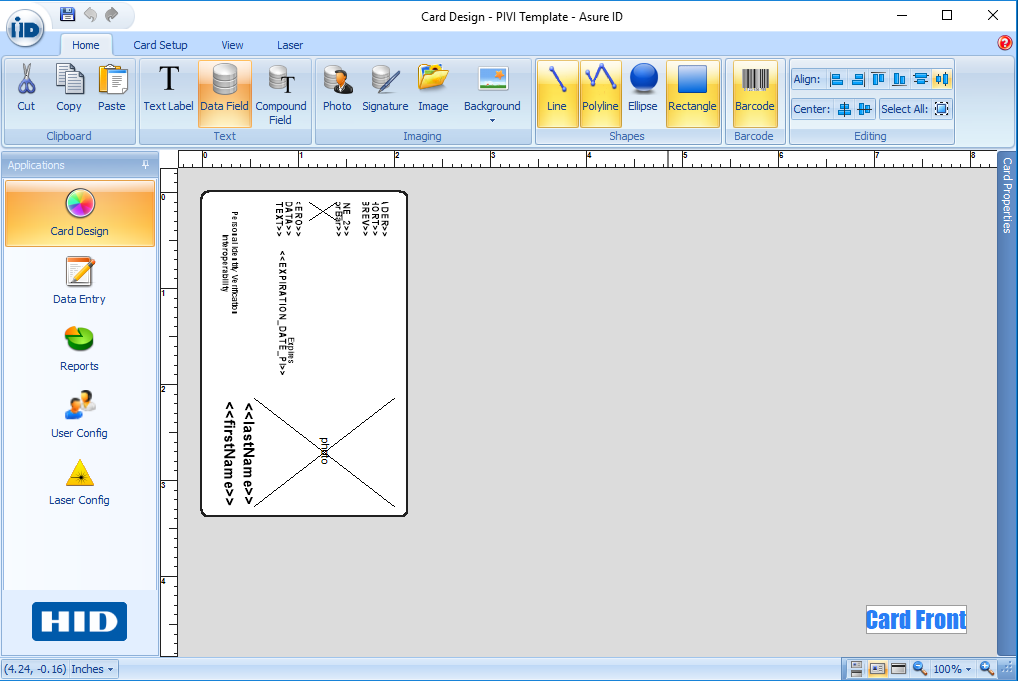
Open AsureID, verify the template exists
If no template exists, please review "Configuring the print template" section. |
|
|
3 |
If updating → remove any local print installers that were previously installed. backup any config files/logos |
|
|
4 |
Copy the customer pivlogo.jpg into the C:\Program Files (x86)\HID Global\PCA folder |
|
|
5 |
Open PersonalCredentialAssistant.exe.config in C:\Program Files (x86)\HID Global\PCA Directory as Administrator Verify the PrinterCardReader setting is set to "real"
|
|
|
6 |
Open PrinterConfigation.xml and verify the <printerName> and <CurrentTemplate> is set properly. |
|
|
7 |
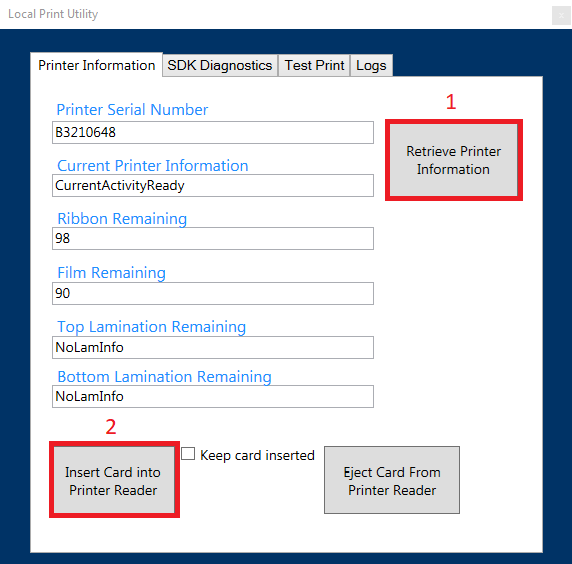
Go to the C:\Program Files (x86)\HID Global\PCA folder, run the LocalPrintUtility.exe utility. Click retrieve printer information and verify the serial number and other data is returned. Click Insert Card into Printer Reader and verify the printer inserts the credential. |
|
|
8 |
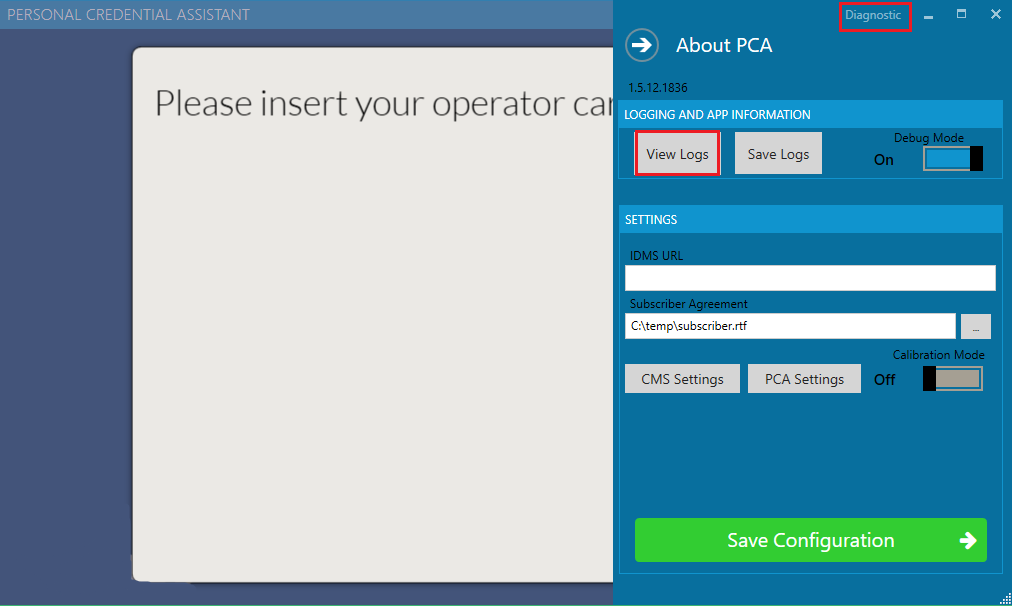
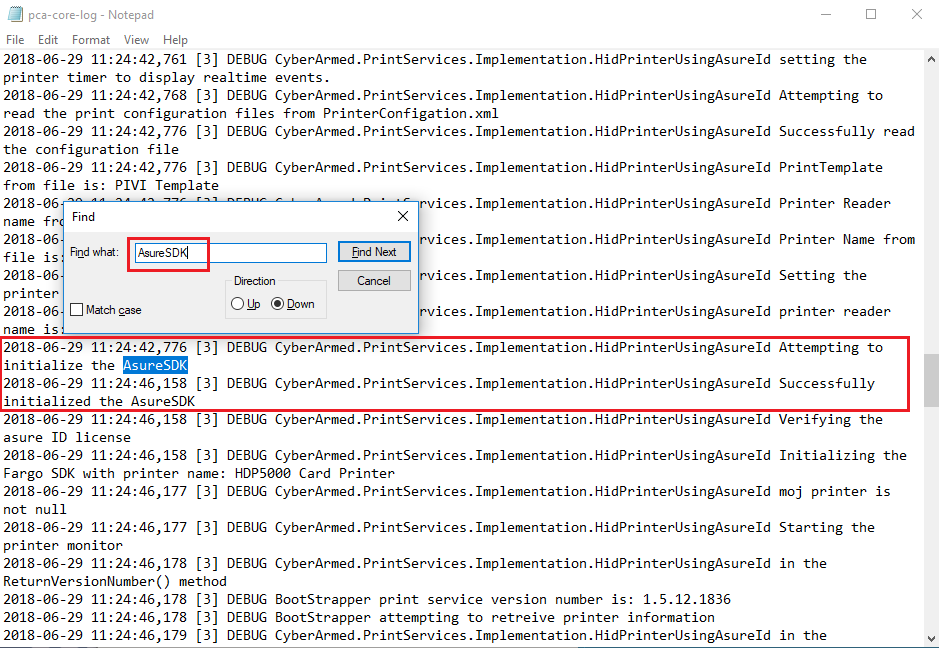
Start PCA and verify the AsureID license was successfully initialized
if have error below, restart the operating system: "Error occured while initalizing AsureSDK. Details are: Could not load file or assembly 'file:///C:\Program Files (x86)\HID Global\PCA\AsureID.FolderProvider.dll' or one of its dependencies. Operation is not supported. (Exception from HRESULT: 0x80131515)" |
|
|
9 |
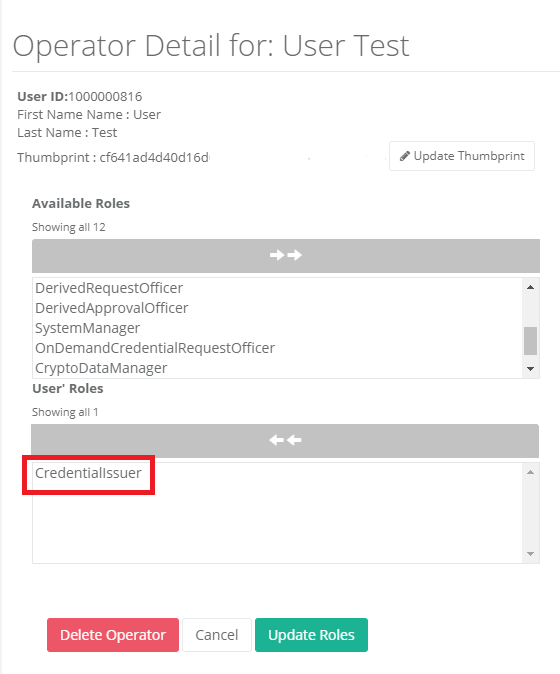
Verify the user has the "CredentialIssuer" role, not the "CredentialProducer" Role |
|