|
Step Number |
Procedure |
Example |
|---|---|---|
|
1 |
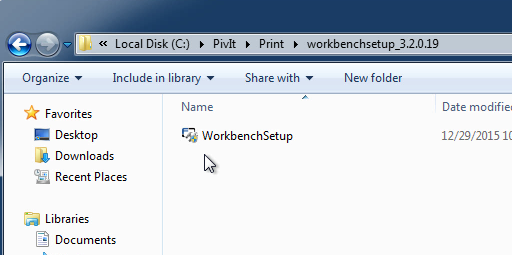
Move to the Pivit\Print\workbenchsetup_3.2.0.19 folder. Run the WorkbenchSetup.msi |
|
|
2 |
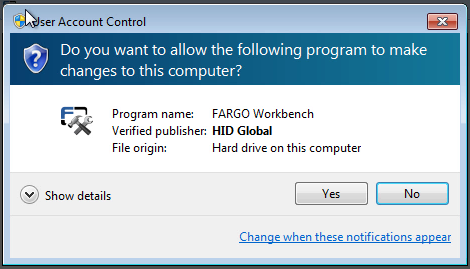
If the user account control shows up, press Yes. |
|
|
3 |
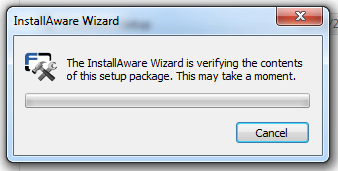
The installation process will start. |
|
|
4 |
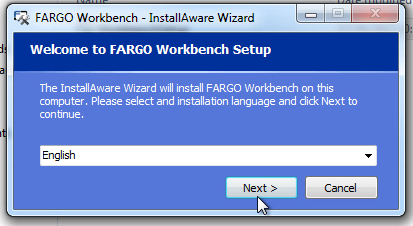
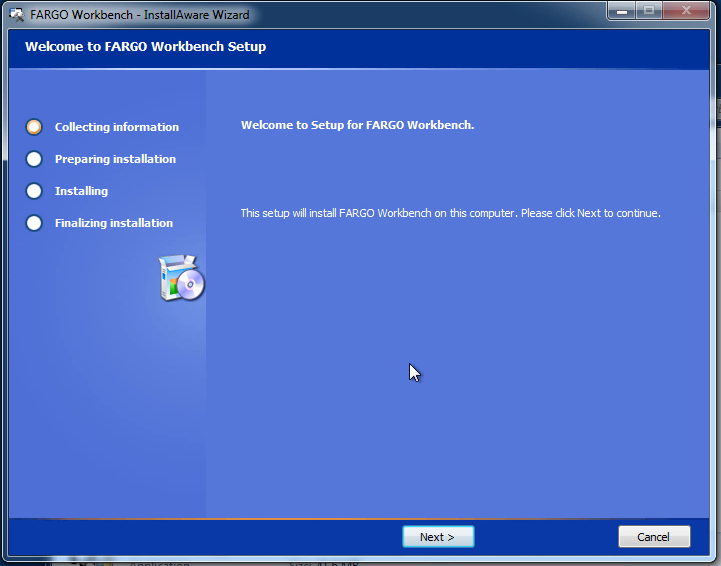
Press the Next button. |
|
|
5 |
Press the Next button. |
|
|
6 |
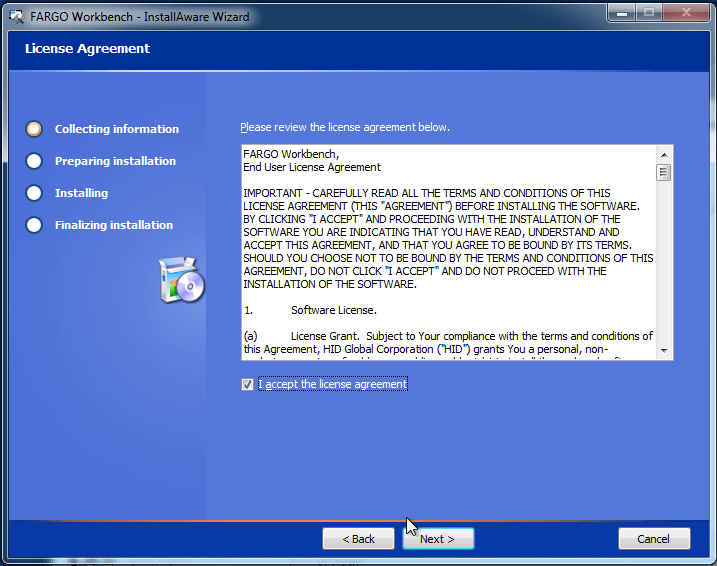
Read the license agreement, click the "I accept the license agreement" box and press Next. |
|
|
7 |
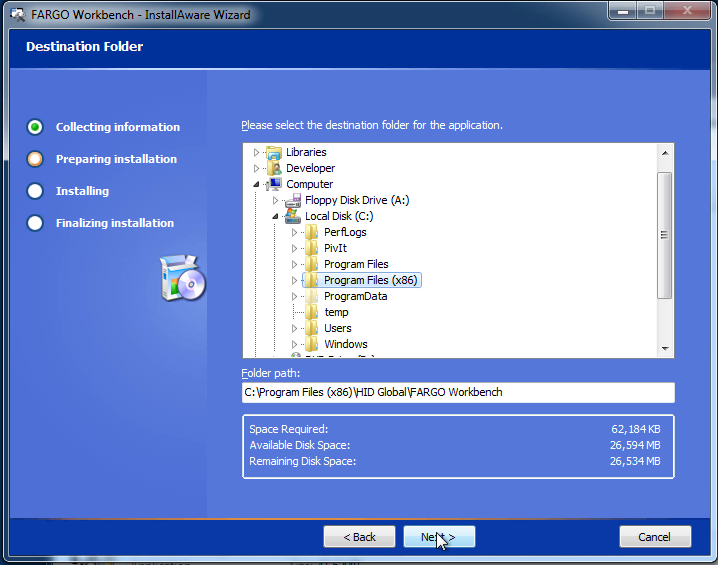
Keep the default path and press Next. |
|
|
8 |
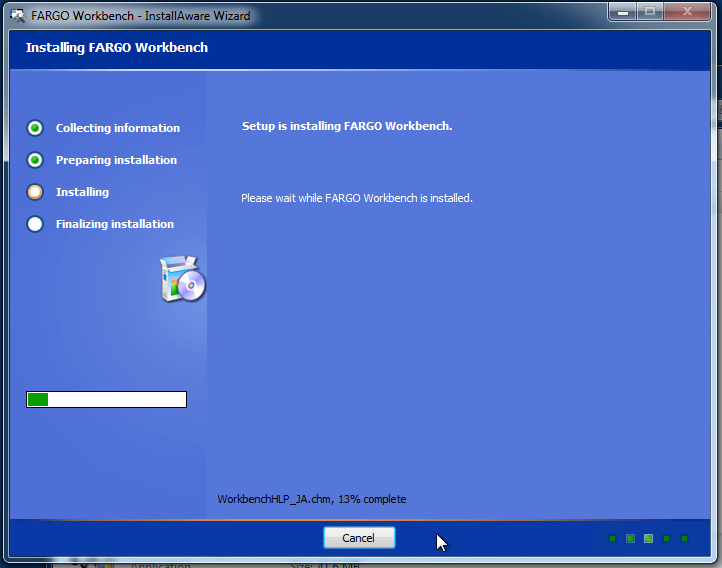
The installation will start. |
|
|
9 |
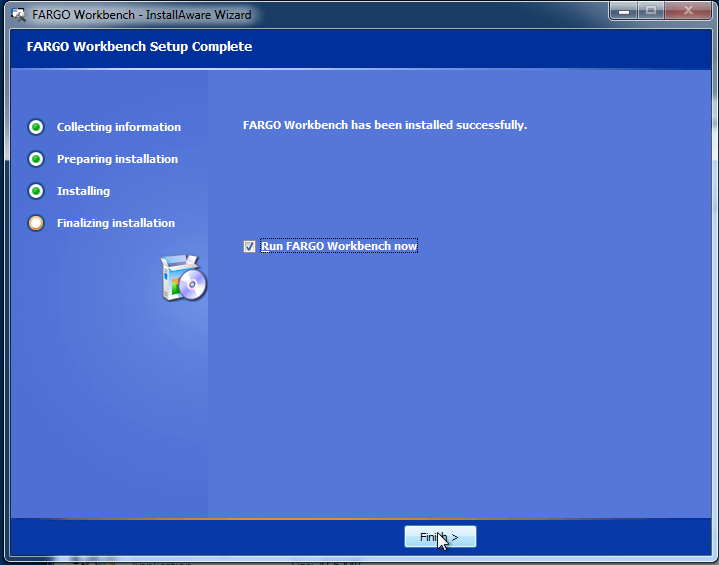
Keep the "Run Fargo workbench now" checkbox check and press Finish. |
|
|
10 |
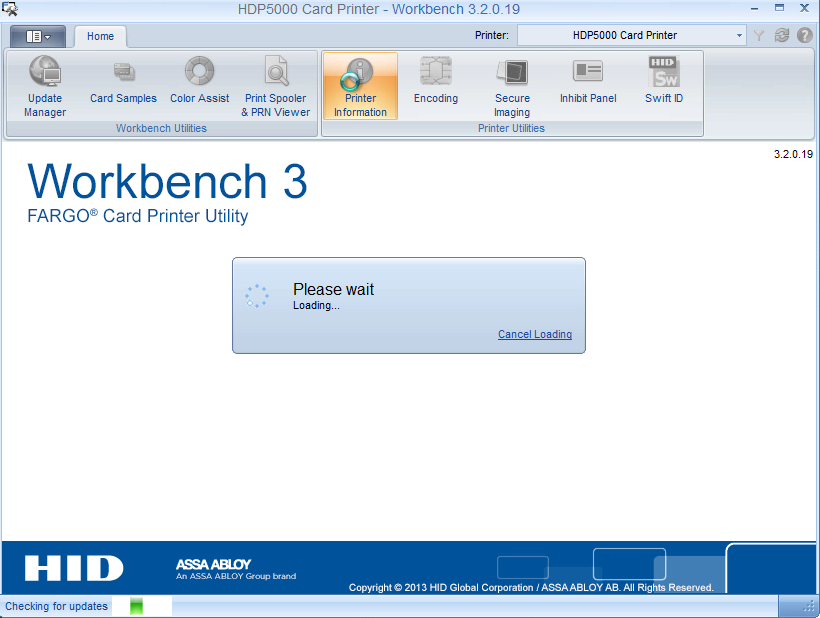
The workbench application will start. |
|
|
11 |
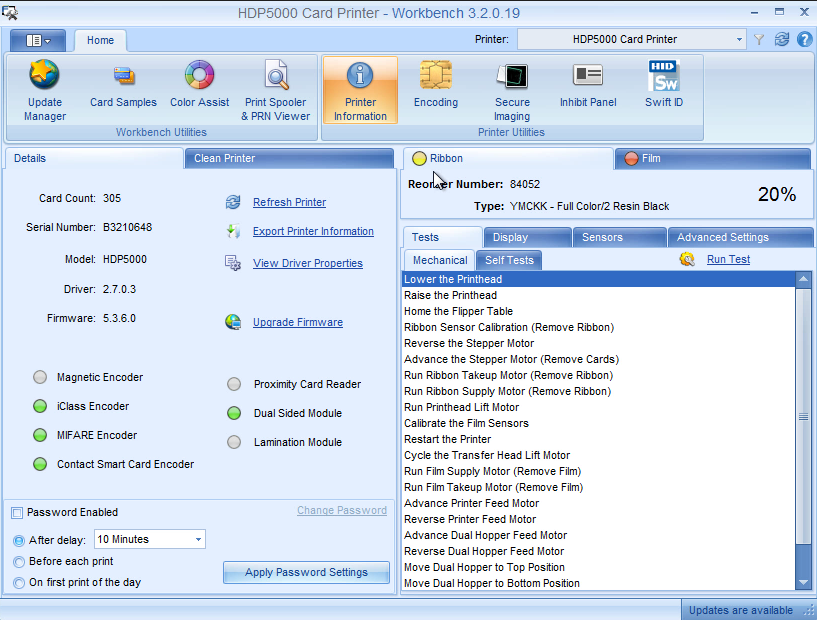
Click on the printer button. |
|
|
12 |
Verify the printer information is displayed. |
|
|
13 |
The workbench application install is complete. |