This process describes how to load the the print template for printing the credential.
Important:Template data requirements. Any new data template must implement the following data fields.
|
ID |
Name |
Description |
|
1 |
HEADER |
Information printed on top border of credential |
|
2 |
EXPIRATION_DATE_SHORT |
Expiration date |
|
3 |
ORG_AFFILIATION_ABBREV |
Organization Abbreviation |
|
4 |
EMPLOYEE_AFFILIATION_LINE_1 |
Line 1 of employee affiliation |
|
5 |
EMPLOYEE_AFFILIATION_LINE_2 |
Line 2 of employee affiliation |
|
6 |
EXPIRATION_DATE_PI |
Expiration date large font |
|
7 |
Photo |
Photo image of the card holder |
|
8 |
FIRSTNAME |
First name of the cardholder |
|
9 |
LASTNAME |
Last name of the cardholder |
|
10 |
CONTRACTORBAR |
Color bar of credential |
|
11 |
AGENCYSEAL |
Seal of the organization *For this to be operational, the seal must be saved in the PCA directory with the file name of pivilogo.jpg |
|
13 |
PHYS_CHAR_HEIGHT |
Height of the card holder |
|
|
PHYS_CHAR_EYE_COLOR |
Eye color of the card holder |
|
14 |
CARDSERIALNUMBER |
Card serial number |
|
15 |
ISSUER_IDENTIFICATION |
If Present in the AsureId Policy, will print External ID. |
|
24 (Array Position) |
FASCN_BAR_CODE_VALUE |
Fascn from CMS |
Loading an existing card template
|
Step |
Description |
Example |
|
|---|---|---|---|
|
1 |
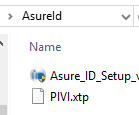
Locate the PIVI.XTP file in the AsureId folder. |
|
|
|
2 |
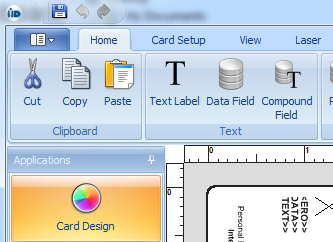
Open the HID Asure Id Program |
|
|
|
3 |
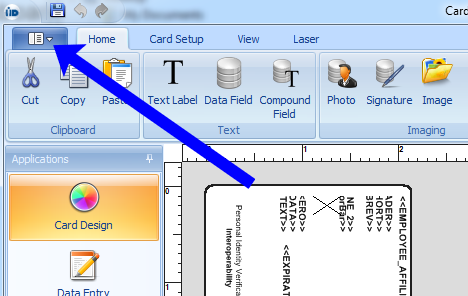
After the HID Asure Id program is opened, Press the icon that is near the top left corner. The icon has a small down arrow. |
|
|
|
4 |
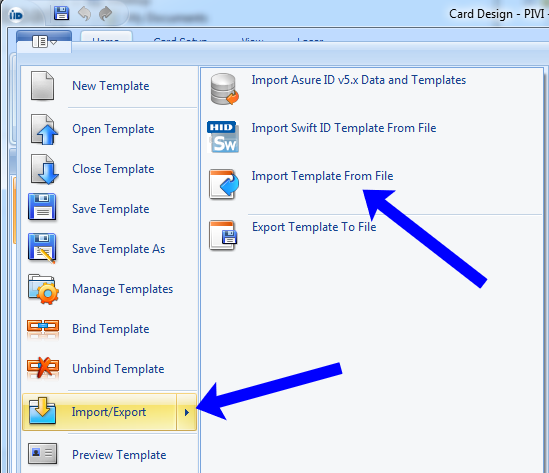
Next select Import/Export Import template from file |
|
|
|
5 |
Select the PIVI.xtp file |
|
|
|
6 |
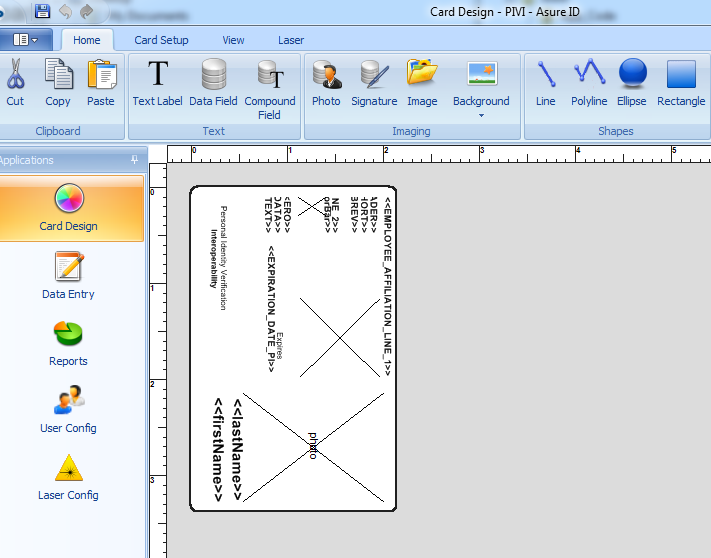
The layout will then be listed on the canvas |
|
|
|
7 |
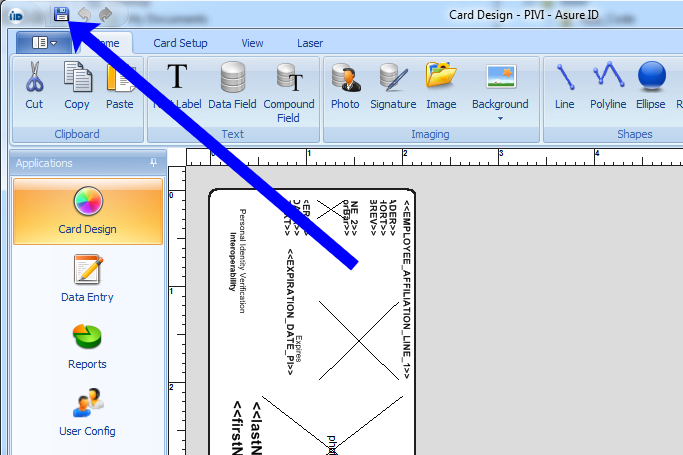
Press the save button and then close |
|
|
|
8 |
Restart PCA |
|
|
Adding the FASCN Bar code
Prerequisites
The IDMS card policy has been configured to retrieve the piv:printableFascn from the CMS
|
Step ID |
Procedure |
Example |
|---|---|---|
|
1 |
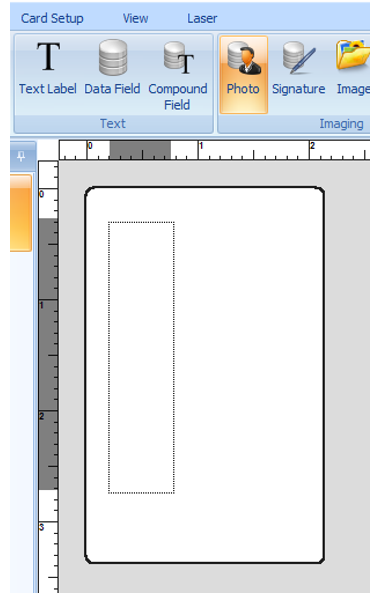
In Asure ID, Click Photo and then draw a rectangle on the card canvas. |
|
|
2 |
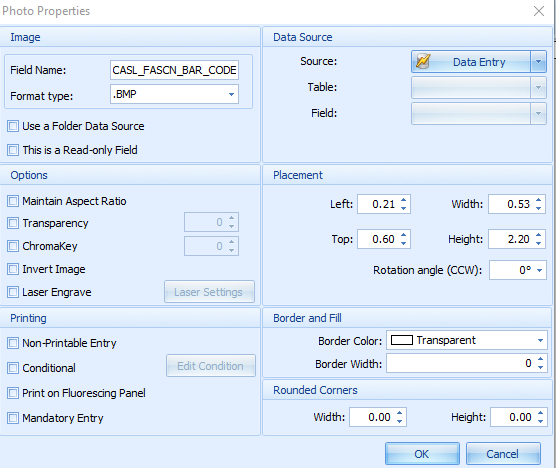
Within the photo properties section, configure the following: Field Name: CASL_FASCN_BAR_CODE Format type: .BMP Width: .50 Height: 2.20 Rotation Angle 0 Maintain Aspect Ration : No check box. Border Color: Transparent Border Width: 0 |
|
|
3 |
Position the object on the desired location. |
|
|
4 |
To print the text value of the bar code, on the Asure ID, click Data Field |
|
|
5 |
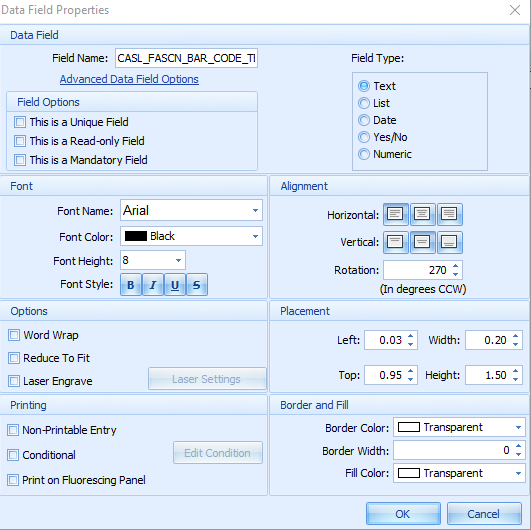
Within the data field properties, configure the following: Field Name: CASL_FASCN_BAR_CODE_TEXT Font: Arial Font height:8 Rotation: 270 |
|

Adding the P2000 FASCN Bar code
The steps below describe how to configure the AsureId print policy to print the FASCN in a bar code.
Prerequisites
The IDMS card policy has been configured to retrieve the piv:printableFascn from the CMS
|
Step ID |
Procedure |
Example |
|---|---|---|
|
1 |
In Asure ID, Click Photo and then draw a rectangle on the card canvas |
|
|
2 |
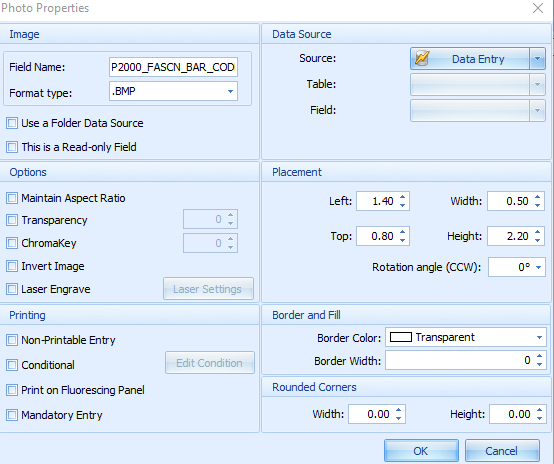
Within the photo properties section, configure the following: Field Name: P2000_FASCN_BAR_CODE Format type: .BMP Width: .50 Height: 2.20 Rotation Angle 0 Maintain Aspect Ration : No check box. Border Color: Transparent Border Width: 0 |
|
|
3 |
Position the object on the desired location. |
|
|
4 |
To print the text value of the bar code, on the Asure ID, click Data Field |
|
|
5 |
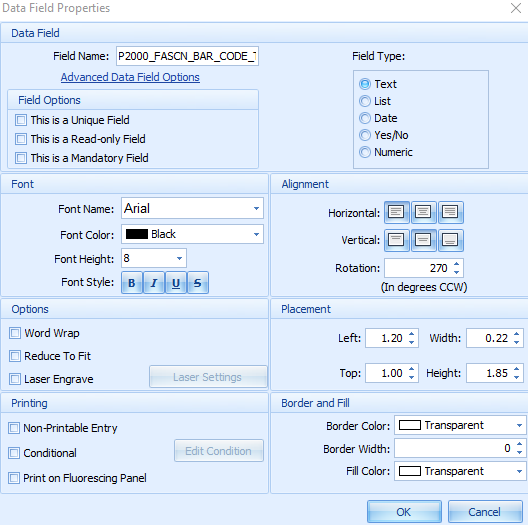
Within the data field properties, configure the following: Field Name: P2000_FASCN_BAR_CODE_TEXT Font: Arial Font height:8 Rotation: 270 |
|