
Dynamic data for the badge originates from the following sources: 1) the applicant’s enrollment record, 2) the applicant’s intake questions, and a 3) custom directory value.
1. Applicant Enrollment Record Data
The following list provides a list of the dynamic values that can be utilized in the badge layout.
|
Name |
Description |
|---|---|
|
USERID |
IDMS generated 10-digit ID |
|
LASTNAME |
Last name of the cardholder |
|
FIRSTNAME |
First name of the cardholder |
|
EMAILADDRESS |
Email address of cardholder |
|
PHOTO |
Photo image of the card holder |
|
EXPIRATIONDATE |
Expiration date large font |
|
EYECOLOR |
Eye color of the cardholder |
|
HEIGHT |
Height of the cardholder (in feet and inches) |
|
HAIRCOLOR |
Hair color of the cardholder |
|
RETURNTOADDRESSONE |
Organization Address |
|
RETURNTOADDRESSTWO |
Organization Address |
|
RETURNTOADDRESSTHREE |
Organization Address |
|
LASTNAMECOMMA |
Places a comma at the end of the last name. For example, DOUGH, |
|
MIDDLENAME |
Middle name of the device holder |
|
FIRSTNAMEMI |
Combines the first name and middle initial of the device holder. For example, Michelle V |
|
FIRSTNAMEMIPERIOD |
Combines the first name and middle initial of the device holder and adds at period at the end. For example, Michelle V. |
|
ISSUEDATEDDMMMYYYY |
Formats the issued date to DDMMMYYYY, 25OCT2025 |
|
EXPIRATIONDATEDMMMYYYY |
Formats the expiration date to DDMMMYYYY,25OCT2025 |
|
COMBINE|FIRSTNAME| |MIDDLENAME| |LASTNAME |
JOHN MICHAEL DOE |
|
COMBINE|LASTNAME|, |FIRSTNAME| |MIDDLENAME |
DOE, JOHN MICHAEL |
|
COMBINE|LASTNAME|, |FIRSTNAME|-|MIDDLENAME |
DOE, JOHN-MICHAEL |
These Dynamic Data values can be added to the badge through the badge setup process. Creating the Badge Layout
2. Intake Question Data
For custom information that is not available from the application enrollment record, the answers from Intake Questions can be printed on the badge.
For example, if the title of the applicant needs to be printed on the badge, the Intake Questions can be configured to collect the question “Title”. Then in the badge layout, the title can be used for the value.
How to use the Intake Question Result for Badge Printing
|
Item |
Procedure |
Example |
|---|---|---|
|
1 |
Locate the credential policy and configure Intake Questions. |
|
|
2 |
Within the Intake Question panel, press the + Add button. |
|
|
3
|
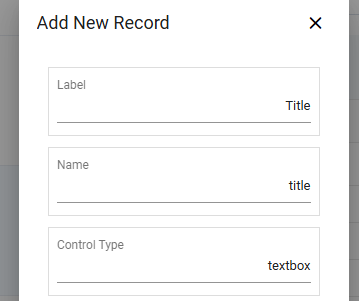
In the Label section, enter the desired word, ‘Title’. In the Name section, enter ‘title’. Press the Save button. |
|
|
4 |
Scroll to the bottom press Update to save the credential policy. This includes the defined intake question(s). |
|
|
5 |
Go back and edit the credential policy using the gear button and then Configure Policy. Scroll down to the Badge Layout section. |

|
|
6 |
Select the Add Text button to add a new text field onto the canvas. Reference: Creating the Badge Layout |
|
|
7 |
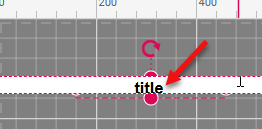
Double click the text field and enter ‘title’, the corresponding Intake Question 'name' field value. |
|
|
8 |
Press Save Changes to save the Badge layout updates. |
|
|
9 |
Scroll to the bottom and press Update to save the credential policy. |
|
3. Custom Directory Value Data
The procedures below describe how to retrieve custom attributes from the directory. This is useful if the credential policy requires additional information from the directory for certification issuance or identity proofing.
To retrieve a custom Active Directory Attribute, complete the following:
The samaccountname value must be specified in the LDAP Attribute to be validated.
|
Item |
Procedure |
Example |
|---|---|---|
|
1 |
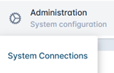
Got to Administration, then select System Connections. |
|
|
2 |
Select the Gear button to the corresponding system connection, then select Configure System. |


|
|
3 |
Go to the LDAP Attribute, then the Validate section. |
|
|
4 |
At the minimum, add the samaccountname LDAP attribute to be validated. |
|
|
5 |
Add other LDAP Attributes to be retrieved. |
|
|
6 |
Enter Password and press Update. |
|
Once configured, respective system value can be added to the badge layout Creating the Badge Layout