
A color block can be used to offset text or signify other important characteristics of the badge holder. Adding a color block is accomplished by using a image.
Prerequisites
-
Log in to the system with administrative rights
-
Create graphic with color blocking using photo editing software and save it as a .png file
To Add a Color Block to the Badge Layout
|
Item |
Procedure |
Example |
|---|---|---|
|
1 |
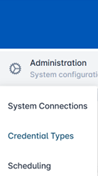
Click Administration and select Credential Types. |
|
|
2 |
Select a Credential Policy and press the corresponding gear button. Press Configure Policy. |

|
|
3 |
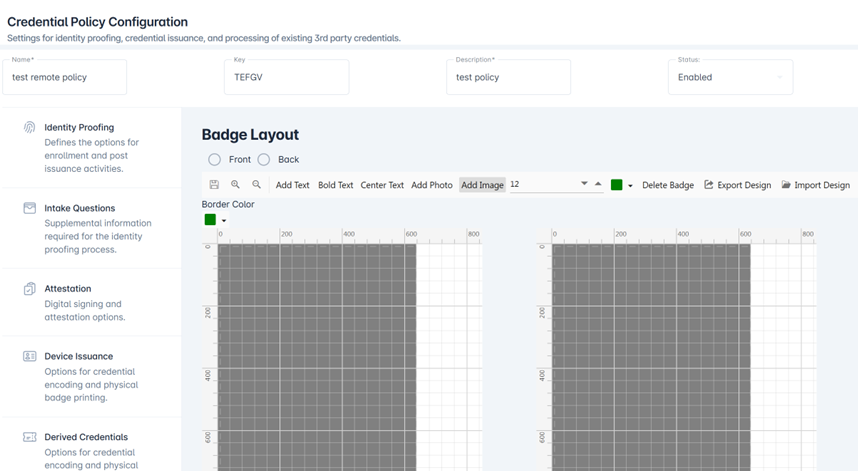
Scroll down and click the Badge Layout tab. The badge layout designer will be displayed. |
|
|
4 |
Select the Front or Back radio button to specify where the image should be placed. |
|
|
5 |
Press the Add Image button. |
|
|
6 |
Locate the image file with the color blocking design. Select the image and press Okay. |
|
|
7 |
Once showing on the badge designer, click the image to select it and resize or move as needed. |
|
|
8 |
Press Save Changes and then press Update. |
|
Reference: Creating the Badge Layout
Note: Images should be stored in a .png file format.