
The User History report enables an authorized operator to view the entire transaction history for an individual. Additionally, the report provides the time, transaction type, and the operator that performed the activity. The following steps describe how to execute the reports.
This report supports both operations and auditing needs. There is also an option to search by date range for expanded usage.
|
Item |
Procedure |
Example |
|---|---|---|
|
1 |
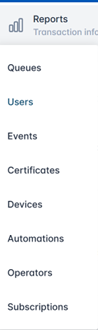
Click Reports, and then select Users. |
|
|
2 |
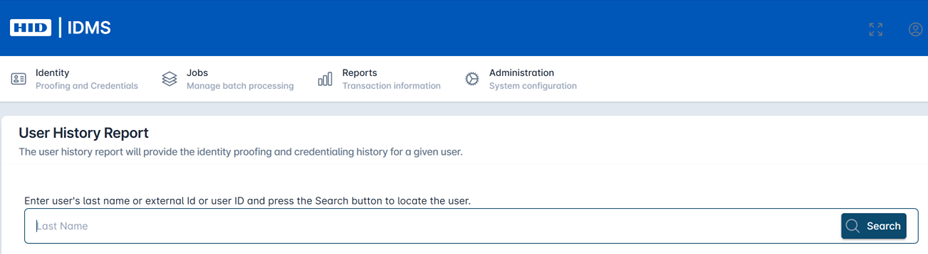
Go to the “Enter user's last name or external Id or user ID” enter applicable value and press the Search button to locate the user. To view credentialing history section. Within this section, enter the last name, external id or user id and press Search. |
|
|
3 |
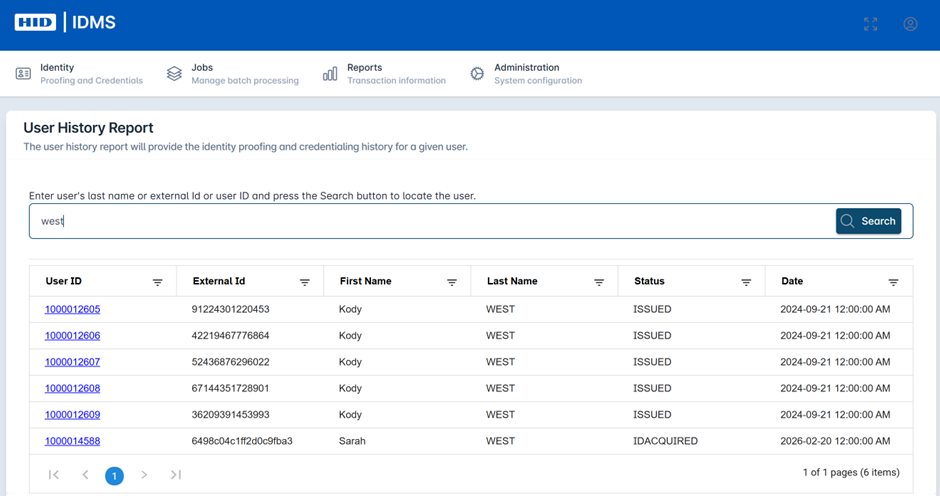
From the displayed results, press the hyper-linked User ID to retrieve the user information. |
|
|
4 |
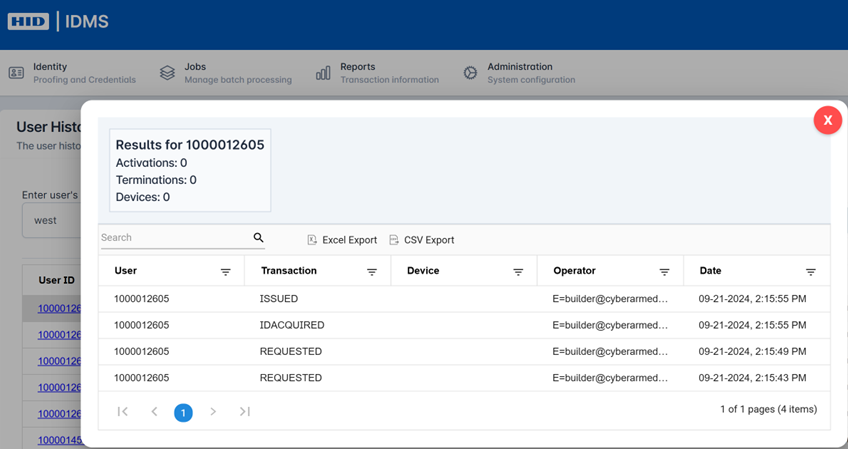
The transaction history report for the user is retrieved listing the Date, Transaction, Device, and the Operator that performed the transaction.
|
|
|
5 |
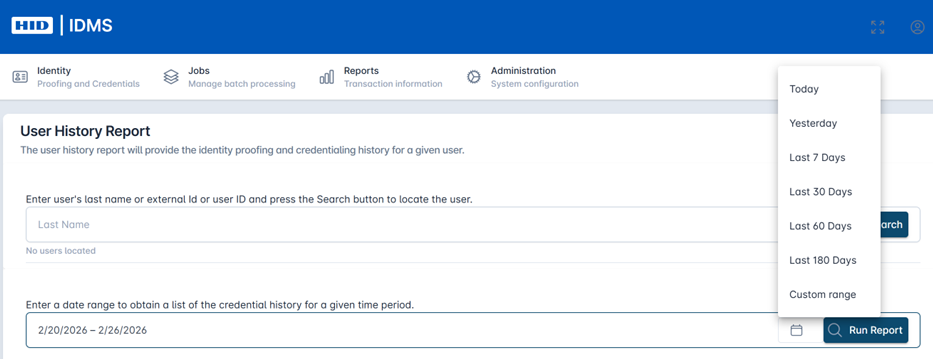
Additionally, the operator can also search by a date range to view credential history for multiple users for a given period of time. Select the date range within the “Enter a date range to obtain a list of the credential history for a given time period” search bar. Then select Run Report to display results. |
|
|
6 |
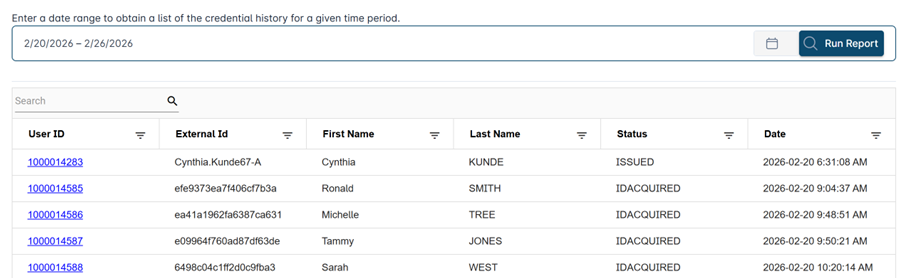
See table populated with the following fields: User ID, External ID, First Name, Last Name, Status, and Date. |
|