
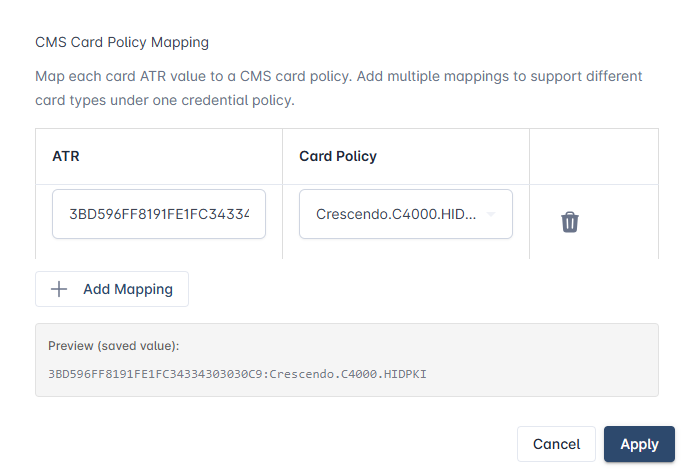
To minimize the need for additional policies to support different cards, the card manufacturer’s number, known as ATR, can be linked to an existing CMS policy. This allows the IDMS to look up the specific CMS card policy based on the ATR.
Part 1. Obtaining the ATR Information
First locate the applicable ATR value for the device.
|
Item |
Procedure |
Example |
|---|---|---|
|
1 |
First insert the applicable card into the reader. |
|
|
2 |
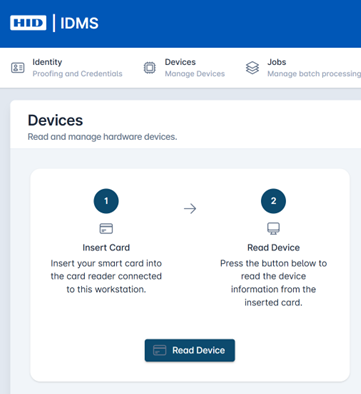
To obtain the ATR value, click the Devices tab, select Device Assistant. Then click Read Device. This will read the device information from the inserted card. |
|
|
3 |
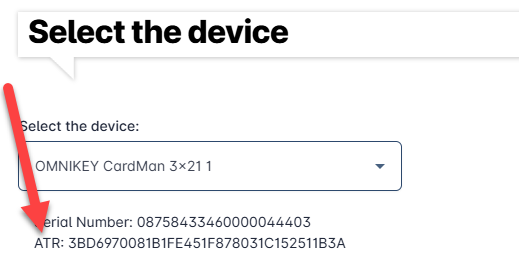
Select the reader from the drop down when the card is inserted. The ATR information will be listed on the screen. |
|
Once you have obtained the ATR value, continue to part 2.
Part 2. Configure Card Mapping to Credential Policy
Once you have the ATR card value, complete the mapping setup to the appropriate policy.
|
Item |
Procedure |
Example |
|---|---|---|
|
1 |
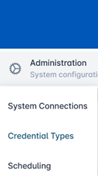
Click Administration and select Credential Types. |
|
|
2 |
Select a Credential Policy and press the corresponding gear button. Press Configure Policy. |

|
|
3 |
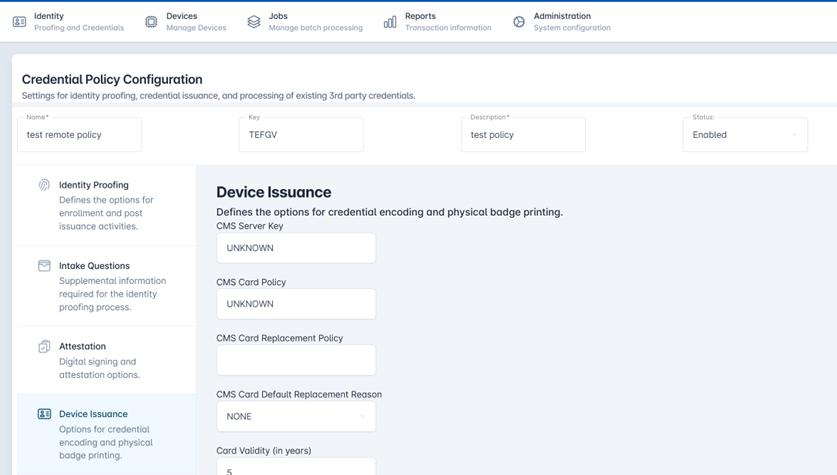
Click the Device Issuance tab within the credential policy. |
|
|
4 |
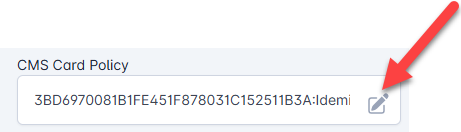
Within the CMS Card Policy field, Click the edit icon to launch the card policy mapping screen. |
|
|
5 |
Enter the ATR for the card and the associated Card Policy from the drop down.
|
|
|
6 |
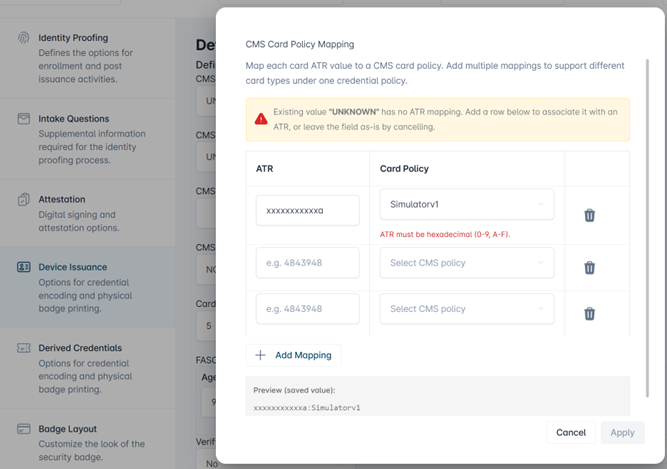
Press the + Add Mapping to add another mapping. |
|
|
7 |
When complete, press the Apply button. Note, you can delete unwanted mappings using the trash icon. |
|
|
8 |
Press the Save Changes button at the bottom of the screen. |
|
|
9 |
Press Confirm to verify the credential policy updates. |

|