
IDMS requires the camera be operational as part of the identity enrollment process.
Steps to Test The Camera
-
Open the Camera app
-
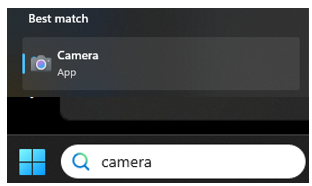
Click the Start menu (Windows icon in the bottom-left corner)
-
Type "Camera" in the search box
-
Click on the "Camera" app when it appears in the results
-
Grant camera permissions (if prompted)
-
If this is your first time opening the Camera app, Windows may ask for permission to access your camera
-
Click "Yes" or "Allow" to proceed
-
Check if your camera is working
-
If your webcam is properly connected and functioning, you should immediately see a live video feed of yourself on the screen
-
The image should be clear and update in real-time as you move
-
If the camera doesn't work
-
If you see an error message like "We can't find your camera" or a blank/black screen, your webcam may not be connected properly or may have a driver issue
-
Try these quick fixes:
-
If using an external USB webcam, unplug it and plug it back in firmly
-
Try a different USB port
-
Restart your computer
-
If you continue to have issues after these steps, you may need to check Device Manager to ensure the webcam driver is installed correctly, but the Camera app test will tell you right away if the basic hardware connection is working.