The credentialing system will use the Enrollment Agent (EA) to sign the request sent to the certificate authority. The CA validates this signature to ensure the certificate is valid and is authorized. The procedure below is for updating the EA credential. Please note that your process may be different based on internal security policies.
|
Step Number |
Description |
Example |
|---|---|---|
|
1 |
Log in as the CMS Service Account. *It is important to login with the CMS service account so that the CMS can use the same account to locate the certificate during the issuance process. |
|
|
2 |
Open the Certificate MMC Snap It, go to Current User, Personal Certificates |
|
|
3 |
Locate the certificate with the containing
|
|
|
4 |
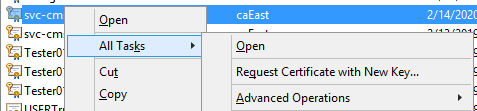
Right click on the certificate, select all tasks, request certificate with new key. |
|
|
5 |
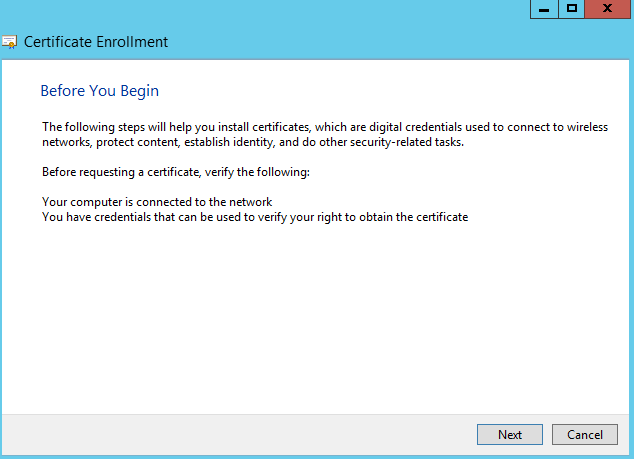
Click Next |
|
|
6 |
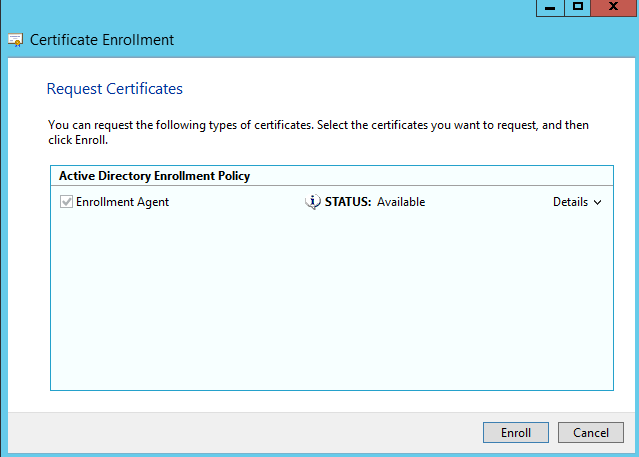
Verify the Enrollment Agent policy is selected, press enroll |
|
|
7 |
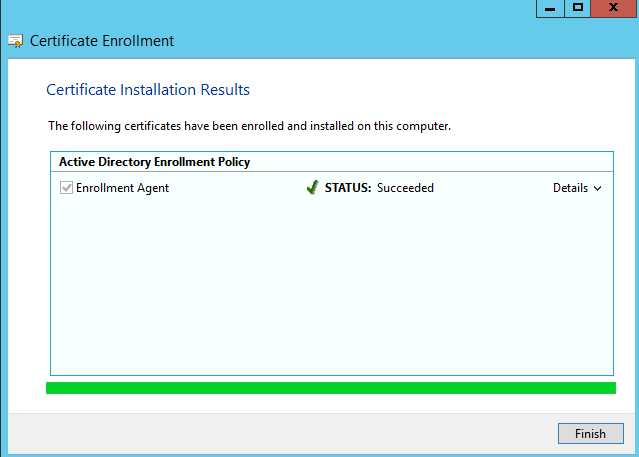
Press the finish button. |
|
|
8 |
If a new certificate was generated, backup old (expired) and then delete the old (expired) certificate from the certificate store. |
|