
IdExchange can send a digital certificate to the user so they can authenticate to the system to perform self-service actions. To do this, the credential policy must be updated using the steps below.
How to Update Credential Policy to Perform Self-Service
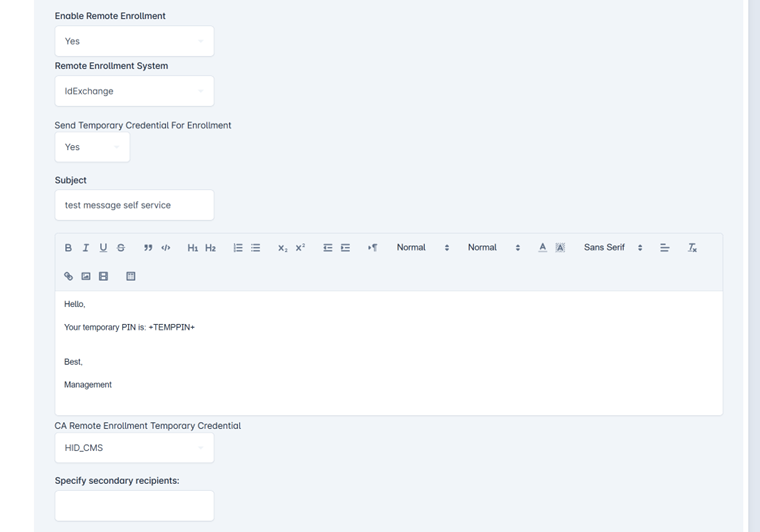
Smart Values: The following configurations can send dynamic information to the user to support self-service.
|
+FIRSTNAME+ |
First Name |
|
+LASTNAME+ |
Last Name |
|
+TEMPPIN+ |
Includes the temporary PFX PIN in the email |
|
+SHOWPINATREGISTRATION+ |
Shows the PIN to the user after they register |
Take the following steps to setup remote user enrollment within the Credential Policy Management settings.
|
Item |
Procedure |
Example |
|---|---|---|
|
1 |
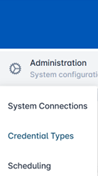
Click Administration and select Credential Types. |
|
|
2 |
Select a Credential Policy and press the corresponding gear button. Press Configure Policy. |

|
|
3 |
Within the Identity Proofing tab, under the Remote Enrollment section, configure the following via drop downs:
|
|
|
4 |
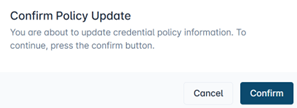
Press Save Changes to store the settings. You will see a pop-up window confirming your selection, select Confirm. |
|