The iDMS.Core HSM Microservice enables the IDMS to security interact with the HSM over the network. This enables multiple IDMS servers to share a single HSM, regardless of where the IDMS is physically. The IDMS does not need a direct physical connection to the IDMS.
To install the IDMS.Core HSM MicroService
Prepare the IIS Application Server
-
Install aspnetcore-runtime-8.0.7-win-x64 Download Link: https://dotnet.microsoft.com/en-us/download/dotnet/thank-you/runtime-aspnetcore-8.0.7-windows-x64-installer
-
Install dotnet-hosting-8.0.7-win Download Link: https://builds.dotnet.microsoft.com/dotnet/aspnetcore/Runtime/8.0.7/dotnet-hosting-8.0.7-win.exe
-
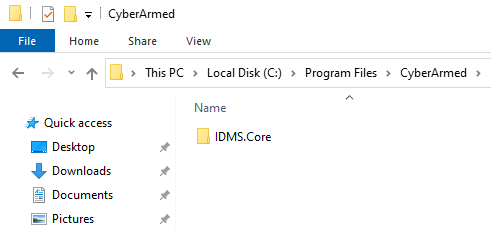
Create a directory: C:\Program Files\CyberArmed\IDMS.Core
-
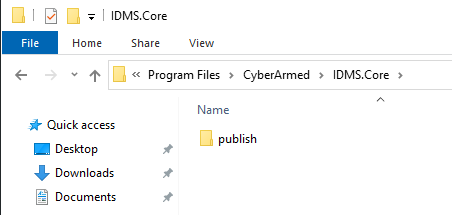
Copy the IDMS publish folder to the C:\Program Files\CyberArmed\IDMS.Core
-
Verify the web.config is in the publish folder
<?xml version="1.0" encoding="utf-8"?>
<configuration>
  <location path="." inheritInChildApplications="false">
    <system.webServer>
      <handlers>
        <add name="aspNetCore" path="*" verb="*" modules="AspNetCoreModuleV2" resourceType="Unspecified" />
      </handlers>
      <aspNetCore processPath="dotnet" arguments=".\IdExchange.WebApi.Core.dll" stdoutLogEnabled="false" hostingModel="InProcess" stdoutLogFile=".\logs\stdout">
        <environmentVariables>
          <environmentVariable name="ASPNETCORE_HTTPS_PORT" value="454" />
          <environmentVariable name="ASPNETCORE_ENVIRONMENT " value="Development" />
        </environmentVariables>
      </aspNetCore>
    </system.webServer>
  </location>
  <system.webServer>
    <security>

    </security>
  </system.webServer>
</configuration>
<!--ProjectGuid: 1AB95E96-2CD5-4CEA-AD84-47D5A2A453C3-->
Update IIS
-
Open IIS Manager

-
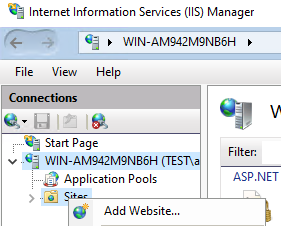
Expand the server folder, right click sites
-
Click Add web site
Site Name: IDMS.Core
Physical Path: C:\Program Files\CyberArmed\IDMS.Core\publish
Binding: https:
Port 454
hostname: enter the DNS of the server
Select the correct SSL Certificate, Press OK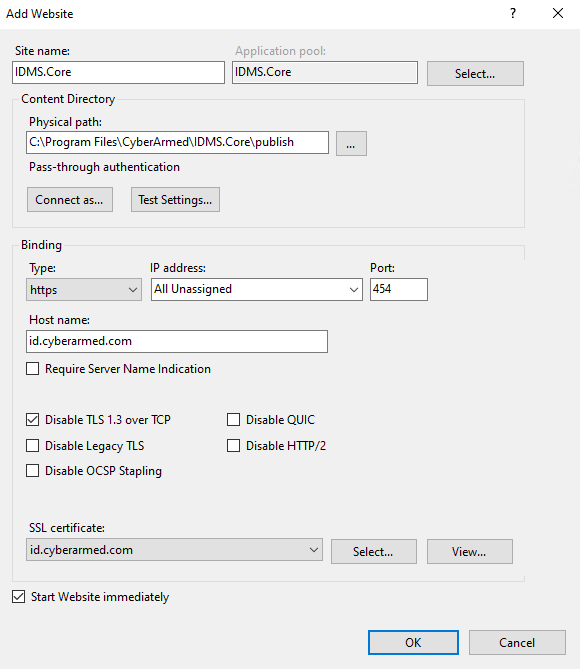
-
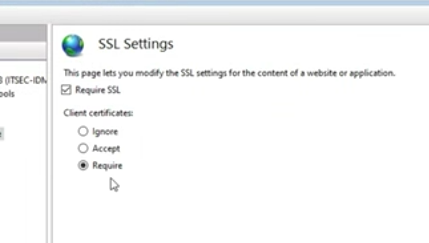
Click the SSL Settings, client certificate, require
-
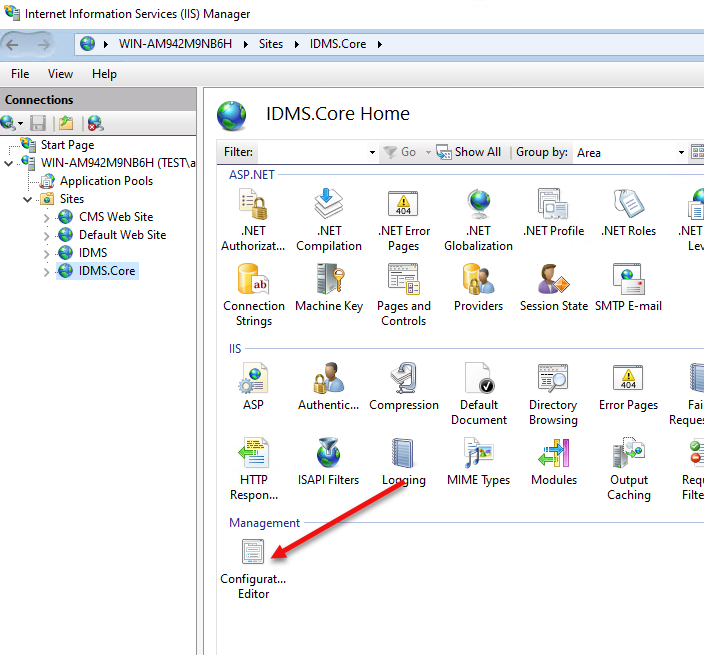
Click the IDMS.Core web site
-
Click the Configuration Editor
-
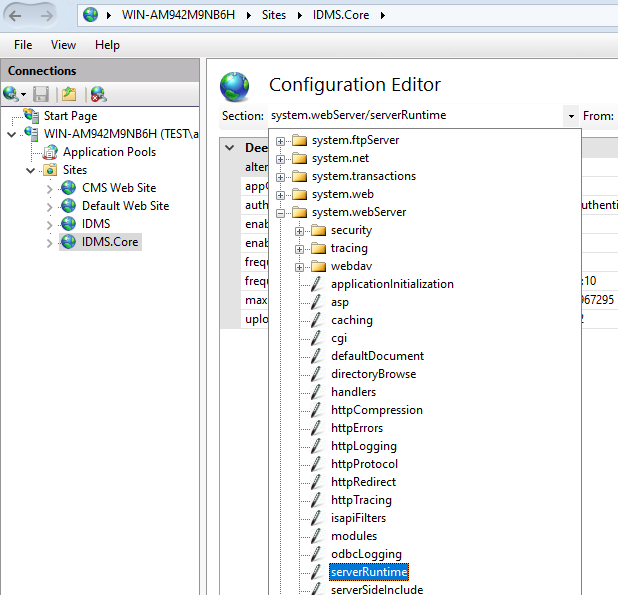
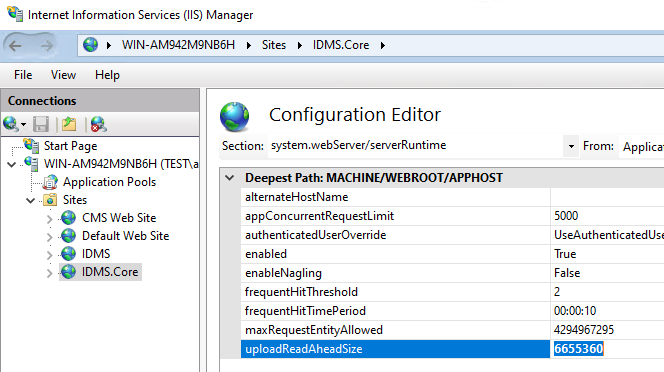
Select the system.webServer/serverRuntime
-
set uploadReadAheadSize setting to 6655360
-
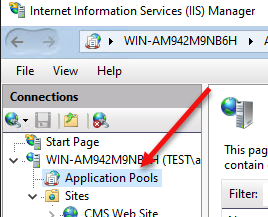
Click Application Pools
-
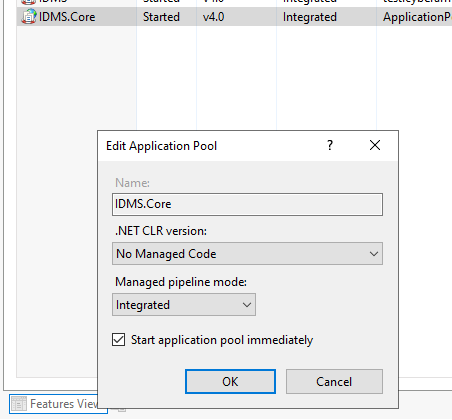
Right Click on IDMS.Core and select Basic Settings
-
.NET CLR Version, select "No Managed Code"
Test the connection
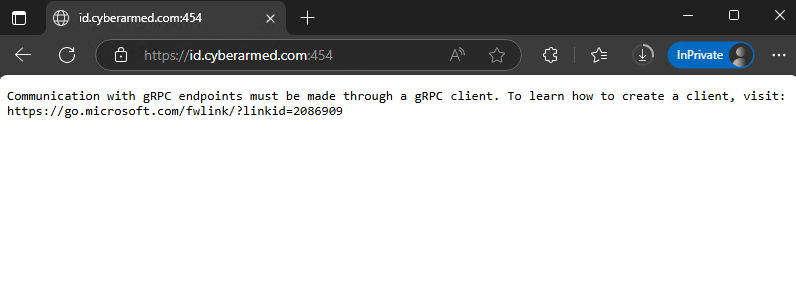
Open a web browser, and enter the DNS of the IDMS.Core MicroService. If a gRPC message appears, the service is running.
Troubleshooting:
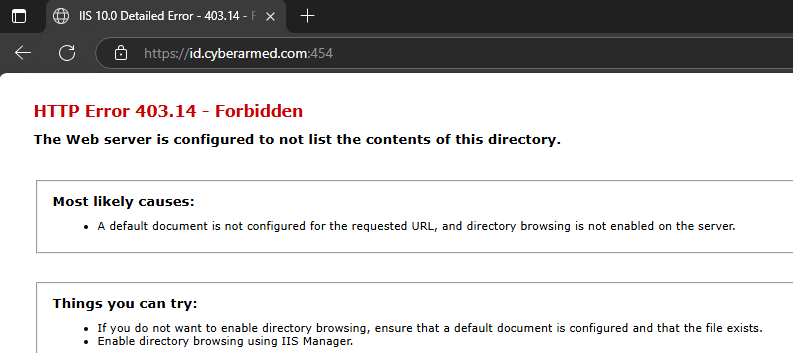
HTTP 403.14 - Forbidden
Fix: Verify that the Windows Server Hosting is installed