
To uninstall the IDMS
-
Open Command Prompt as an administrator.
-
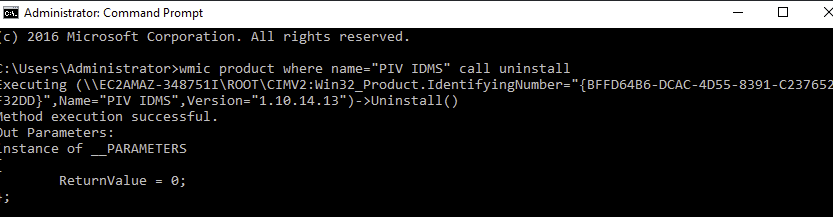
In Command Prompt Type the Following: WMIC PRODUCT WHERE NAME=”PIV IDMS” call uninstall

-
Or use the following powershell script: $app = Get-WmiObject -Class Win32_Product | Where-Object { $_.Name -like "PIV IDMS" }
$app.Uninstall()
-
The uninstall will begin and will take 1-3 minutes.
-
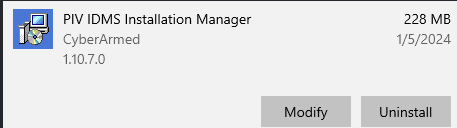
Go to the Programs and Features Panel, right click in IDMS and select uninstall. The Product name may also be PIV IDMS installation Manager.

-
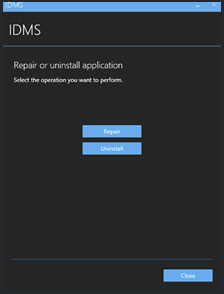
When the IDMS window appears, press the uninstall button.
-
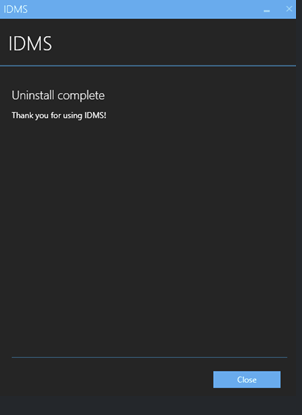
When the IDMS removal completes, press the Close button. **NOTE, if there is an error, then go and manually uninstall the website, app pool, Program Files (x86) \CyberArmed. Then attempt to go back to uninstall programs and try again.
-
Go to the IDMS into the C:\Program Files (x86)\HID Global and delete the IDMS folder
-
Go to the IIS Manager and verify that the IDMS site has been removed. If the site has not been removed, manually remove it.
-
Open the certificate snap in and delete any certificate issued by the CyberArmedPivITCa.

Resolving errors
Common Error 3 : "wmic:root\cli>PRODUCT WHERE NAME="PIV IDMS" call uninstall No Instance(s) Available"
-
Open the command shell as administrator
-
Type the command: wmic
-
Type the command: product get name (*this may take a few seconds to finish depending on how many applications are installed)
-
Search for a section that has the word "IDMS"
-
Then replace the "PIV IDMS" with the correct name found in the previous step. For example, "PRODUCT WHERE NAME=”PIV IDMS” call uninstall"
-
Confirm the uninstall by typing : "Y"