
To access the system, the operator must have a digital certificate. The processes below details how to add a new operator and map their digital certificate so that they can successfully authenticate.
Prerequisites
-
Required Permissions: System Manager Role Definitions
-
The certificate thumbprint for the operator to be registered.
There are Two Ways to Add an Operator
1. Manual: Entering their information and thumbprint
2. Automated: Looking up a user that has an existing credential issued
Option 1: Adding a New Operator Manually
|
Item |
Procedure |
Example |
|---|---|---|
|
1 |
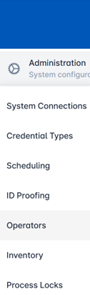
Log on as a System Manager and go to the Administration section, then click Operators. |
|
|
2 |
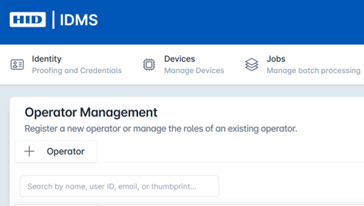
In the top Row, Click + Operator. This will open the operator registration page. |
|
|
3 |
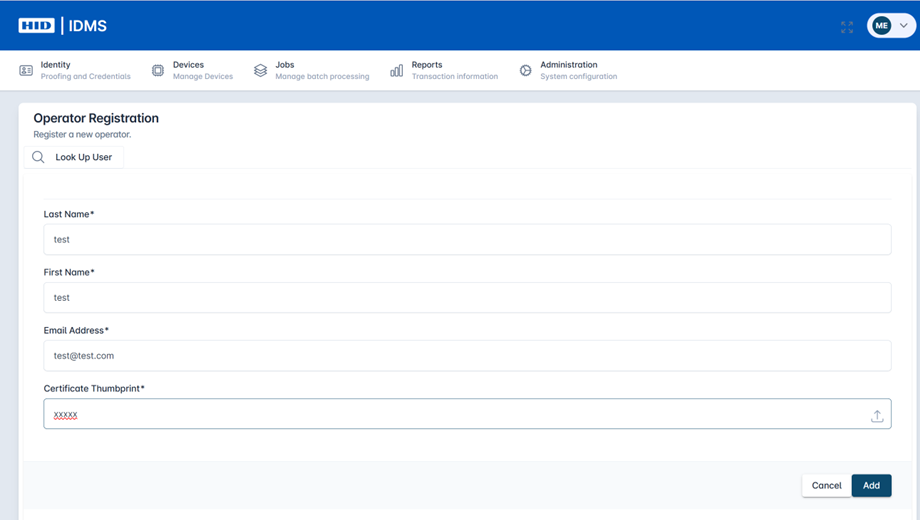
Manual Flow: User Experience In the event the system cannot locate the operator via automation (option 2), an error message will be visible letting the user know to manually enter the required information including last name, first name, email, and certificate thumbprint. Important: Add the thumbprint from the user’s certificate. |
|
|
4 |
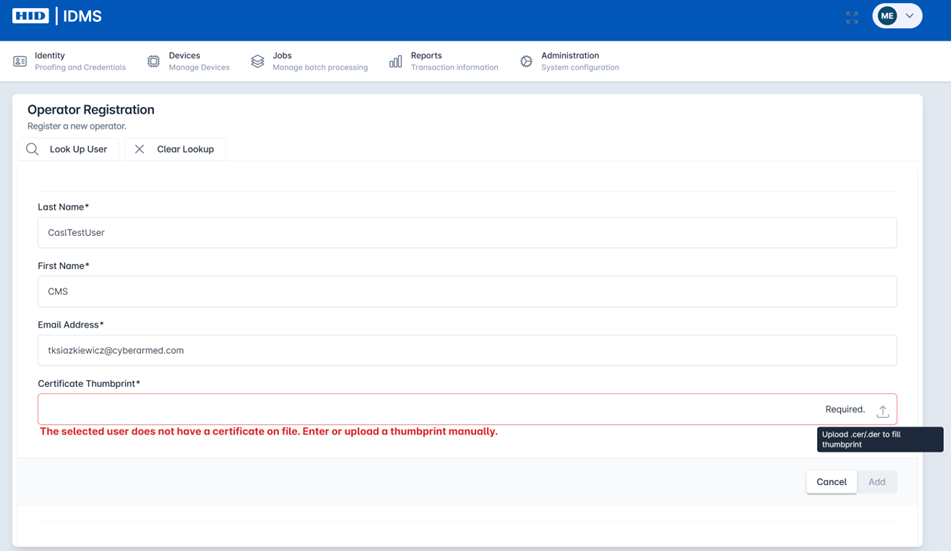
Manual Flow: File Upload There is an option to upload a file with the required operator fields including thumbprint to make setup easier. |
|
|
5 |
Press the Add button. |
|
|
6 |
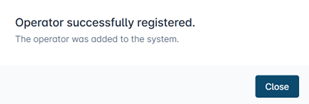
You will see a message showing that the operator was successfully registered.
Search by the User ID to locate the new operator and add the appropriate roles. |
|
Option 2: Adding an Operator via System Lookup
Note: use this step if the user already exists in the system and you want to auto-populate their details. This option streamlines the new operator setup process.
|
Item |
Procedure |
Example |
|---|---|---|
|
1 |
Log on as a System Manager and go to the Administration section, then click Operators. Then, in the top Row, Click + Operator. |
|
|
2 |
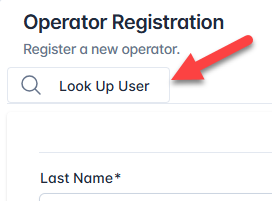
Click inside the Look Up User search bar at the top of the form. |
|
|
3 |
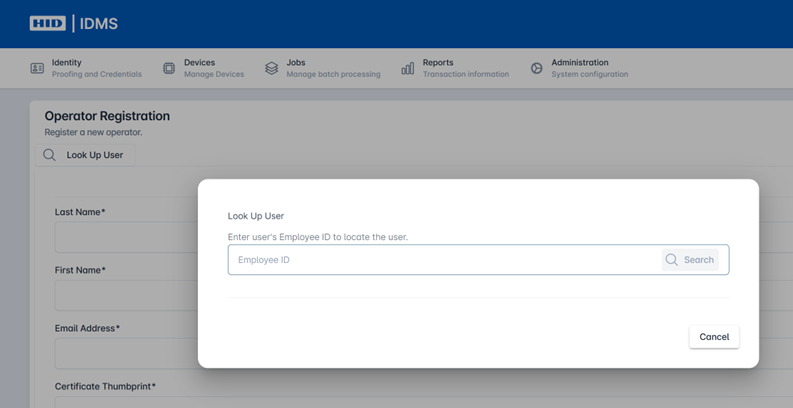
Type the user's last name or IDMS User ID. |
|
|
4 |
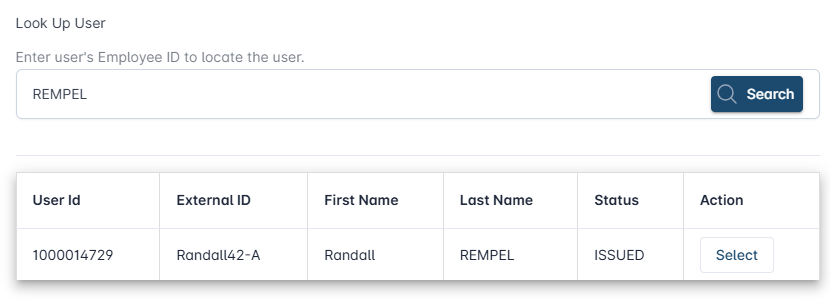
Select the correct user from the search results that appear. |
|
|
5 |
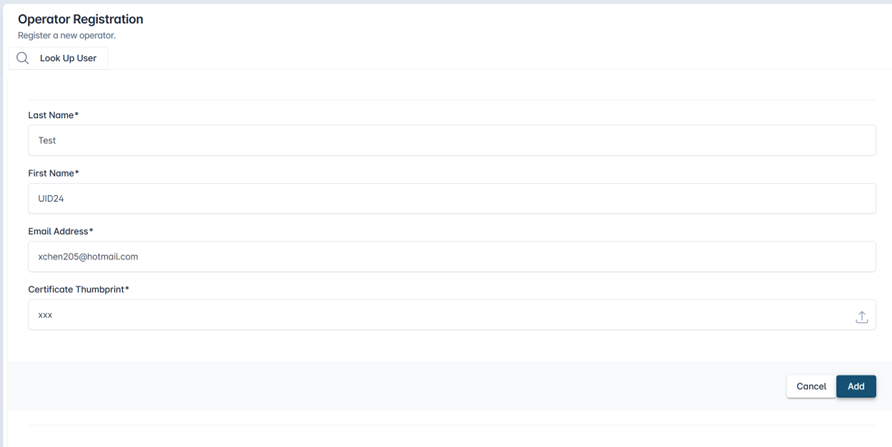
Expected Result: The form fields — Last Name, First Name, Email Address, and Certificate Thumbprint are automatically populated with the user's information. Review the information to ensure it looks correct. |
|
|
6 |
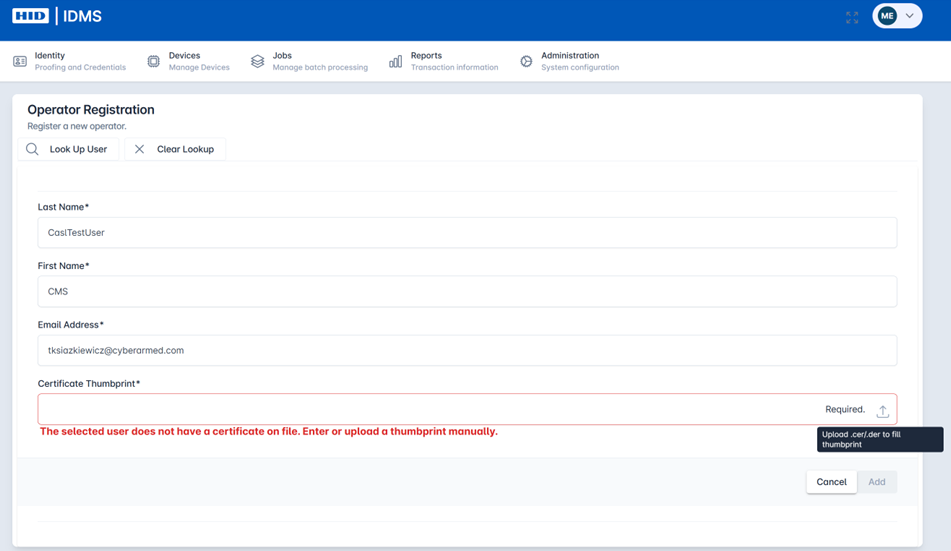
Note, you will receive an error message if the Certificate Thumbprint cannot be located. This can then be added manually.
Important: If not automatically populated, then manually add the thumbprint from the user’s certificate (see option 1 above). |
|
|
7 |
You will see a message showing that the operator was successfully registered. They should be listed in the operator list. Search by the User ID to locate the new operator and add the appropriate roles. |
|