
The settings below give the operator more controls for the credential printing process. These printing options can be configured for an individual credential policy.
Please see section on Configuring the AsureId print template for the required workstation configuration settings.
Access the Print Settings for a Configuration Policy
The following access steps support the use cases below.
|
Item |
Procedure |
Example |
|---|---|---|
|
1 |
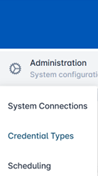
Click Administration and select Credential Types. |
|
|
2 |
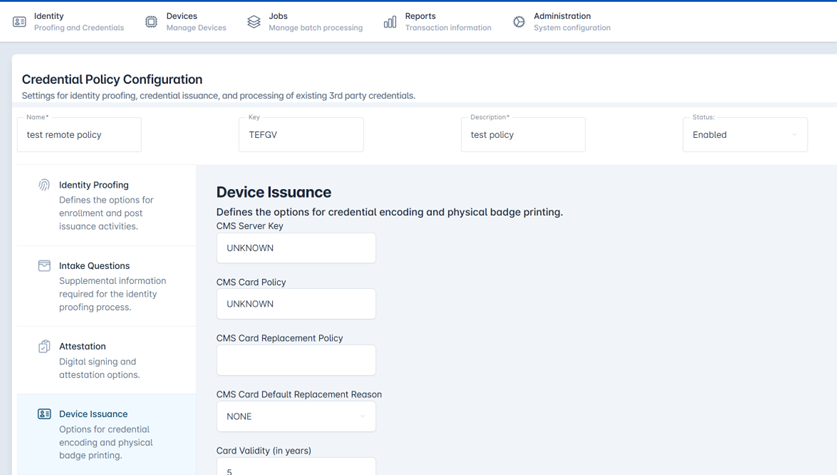
Select a Credential Policy and press the corresponding gear button. Press Configure Policy. |

|
|
3 |
Select the Device Issuance tab. Scroll to the bottom under the Badge Printing section. |
|
|
|
Complete printing related configuration selections as applicable. Once complete, select the Save Changes button. Then Confirm the selection to apply changes to the credential policy. |

|
Special Printing Capabilities and Use Cases
|
Setting |
Description |
Configuration Setup |
|---|---|---|
|
Print Layout Definition |
This layout definition can be retrieved from the user's directory source. This gives the organization more capability to define how the user's credential should be printed. |
Device Issuance Tab > go to the Print Layout Definition field. Enter idms: (colon) and the name of the attribute where the card policy is stored. 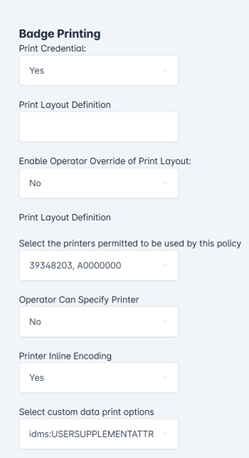
Option: Field 2 As an example, enter: idms:cardprintlayout "cardprintlayout" is an attribute that contains the print layout for the user. |
|
Temporary / Escort Badge |
If operator needs to override the badge type, they can be permitted to print a temporary badge type. |
Device Issuance Tab > first go to Enable Operator Override of Print Layout Select Yes.
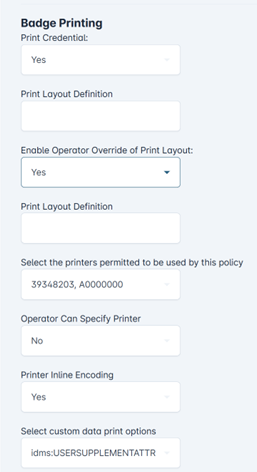
Then, go to Operator Override Print Layout Definition field and enter the print layout name that should be used to print the temporary / escort badge. Example, enter escBadge |
|
Redirect Print Job |
If the operator needs to send the job to a specific printer, they can be permitted to specify a specific printer. |
Device Issuance Tab > Go to Enable Operator To Specify Printer Select Yes.
|