
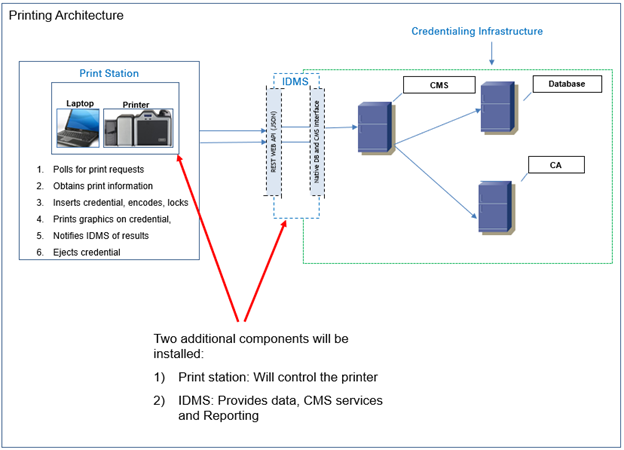
The IDMS and PCA software can work in conjunction with the HID Printer and Credential Management System to automate the printing and encoding of the ID badge. This allows an organization to perform the encoding and printing process via automated processes, without the need for a dedicated operator.
How automated credentialing works
-
The PCA workstation is installed and configured with printing services
-
An operator smart card with the CredentialIssuer and BulkCredentialOperator roles is used to authenticate the PCA workstation to the IDMS
-
The IDMS has users in the “Approved” request state
-
The PCA workstation queries the IDMS for users win the “Approved” request state
-
The PCA workstation retrieves the user, encodes the credential, prints the credential and then ejects the credential.
-
The credential is encoded and is ready to an authorized operator to unlock and change the PIN.
Permissions for operator
In CMS, CMS Activator role, please see CMS Configuration requirements for PCA based activation for detailed permissions
In IDMS, assign the CredentialIssuer and BulkCredentialOperator role
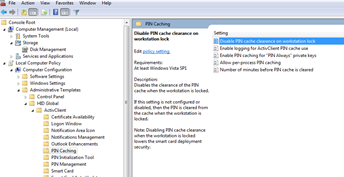
ActivClient PIN Caching when locked allow PIN to be cached when the operating system is locked
Open Local Group Policy Editor, Click Administration Templates
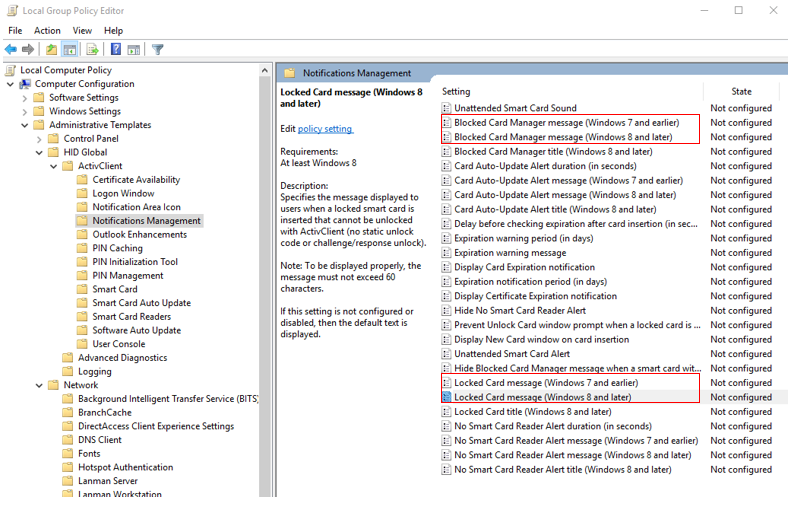
Turning off the card is block message
Processes to ensure successful automated credentialing
The automated credentialing process includes numerous systems and technologies for successful processing. Sometimes one of these systems may not perform as expected and result in a credentialing failure. The following checklist helps to ensure successful automated credentialing.
Checklist
- User is approved and assigned to correct IDMS and CMS policy
- Cards are inserted chip down and chip facing towards printer
- Cards do not have any smudges, fingerprints or dust
- CMS is operational
- Run the PCA Print Utility, insert the credential and verify credential can be ready by ActivClient
Troubleshooting common automated credentialing errors
There are four categories of errors that cause the automated credentialing to fail.
|
User state |
User does not have the proper values in IDMS or has the improper request in the CMS. |
|
Physical printer error |
Card cannot be inserted properly due to card jam, flipper error or incorrect card placement. |
|
Card error |
The chip cannot be read |
|
Encoding failure |
The card encoding fails due to a CMS error |
Troubleshooting steps
|
Number |
Error |
Category |
Fix |
|---|---|---|---|
|
1 |
Printer jams and will not read card. |
Physical printer error |
Stop PCA, go to printer, remove jammed card, press cancel on printer LCD, start PCA. |
|
2 |
Not enough cards in the printer. |
Physical printer error |
Stop PCA. Reload the cards Start PCA |
|
3 |
Accidentally left a card in the hopper and it says “Empty recycle bin” |
Physical printer error |
Stop PCA, remove cards from hopper, press eject, Start PCA |
|
4 |
In smart card reader does not see card (ActivClient cannot even see it) |
Card error |
Stop PCA, eject card, take card to different workstation and verify card is operational. If card is operational, reload card and start PCA. |
|
5 |
PCA reports "credential request could not be completed at this time" |
User state |
Stop PCA, go to CMS and verify the user has no requests and that the card is not currently bound. Start PCA |
|
6 |
PCA reports "Credential is not available for issuance" |
User state |
Stop PCA, remove credential and verify it is not currently assigned to a different user. If needed, reset card and reinsert into print. Start PCA. |