
When IDMS and PCA are set up for automated printing, the IDMS Print Queue Management Portal can allow operators to specify a user for immediate printing. This is useful for if a person needs to be immediately printed without having to wait in the print queue.
How it works
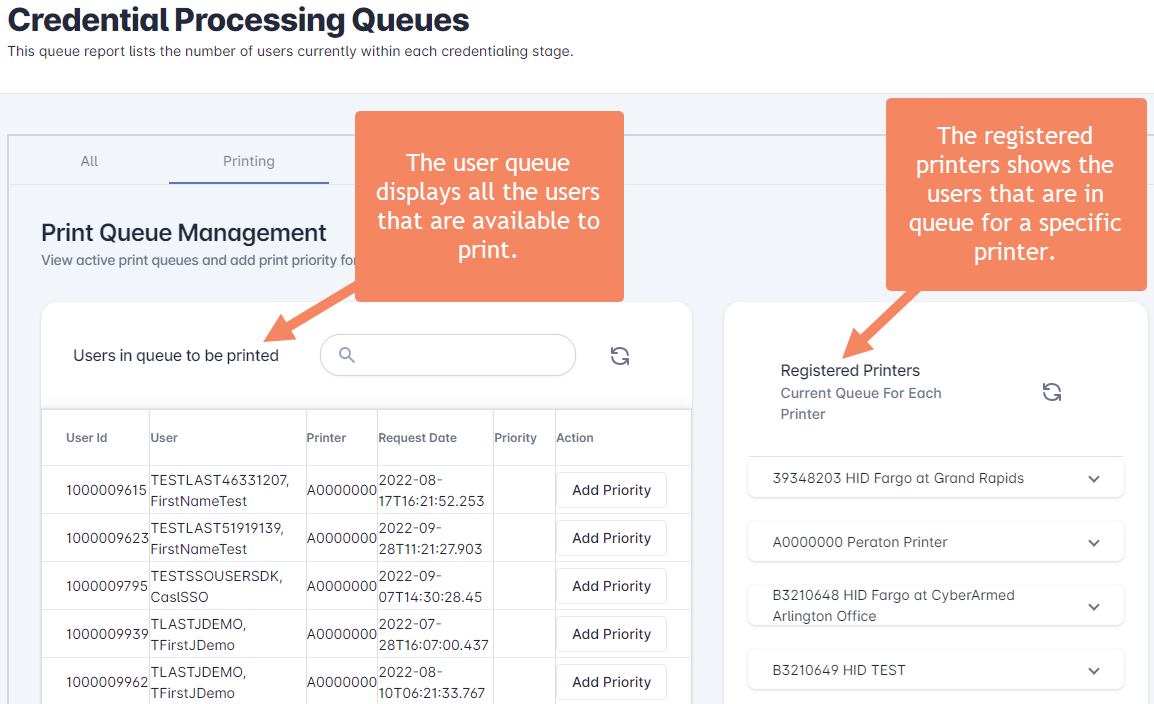
Within the Credential Processing Queues, there is a print tab that displays to panels, 1) Users in queue to be printed, 2) Registered Printers.
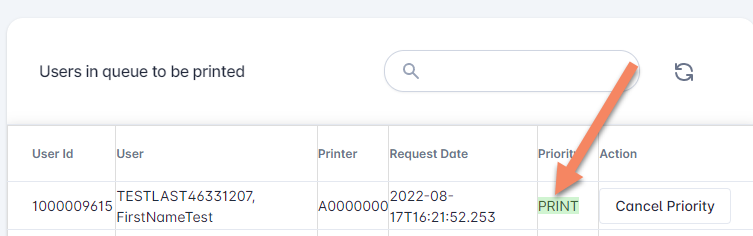
The Users in queue to be printed panel lists all the users that are waiting to be printed but that may be lower in the priority queue. By pressing the “Add Priority” button, the user is automatically sent to the top of the queue of the print queue and will be printed immediately.
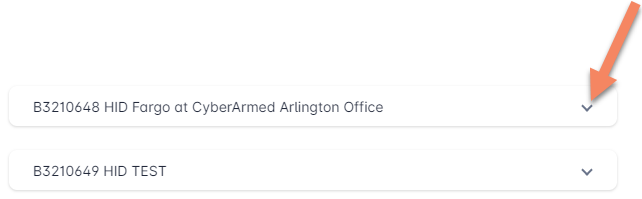
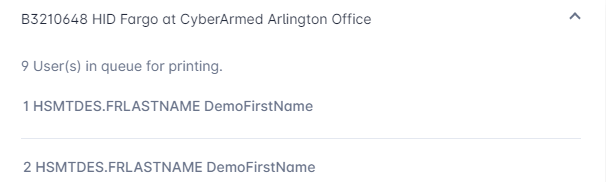
The Registered Printers panel will list all the users that are currently in queue to be printed. After adding a user to the Priority, the printer queue can be refreshed to see that the user was successfully added to the priority.
Setting a user for priority
Required Roles: Credential Issuer, Credential Producer, Reporting Officer
|
Procedure |
Example |
|
|---|---|---|
|
1 |
After logging into IDMS, go to reports, Queues. |

|
|
2 |
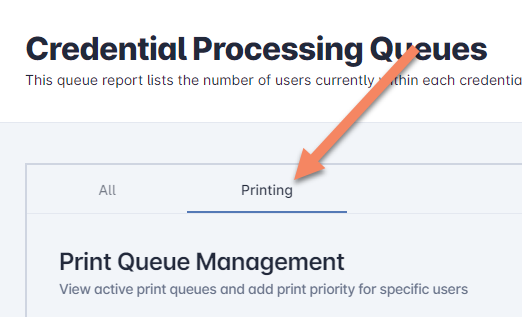
Click the Printing tab |
|
|
3 |
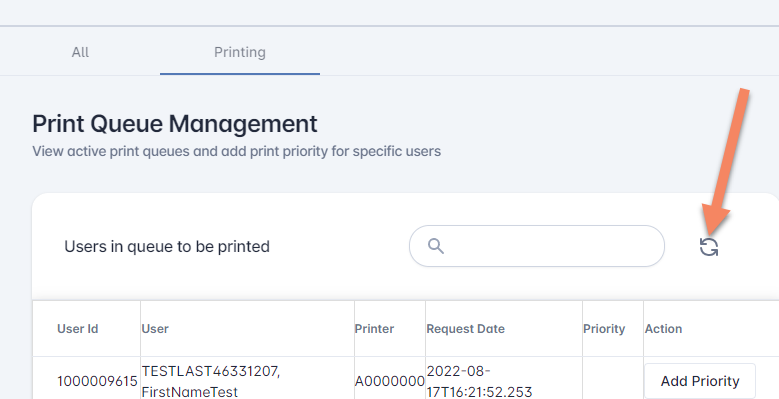
In the “Users in queue to be printed” panel, press the refresh button to see the users that are in line for printing. |
|
|
4 |
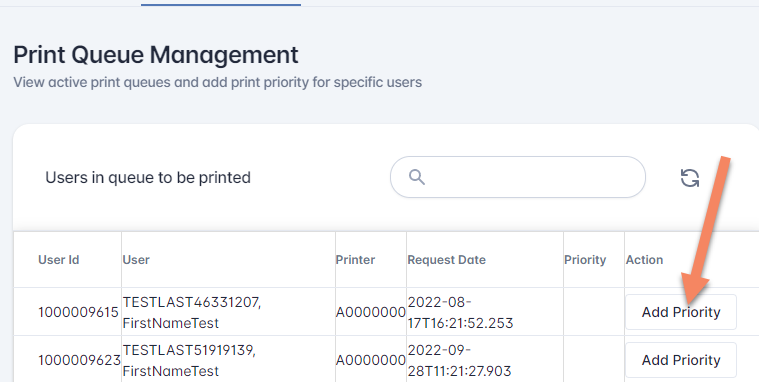
Locate the user to be prioritized and press the add Priority button. Confirm and complete.
When the user has been specified for priority, the priority will be listed in the table. |
|
|
5 |
Go to the “Registered Printer” panel and locate the printer and press the down button. The user will be shown in the list. |
|
|
6 |
The user will be printed and the printer will move to print the next person in the print queue. |
|