
To verify the configurations of the automations have been set correctly, a test can be performed for a single user. During this test, the IDMS contacts the CMS to set an application update request and sends a message to the user (or the specified contact email in the email system configuration).
Objective: The test will enable a single user to be tested to ensure the configurations are correct before sending messages to all the users.
Prerequisites
-
Required Permissions: System Manager and Reporting Officer
-
Required account: A valid user with an active CMS device
-
The Batch Processing Queue is up and running with a server assigned.
How to Perform the Testing
|
Item |
Procedure |
Example |
|---|---|---|
|
1 |
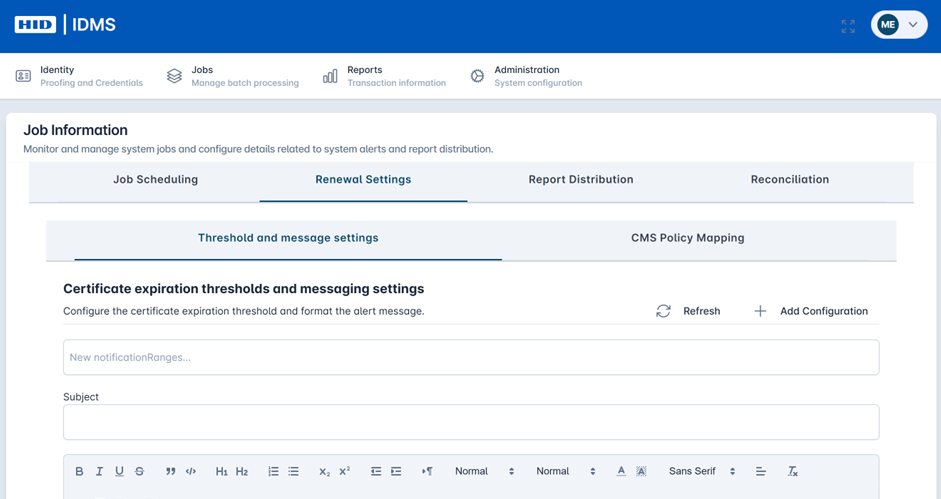
Go to the Administration section, click Scheduling. Within the job information screen, click the Renewal Settings. |
|
|
2 |
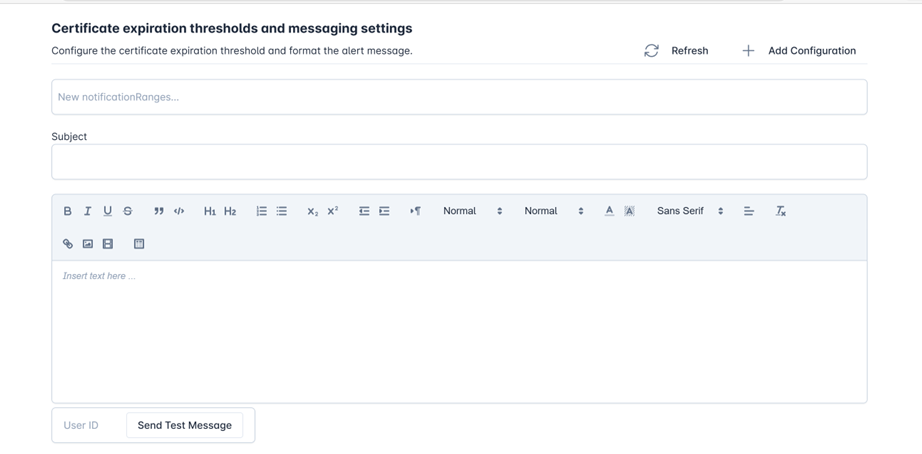
Scroll down to the Send Test Message Section. |
|
|
3 |
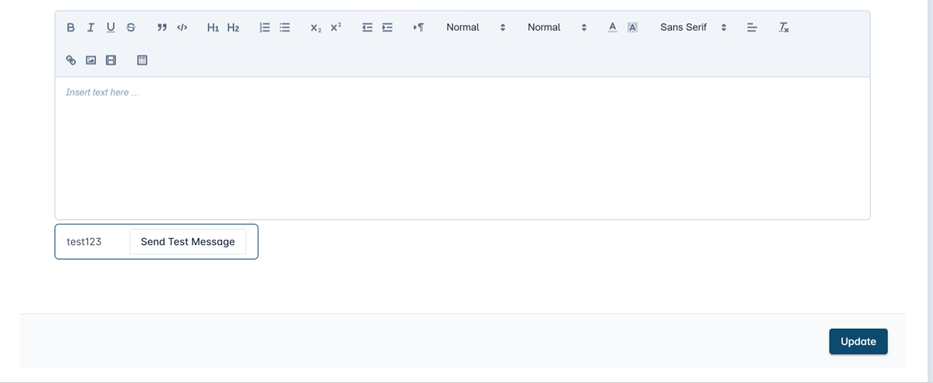
Enter the CMS User ID into the User ID field. |
|
|
4 |
Press the Send Test Message button. The process may take 5 seconds to 1 minute complete. User will see processing icon move. |
|
|
5 |
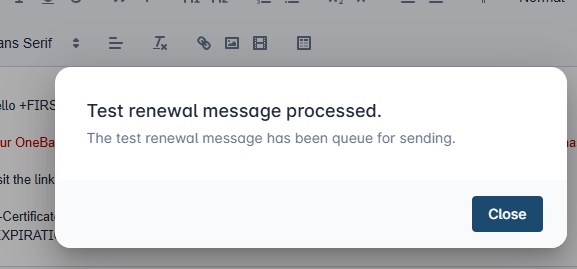
When the process is complete, a status dialog will appear. Press the Close button. |
|
|
6 |
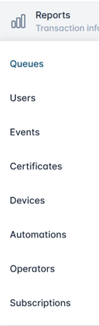
Go to the Reports and the click Queues. |
|
|
7 |
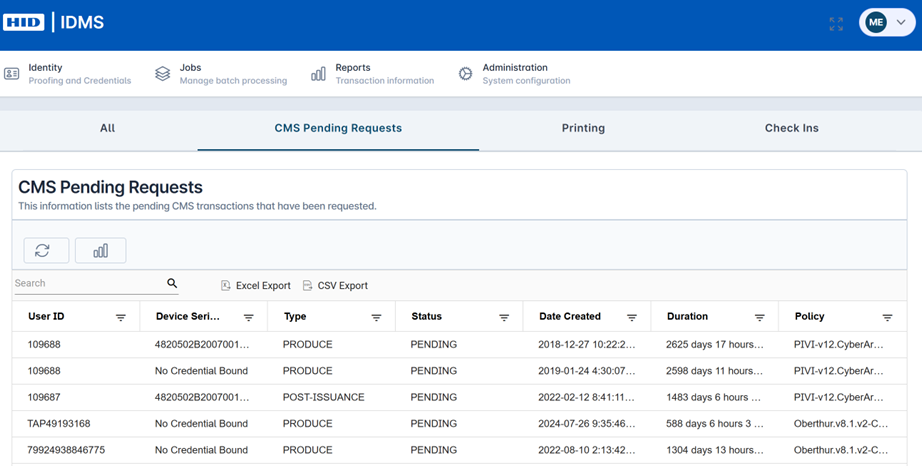
Click the CMS Pending Requests tab. |
|
|
8 |
Press the Refresh button to load the data and refresh the report. |
|
|
9 |
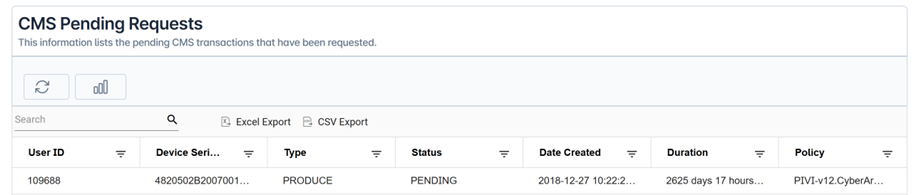
When the report has been refreshed, enter the User ID of the user being tested. |
|
|
10 |
Review the table and verify the policy is set correctly. |
|