User Data
The user data is stored in an encrypted format. When migrating to an HSM, any user data created before the HSM will need to be encrypted with the HSM key. The following procedures describe this process.
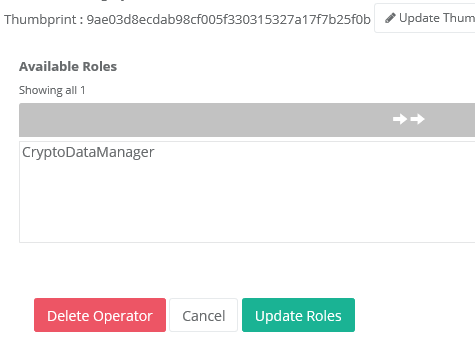
Role requirements: CryptoDataManager
WARNING: Once data is encrypted with the HSM, it can only be processed with the HSM keys.
Data preparation steps for users processed with a version before 1.10.14.382.
Before version 1.10.14.382, the IDMS did not support different key type classifications. In order for the IDMS data conversion feature to work with versions before 1.10.14.382, the following data preparation steps must be performed.
|
Step Number |
Procedure |
Example |
|---|---|---|
|
1 |
Authenticate to the SQL Server with permissions to update the IdExchange Database. |
|
|
2 |
Correct null key types by running the running the following SQL command: Update IdExchange.UserAttributeSupplemental set KeyType='dpApi' where KeyType IS NULL. |
|
|
3 |
Verify there are no more uses with a null key label by running the following SQL command: Select DISTINCT userId from IdExchange.UserAttributeSupplemental where KeyType IS NULL. |
|
|
4 |
Close the connection to SQL Server. |
|
|
5 |
Data preparation steps are complete. |
|


Performing the data conversion.
The steps below provides the procedures for converting the user's data.
|
Step Number |
Procedure |
Example |
|---|---|---|
|
1 |
Authenticate to the IDMS, if the CryptoDataManager has not been assigned to the user, assign the CryptoDataManager role. Log out and log back in. |
|
|
2 |
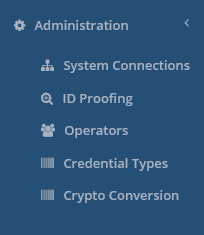
After logging in, go to administration, click "Crypto Conversion". |
|
|
3 |
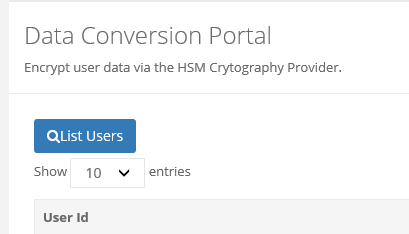
In the Data Conversion Portal, click "List Users". |
|
|
4 |
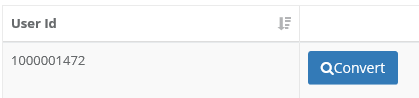
For the user to be converted, press the Convert button. |
|
|
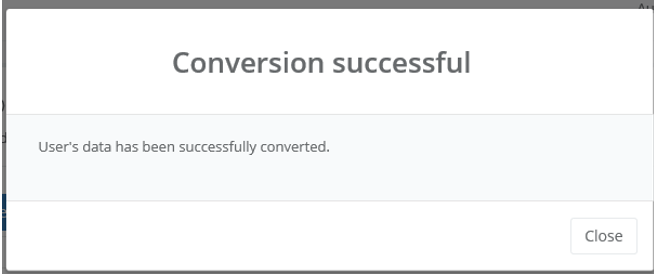
5 |
The IDMS will perform the data conversion, encrypting the user's data with the HSM key. Once the process is over, the IDMS will alert the user with the Conversion successful message. |
|
|
6 |
Data conversion steps are complete. |
|