Prerequisite:
The credential type policy must be configured to capture the I9 documents by configuring the Credential Type Enforcement rule with : CAPTUREIDOCS|CAPTUREIDOCS|CAPTUREIDOCS
Officer must have: Requester; Enrollment officer permissions.
|
Step Number |
Procedure |
Example |
|---|---|---|
|
1 |
Start the remote web session and ensure the applicant can be viewed in the remote meeting. |
|
|
2 |
Go to PIV, Request, locate user and press “Request Credential” |
|
|
3 |
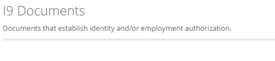
Select the Credential Type. The section call I9 Documents will appear. |
|
|
4 |
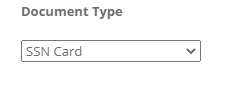
In the document type, select the document that will be scanned. |
|
|
5 |
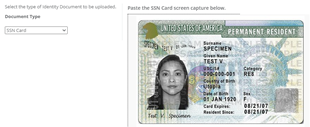
Have the remote applicant hold the document to the camera so the document is viewable. When ready, take a screenshot of the document. |
|
|
6 |
In the click on the box underneath the “Paste the capture below text and paste the document that was captured. |
|
|
7 |
Press the Add to upload button. The document will be added to the list. |
|
|
8 |
The document will be added to the list. |
|
|
9 |
Repeat the process for remaining documents. |
|
|
10 |
When complete, scroll to the bottom and press the Proceed button to submit the documentation. |
|