
The IDMS can perform advanced sync transactions such as:
-
Updating the existing userPrincipalName in the directory with the certificate obtained from 3rd party device (Smart Card, Security Key, etc.)
-
Updating an AD Attribute with a specific UPN obtained from the certificate.
Prerequisites
-
User must have System Administrator role Role Definitions
Advanced Configurations for Enrolling 3rd Party Devices
The Advanced UPN Sync Settings panel lets an operator configure how the system handles a user's User Principal Name (UPN) when integrating with an LDAP-based Relying Party.
It is only available on the Edit Directory screen when the Directory Type is Relying Party (RLPT) and the System Type is LDAP; in every other case the button is hidden.
The panel exposes two independently-controlled features:
-
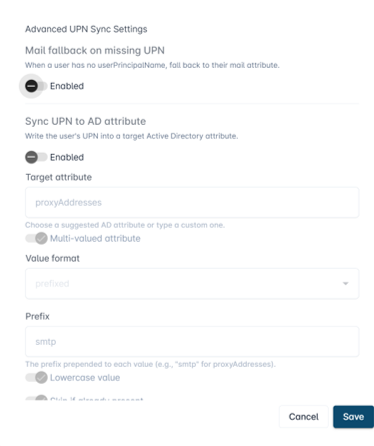
Mail fallback on missing UPN, which tells the system to use the user's mail attribute to look up the user when their userPrincipalName is missing, and
-
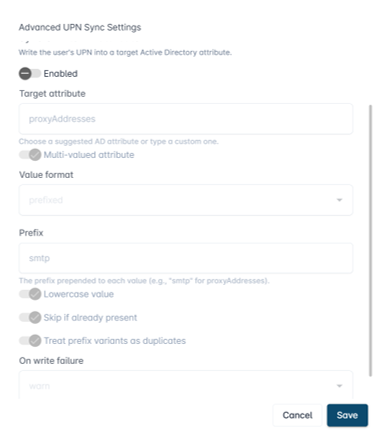
Sync UPN to AD attribute, which writes the user's UPN into a chosen Active Directory attribute (such as proxyAddresses) according to formatting rules the operator chooses — target attribute, value format (prefixed or plain), optional prefix string (e.g. smtp), lowercase normalization, duplicate-detection behavior, and how to react to write failures.
How it works:
-
When the operator clicks Save, the panel serializes all selected options into a JSON document and stores it in the directory record's ConfigureTwo field, where the backend reads it at runtime.
-
Re-opening the panel for an already-configured directory reads the existing JSON back and pre-populates the form, so operators always see the current configuration.
Steps to Configure Advance Sync Options
|
Item |
Procedure |
Example |
|---|---|---|
|
1 |
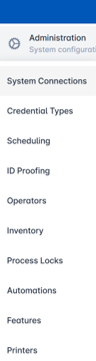
Navigate to Administration, then System Connections. Select the gear button next to the Directory, then select System Configuration. You can edit the Directory for the relying party you want to configure |
|
|
2 |
Locate the LDAP Rule Criteria Attribute field and click on the Advanced settings button beside it. |

|
|
3 |
Enable features for Mail Fallback and Sync IPN to AD.
Both toggles are off by default; sub-fields stay disabled until master button turned on. |
|
|
4 |
Set the Sync Details. For Sync UPN to AD attribute enabled, choose the following settings:
|
|
|
5 |
Save and Persist. Click Save in the dialog — the panel writes the resulting JSON into the ConfigureTwo field on the form. Then click Update at the bottom of the Edit Directory page to persist the change to the backend. Note: to discard your changes instead, click Cancel in the dialog. |
|
Example Scenarios and Use Cases
Example 1 — Feature disabled (both toggles off)
Scenario: Only synch the altSecurityIdentities for an account where the userPrincipalName is the same as userPrincipalName in the certificate.
Panel settings:
-
Mail fallback on missing UPN → off
-
Sync UPN to AD attribute → off
Resulting JSON:
{"schemaVersion":1,"mailFallbackOnMissingUpn":{"enabled":false},"syncUpnToAdAttribute":{"enabled":false,"targetAttribute":"proxyAddresses","multiValued":true,"valueFormat":"prefixed","prefix":"smtp","lowercase":true,"skipIfAlreadyPresent":true,"treatPrefixVariantsAsDuplicates":true,"onWriteFailure":"warn"}}
Example 2 — Search by email if user is not located by UPN, do not synch the UPN
Scenario: The certificate on the 3rd party device has a UPN that is not in the Active Directory. You want the system to search by email instead of UPN to locate the user but you do not want to change the existing UPN.
Panel settings:
-
Mail fallback on missing UPN → on
-
Sync UPN to AD attribute → off
Resulting JSON:
{"schemaVersion":1,"mailFallbackOnMissingUpn":{"enabled":true},"syncUpnToAdAttribute":{"enabled":false,"targetAttribute":"proxyAddresses","multiValued":true,"valueFormat":"prefixed","prefix":"smtp","lowercase":true,"skipIfAlreadyPresent":true,"treatPrefixVariantsAsDuplicates":true,"onWriteFailure":"warn"}}
Example 3 — Search by email if user is not located by UPN, synch the UPN
Scenario: The certificate on the 3rd party device has a UPN that is not in the Active Directory. You want the system to search by email instead of UPN and you want to update the UPN to the UPN that is on the certificate
Panel settings:
-
Mail fallback on missing UPN → on
-
Sync UPN to AD attribute → on
Example 4 — Update the proxyAddresses and UPN
Scenario: You want each user's UPN written into their proxyAddresses AD attribute prefixed with smtp: (the standard Exchange convention), normalized to lowercase, and skipped if an equivalent value already exists. Warn on failure rather than blocking.
Panel settings:
-
Mail fallback on missing UPN → on
-
Sync UPN to AD attribute → on
-
Target attribute → proxyAddresses
-
Multi-valued attribute → on
-
Value format → prefixed
-
Prefix → smtp
-
Lowercase value → on
-
Skip if already present → on
-
Treat prefix variants as duplicates → on
-
On write failure → warn
-
Keywords: altsecurityidentities ; certificate publishing