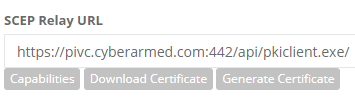
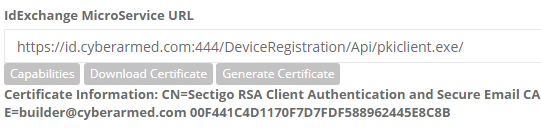
Verify that the IdExMicro is available and installed properly, verify that the signing certificate can be downloaded, verify that it can access WebApi properly.
SCEP Relay URLS for manual validation.:
https://pivc.cyberarmed.com:442/api/getversion
https://pivc.cyberarmed.com:442/api/getConnectedClients
IDEX Micro URLS for manual validation
https://id.cyberarmed.com:444/DeviceRegistration/Api/pkiclient.exe/?operation=GetCACaps
https://id.cyberarmed.com:444/DeviceRegistration/Api/pkiclient.exe/?operation=GetCACert
Validation Procedures
|
Step Number |
Step |
Description |
|---|---|---|
|
1 |
Authenticate to IDMS as system administrator |
|
|
2 |
Click the Administration, System Connections |
|
|
3 |
Add a agent new system |
|
|
4 |
In the IdExchange MicroService URL, enter the URL of the internal Scep service. |
|
|
5 |
Press the Capabilities button to verify the ScepRelay service can be reached. |
|
|
6 |
In the SCEP Relay URL, enter the URL of the SCEP relay service |
|
|
7 |
Press the Capabilities button to ensure that the Internal Scep service is available |
|
|
8 |
Press the Download Certificate button to ensure the Scep signing certificate is available. |
|
|
9 |
Go to the SCEP Relay URL and then press the Download certificate button. This will ensure that the SCEP relay service is connecting to the IdExchange Micro Service |
|
|
10 |
Go to the SCEP Relay URL and press the Generate Certificate button. This will ensure that the SCEP Relay service can interact with the IdExchange Micro service to retrieve the certificate. |
|