
How to Program a Smart Badge Using the Printer’s Card Reader
This procedure allows you to program and print an access badge using the IDMS an HID Fargo Printer that has an internal Omnikey card reader. The programmed badge will contain encoded credentials that grant the user access to authorized areas.
Prerequisites
Before beginning this procedure, ensure you have:
-
Active account with the Credential Issuer and Credential Manager permissions.
-
Employee ID or external ID for the user who will receive the badge
-
Badge cannot be assigned to another user, else first follow expungement process to remove original user and recycle the badge Expunge (Delete) User Procedures
-
HID Fargo Printer with the embedded card reader
-
Confirmation that the printer is powered on and connected to the network
-
Software configuration:
-
The PivIT browser extension must be installed
-
The workstation must be configured to use the correct printer and printer reader
-
The PivIT Browser is configured for the printer and printer reader
-
Verify that the PivIT configuration specifies the correct printer and printer smart card reader.
Procedures
|
Item |
Procedure |
Example |
|---|---|---|
|
1 |
Log into the IDMS Open your web browser and navigate to https://IDMS_DNS:444/idms/apps/userManagement Log in using your IDMS credentials when prompted. |
|
|
2 |
Locate the User in IDMS In the User Management Portal page, locate the search field labeled ‘Enter user's Employee ID to locate the user.’ Enter the Employee ID or External ID of the person who will receive the badge. Click the Search button. |
|
|
3 |
Review User Information Review the search results table to confirm you have located the correct user. Verify the First Name, Last Name, Policy, and Status columns match the intended recipient. In the Action column for the correct user, click the Manage button. Expected Result: The system displays the user's detailed information page showing their status, internal ID, and available tabs including Photo, Documents, and ID. |
|
|
4 |
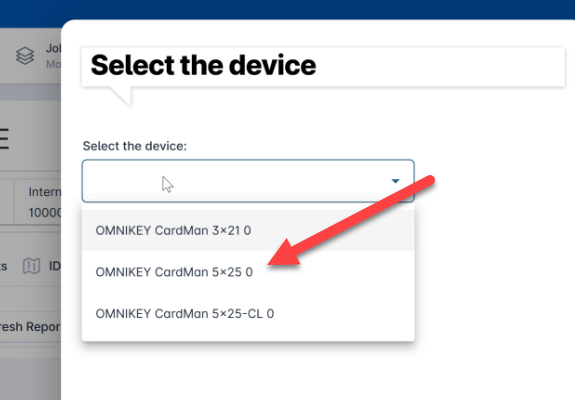
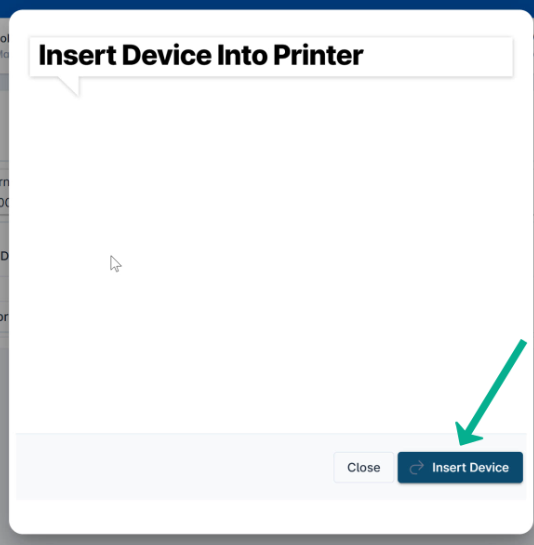
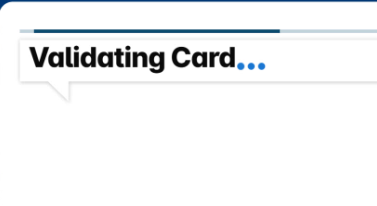
Initiate Device Programming On the user's information page, select Credentials, then click the Device button, then Manage Device. Select your printer's smart card reader from the drop downlist within the dialog box. The device name will typically follow the format "OMNIKEY CardMan [model] [port]" (for example: "OMNIKEY CardMan 5×25 0"). Click the Insert Device Button. IDMS will validate the card. |
|
|
5 |
Assign the Device Review the device information displayed:
Click the Assign Device (CMS) button at the bottom right of the dialog box. Expected Result: A new dialog box titled ‘Set PIN’ appears with fields for entering and confirming a PIN. |
|
|
6 |
Set the Badge PIN IMPORTANT SECURITY NOTE: The PIN should only be known by the badge recipient. Do not share this PIN with anyone other than the authorized user.
Expected Result: The programming process begins, and a progress dialog appears showing ‘Please wait, programming device’ with a status message ‘Starting to synchronize.’ |
|
|
7 |
Wait for Programming to Complete
Expected Result: The dialog changes to show ‘Device is active’ and displays the selected device information. Instructions appear to 'Press the Print button to print the badge.' |
|
|
8 |
Print the Badge
Expected Result: The printer processes the badge, printing the user's information and photo onto the card. After printing completes, the badge is automatically ejected from the printer. |
|
|
9 |
Retrieve and Verify the Badge
Expected Result: The badge is ready for distribution to the authorized user. The IDMS system returns to the user's management page. |
|
Badge Printing Completion Validation Checklist
Confirm the following before delivering the badge:
-
The badge printed successfully with no errors
-
The user's photo is clearly visible and correctly oriented
-
The user's name matches the intended recipient
-
The badge number is printed and legible
-
The expiration date is visible and correct
-
No visible printing defects or damage to the card
-
The badge was ejected from the printer without issues
-
The IDMS system shows the device as "Active" for this user
-
The PIN was communicated securely to the badge recipient only
Troubleshooting
Issue: No printer card readers appear in the device selection dropdown
Resolution:
-
Verify the printer is powered on and connected to the network.
-
Use the Microsoft Printers and Scanners utility to ensure the printer is operational.
Issue: After selecting the printer card reader, IDMS hangs
Resolution:
-
Ensure the workstation printer configuration is correct. Specifically, the printer card reader in the configuration is correct.
Issue: Badge prints with defects or missing information
Resolution:
-
Check the printer's ribbon and card supply levels.
-
Clean the printer's print head according to manufacturer instructions.
-
Reprint the badge using the Print Badge button.
-
If defects continue, contact printer support.