
The CMS application runs under a windows account. When this windows account password is changed, the systems below should be updated to reflect the updated password.
CMS System Password Reset Checklist
- Apache Tomcat Service
- CMS LDAP Password
- CMS web site within IIS (see table below)
Updating the CMS Service Account Password in IIS
|
Step Number |
Procedure |
Example |
|---|---|---|
|
1 |
Open IIS (internet information services) manager and select the CMS website |
|
|
2 |
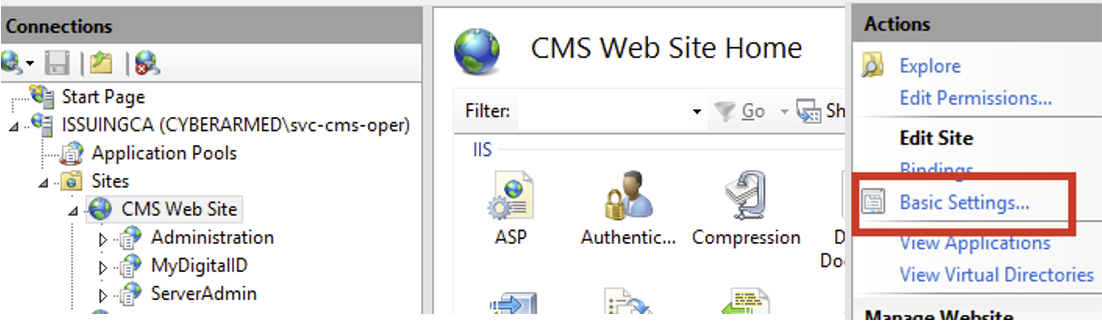
Select the CMS website and click "Basic Settings.." in the actions tab. |
|
|
3 |
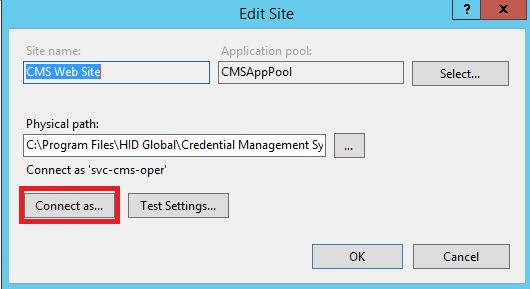
Click "connect as..."
|
|
|
4 |
Click "Set specific user" Input the correct credentials. |
|
|
5 |
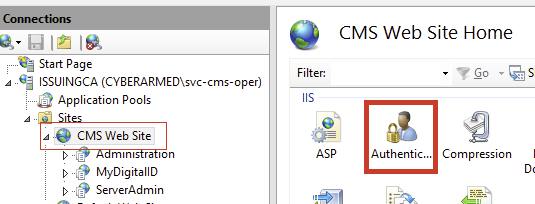
Next, select the CMS website and from the features view click "Authentication". |
|
|
6 |
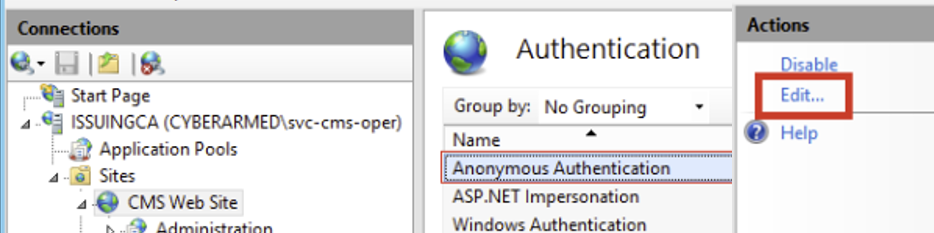
Select the "Anonymous Authentication" and Click "edit". |
|
|
7 |
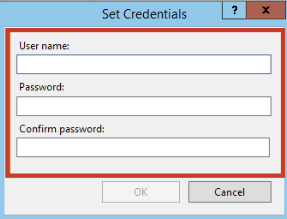
Click "Set specific user" Insert the correct credentials and click "OK". |
|
|
8 |
Repeat steps 6-8 for each of the applications. |
.PNG?cb=ef0c7a23df6b35542cf6385312889a35)
|
|
9 |
Restart the CMS server. |
|